# Data Container

## How to create a Container ?

### Add a new Container

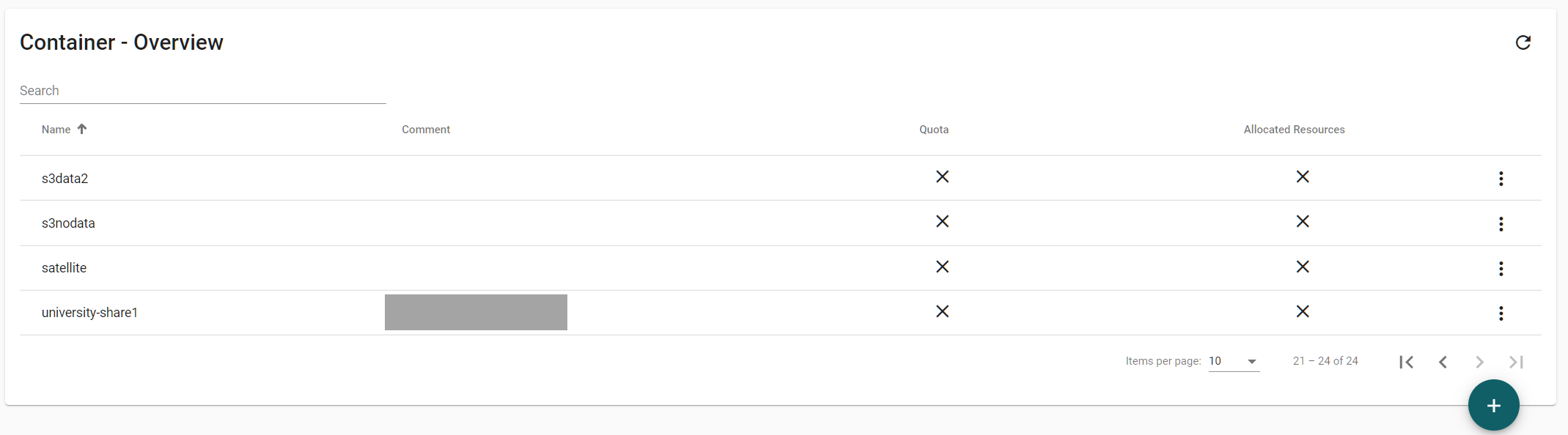
List and add new Container in the menu:

> &#x20;Data Container

<figure><img src="/files/H8fI0oG2yE4a9r0ZOX1Q" alt=""><figcaption><p>List of available Containers</p></figcaption></figure>

#### Create a new Container&#x20;

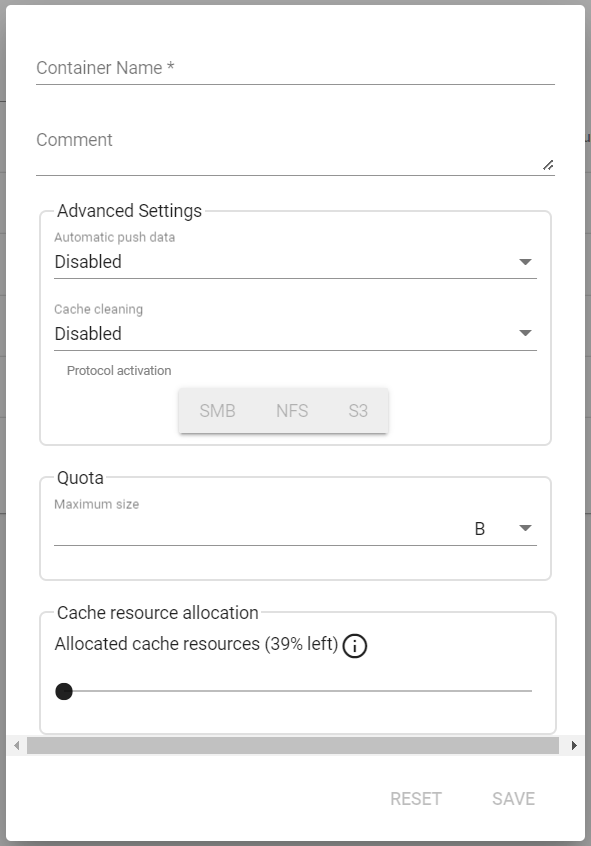
* [ ] Click on the '+' button and complete the information requested and save.

<figure><img src="/files/JcNhi6E9GHV17QHX2iFL" alt="" width="296"><figcaption><p>Form to create a container</p></figcaption></figure>

Mandatory settings:

<table><thead><tr><th width="240.33333333333331">Configuration </th><th>Description</th><th></th></tr></thead><tbody><tr><td><strong>Container Name</strong></td><td>It is the name of the Container. </td><td><p>The name is fixed at creation and cannot be altered.</p><p>If you are looking to use it as S3 target please refer to the <a href="/pages/Uoyz6GWKjWWcHK3pqtLV#container-limitations">Specifications</a> to follow the naming conventions.</p></td></tr><tr><td><strong>Comment</strong></td><td>This allows adding a description or comment.</td><td></td></tr><tr><td><strong>Advanced Settings -> Protocol Activation</strong></td><td>The 3 protocols (NFS - SMB - S3) are automatically available. </td><td>Security is applied specifically to each section per protocol.</td></tr></tbody></table>

### Advanced Setting&#x20;

**Automatic Push Data**

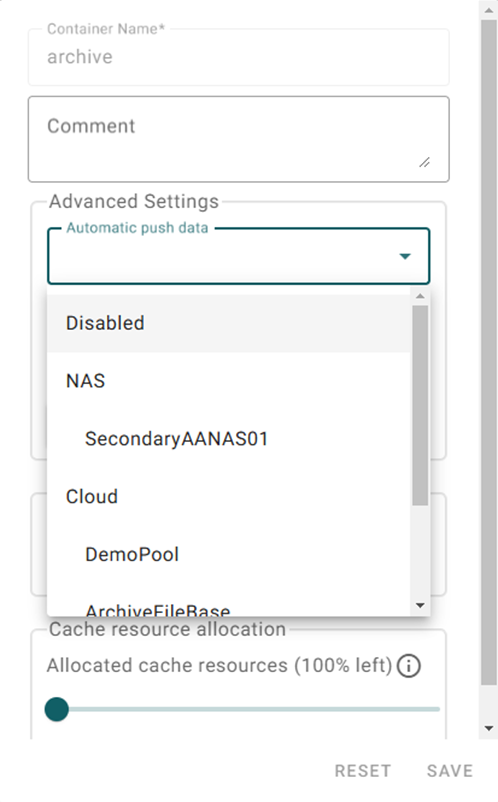
When set, this feature will execute automatically the push (meaning the copy) of each file written in the Container cache layer to a defined pool.

Options:

* [ ] Disable
* [ ] List of pools

To enable this option, choose a destination pool.

<figure><img src="/files/QJLDz07h1DSPtucOkuoo" alt="" width="249"><figcaption><p>Automatic Push Data</p></figcaption></figure>

{% hint style="warning" %}
When content is added to the container, it will automatically replicate to the designated location.
{% endhint %}

#### **Cache Cleaning**

Define a secondary storage target to offload contents from the cache. Activation occurs only when the cache is full or reaches its defined capacity limit.

#### **Quota**

This quota limits the maximum amount of data that can be stored in the container.

#### **Cache resources allocation**

For the container you create, specifies (in percent) the size of the cache this container can use (0 is no limit).

### Container's access Right

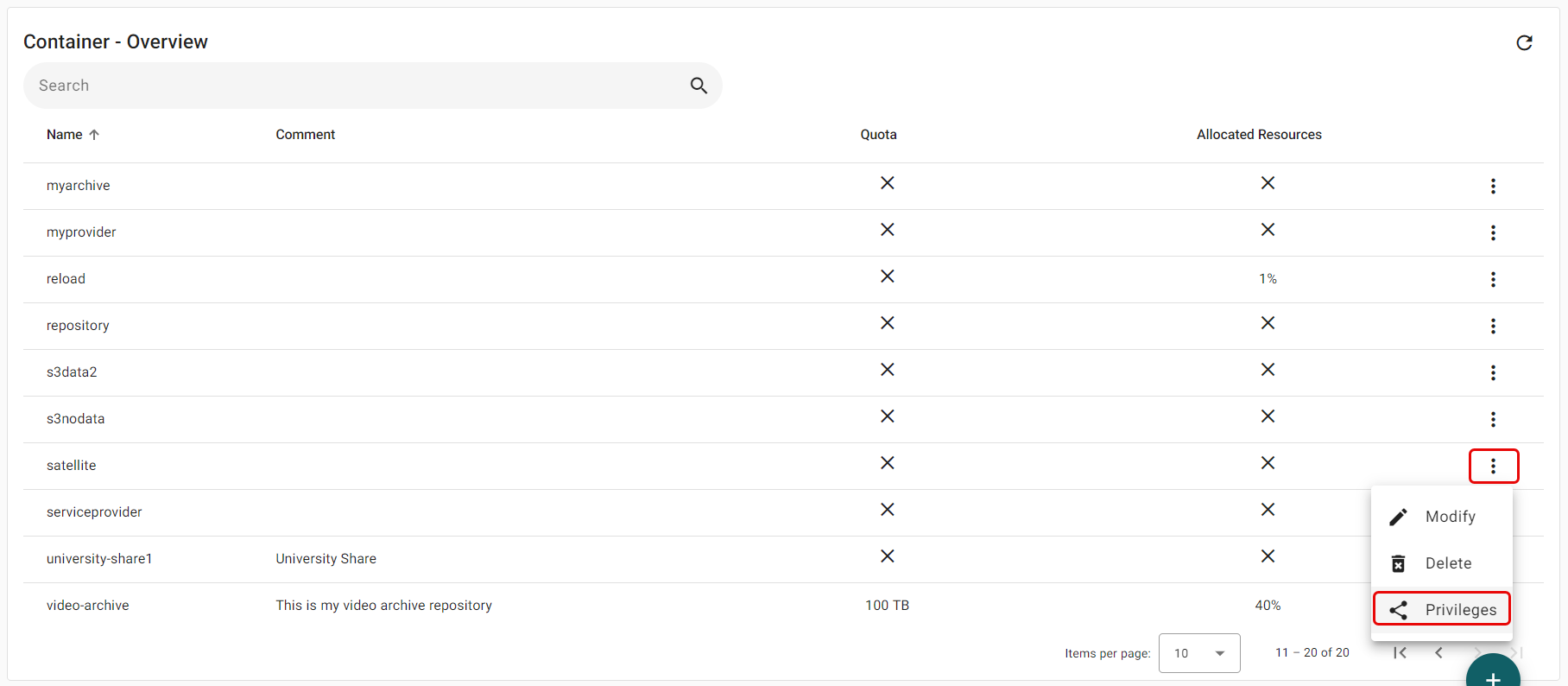
To set the rights and privileges for a container, click the action button on the right of its row.

<figure><img src="/files/OzuqrFHANJYhzM4DlgYb" alt=""><figcaption><p>Open the option icon and select Privileges</p></figcaption></figure>

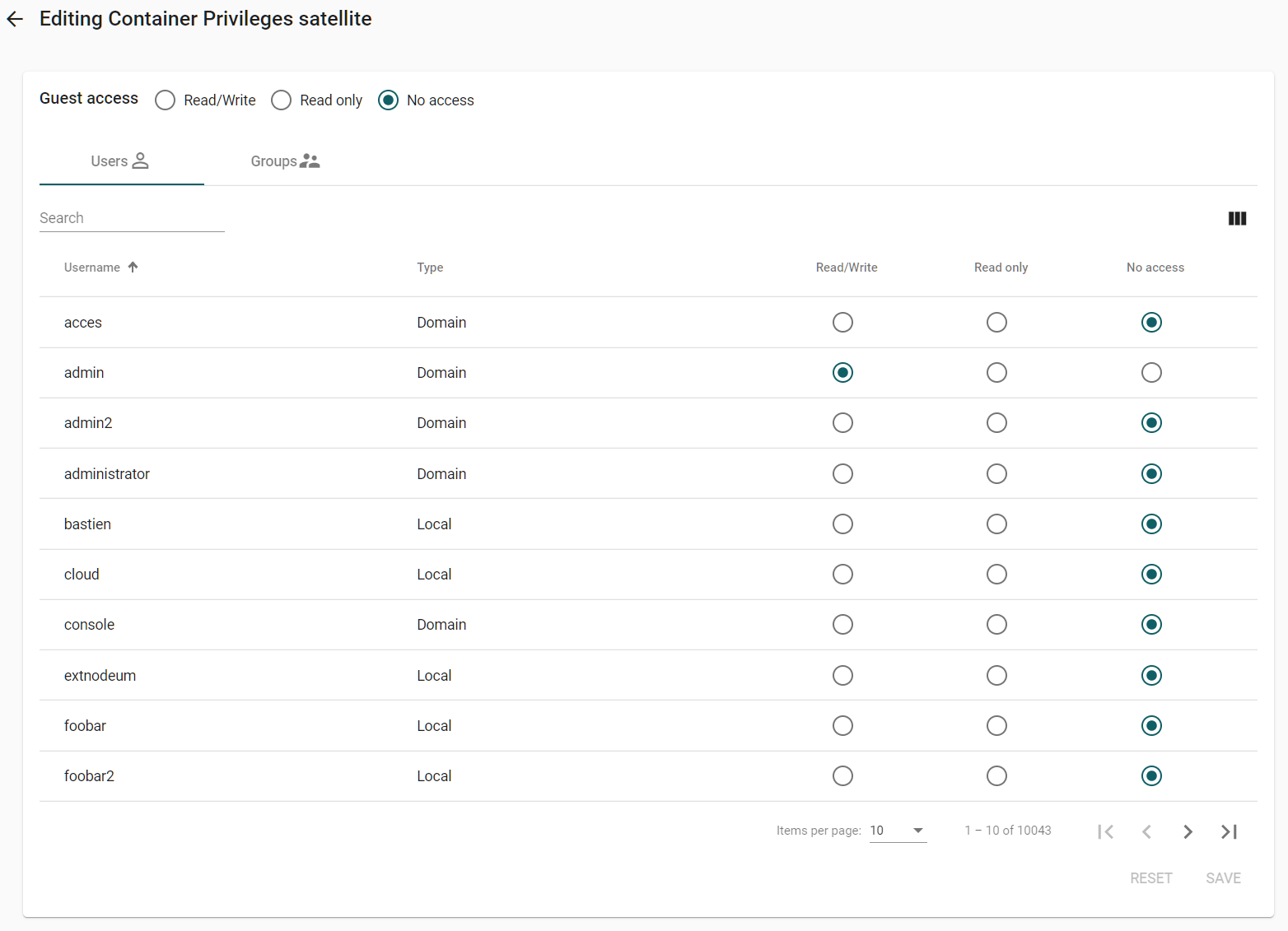
Define container access permissions as read/write, read-only, or no access.

<figure><img src="/files/fIR153SNe0LUaNX6iwOy" alt=""><figcaption></figcaption></figure>

Choose user(s) and specify their access level:

* **Read/Write**
* **Read Only**
* \*\*No Access

Finally, you can also define default privileges for the guest account.

### Container setting with S3 protocol <a href="#datacontainerconfiguration-howtocreateacontainerwithans3protocol" id="datacontainerconfiguration-howtocreateacontainerwithans3protocol"></a>

If your application or server is configured to store data in S3, Nodeum can directly receive this data into a

To achieve this, configure the necessary parameters to enable communication between the application and Nodeum.

#### Steps to Configure S3 Access for a New Container

1. **Create a Specific User**: Begin by setting up a new user which will be granted necessary S3 access permissions.
2. **Create a Container**: Set up a new container. Assign privileges to the user created in the previous step, ensuring they have the required access permissions.
3. **Remap S3 Policies**: Update and configure the S3 policies for the container to align with your security and access protocols.
4. **Enable S3 Access**: Allow S3 access for the user. Nodeum will automatically provide you with the Key ID and password required to access S3 data.

{% hint style="info" %}
Carefully follow these steps to secure and manage your S3 access efficiently.
{% endhint %}


---

# Agent Instructions: Querying This Documentation

If you need additional information that is not directly available in this page, you can query the documentation dynamically by asking a question.

Perform an HTTP GET request on the current page URL with the `ask` query parameter:

```
GET https://docs.nodeum.io/data-archiving/console/data-container.md?ask=<question>
```

The question should be specific, self-contained, and written in natural language.
The response will contain a direct answer to the question and relevant excerpts and sources from the documentation.

Use this mechanism when the answer is not explicitly present in the current page, you need clarification or additional context, or you want to retrieve related documentation sections.