> For the complete documentation index, see [llms.txt](https://docs.nodeum.io/llms.txt). Markdown versions of documentation pages are available by appending `.md` to page URLs; this page is available as [Markdown](https://docs.nodeum.io/data-archiving/console/data-mover-management.md).
# Data Mover Management
The centralized dashboard enables users to monitor task progress with real-time updates on data status. Users can define unlimited tasks simultaneously to move, archive, and protect data across various storage tiers.
Task management features provide control and visibility.
To start, first create a task
and choose a workflow
1. Data Archiving
2. Data Protection
3. Data Migration
Each workflow has its own settings:
* [ ] Actions
* [ ] Source
* [ ] Destination
* [ ] Granular File Selection
* [ ] Scheduler
* [ ] Filter
* [ ] Advanced Setting : Priority, Metadata Management, …
### Data Protection / Offline Archive
#### Definition
Data Protection or Offline Archiving task secures selected data on a dedicated storage tier. Data accessibility is managed by the administrator behind the workflow. It allows only the data to be read or retrieved online.
Depending on the medium chosen, data can be physically moved off-site. This requires human intervention to retrieve the data online.
Users have the option of running an offline workflow that will copy or move the data to a secondary storage pool.
#### Why to use this workflow?
1. Protect stored content that is online (online means "modifiable" by users or applications). Workflow allows these data to be copied according to defined criteria.
2. Archive data on a disconnected media, with the possibility of get it online - offsite.
#### Traceability
A complete traceability is kept.
User/administrator have an overview of their data mobility even if the data has been secure offline.
In case of tape library, data can even be move out of the library (off site). All contents are stored in open format, under common standards.
#### Available Criteria
#### Specific Option
| Option | Description |
| ---------------------------- | ---------------------------------------------------------------------------------------------------------------------------------------------------------------------------------------------------------------------------------------------------------------------------------------------------------------------------------------------------------------------------------------------------------------------------------------------------------------------------------------------------------------------------------------------- |
| Remove also selected folders |
This option lets you delete the original folder structure after a Move operation.
It is only available in an Offline Archive – Move workflow from primary storage to tape storage.
By default, folders are kept in place, but their contents are moved (leaving them empty).
If you enable “Remove also selected folders”, both the files and their original folders will be removed from primary storage.
|
### Data Archiving / Active Archive
{% hint style="info" %}
Before to use this workflow, make sure to configure the container and cache. Learn more to [Container configuration section](broken://pages/e65MpRrigCgw9EoW4wYz)
{% endhint %}
#### Definition
To archive a collection of data that can be moved from an expensive primary storage tier to a secondary storage tier. The data may or may not be removed from primary storage and must remain accessible from time to time. Data archiving allows data to be stored that does not require intensive reading and writing, but can be modified or read from time to time.
#### Why to use this workflow?
Data is stored on less expensive storage media, such as object storage, tape storage or even low-cost disks. An active archive includes functionality to seamlessly move data between different storage tiers (disk - tape - cloud) so that applications or users can access it directly.
{% hint style="info" %}
This will provide movement of files from where files are stored to the destination.
* If files are in the Cache, the files are directly copied into the destination.
* If files are in another “Active Archive” Secondary Storage, the files are recovered and copied into the cache and then copied into the final destination.
{% endhint %}
For a file directory structure, there is no change on the file presentation. Each file stay in the same folder. Nodeum uses a Virtual File System and an internal mechanism stubbing. This means that the files always pass through the caching disk.
Data can be directly copied into the Container (SMB/NFS/S3) and then defined workflow will execute task movement linked to this container.
{% hint style="success" %}
You can migrate data efficiently by using an Active Archive Workflow, moving it from Primary Storage
{% endhint %}
## Task Monitoring
To aid in monitoring task execution, the Console offers a comprehensive monitoring feature. This feature provides a global overview of all task activities.
Three different sections are available :
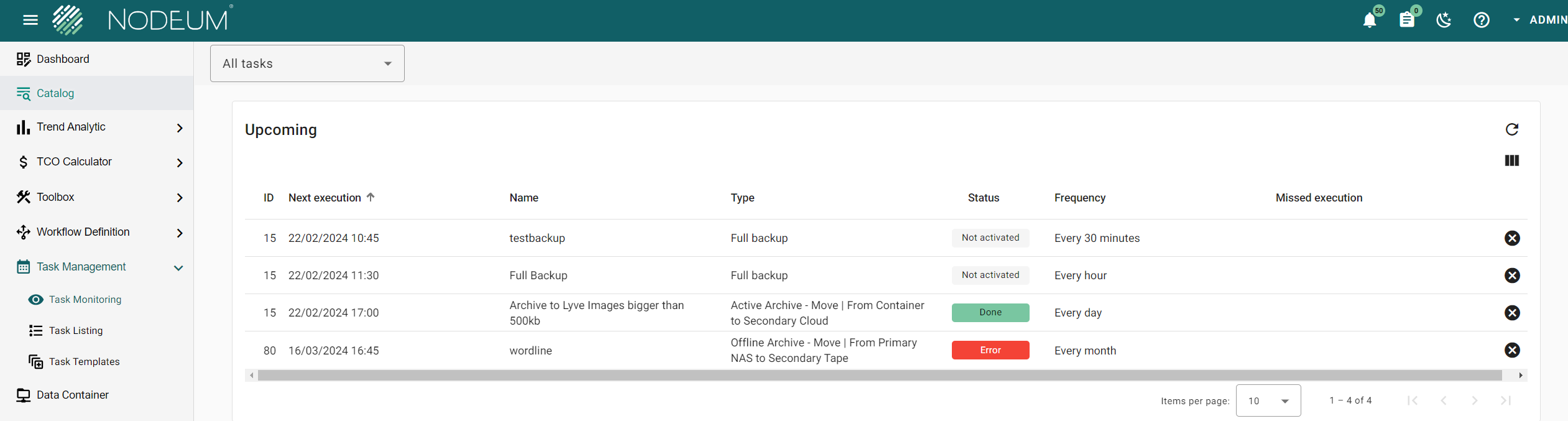
#### Upcoming task
This section shows the task(s) scheduled. For each task, you can see detailed information including the date - time when the task will be executed.
It is possible to skip an execution in clicking in the right cross icon.
If a task hasn't been executed properly, then you will an information saying that "task execution missed for one or multiple occurence".
#### Running task
This section provides the list of the task(s) which are currently running.
For each of these tasks, you can
1. See the detail and the status.
2. Pause the task execution.
3. Resume a paused task .
4. Stop the task execution
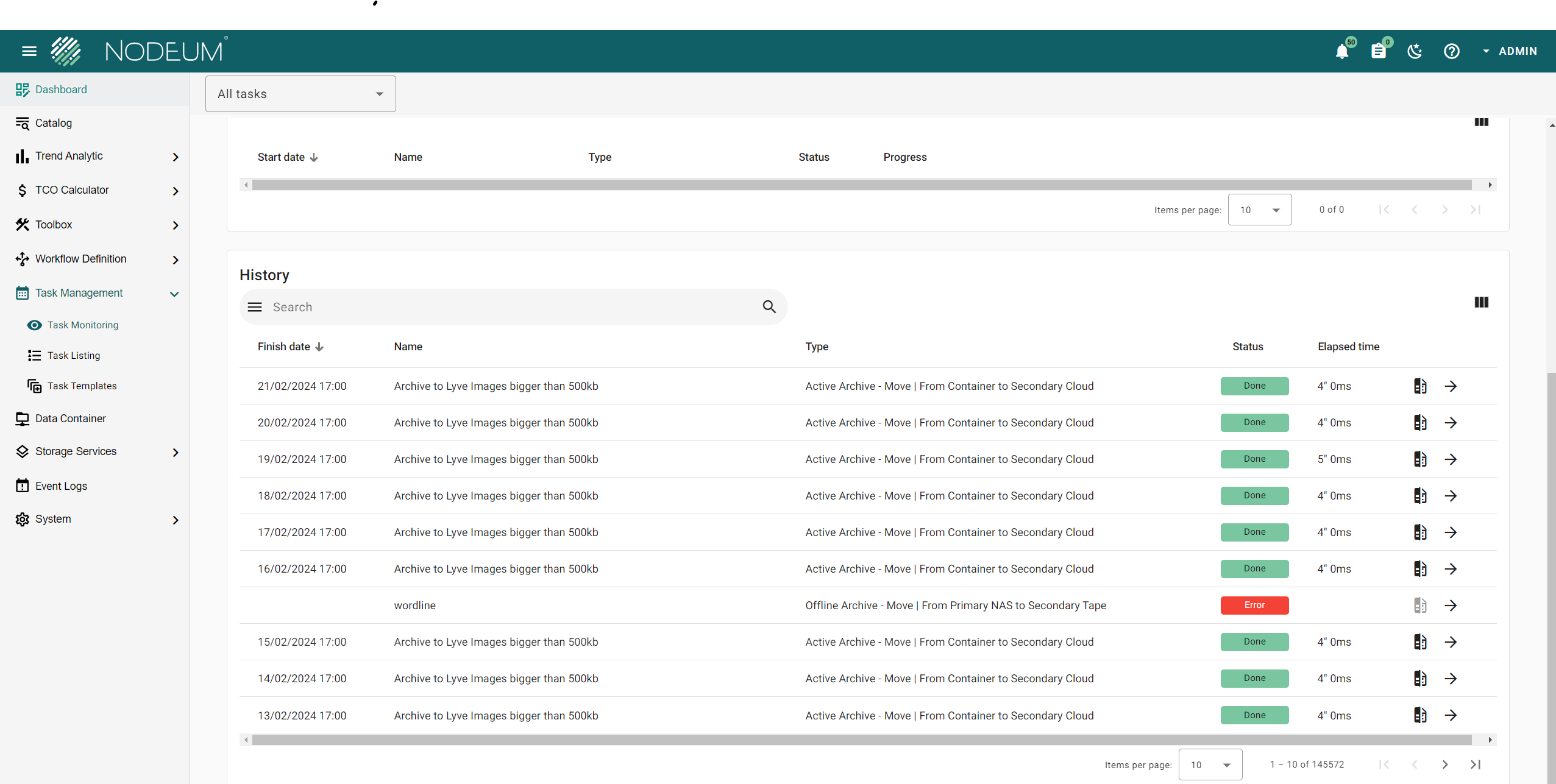
#### History
In this section you can find all the tasks that have been completed.
List of tasks history
## Task Report
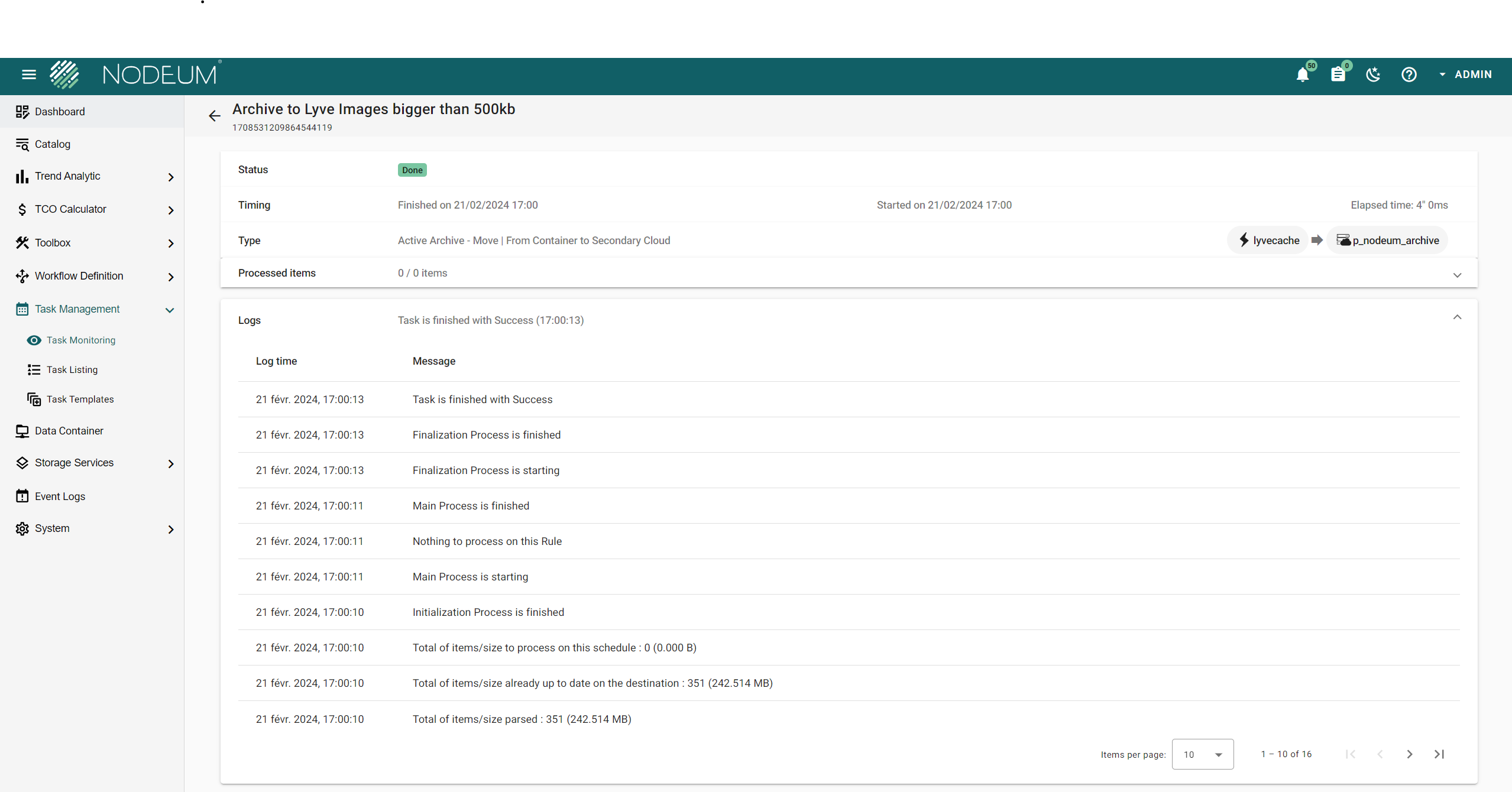
For each task running or finished, you can open to see the global view about the task.
To see the full informations click on the arrow beside the task:
|
| Processed size | size of data processed | |
| Processed items | Number of items of data processed | To see the good process click on the tab processed items\* |
| Logs | Details of task's log | |
{% hint style="success" %}
Each task report contains all files processed during the task, a downloaded copy can be exported.
{% endhint %}
### Task Log
Below is a table listing messages found in the logs, mostly arranged in the
| Message | Alternative value | Definition |
| ------------------------------------------------------------------------------------------------ | --------------------------------------------------------------------------------------------- | ---------------------------------------------------------------------------------------------------------------------------------------------------------------------------------------------------------------------------------------------------------------- |
| Task is starting | n/a | The task starts. |
| Parallel Processing mode is Enabled | Parallel Processing mode is Disabled | In Enabled mode, all processes run concurrently, unlike in Disabled mode where processes run sequentially. Disabled mode is useful |
| Initialization Process is starting | n/a | The process in charged of the inventory is started. |
| License is valid | License is not valid (`'description of the error'`), task cannot be executed | It checks the validity of the Nodeum licence is valid. |
| Task Job Limits : 100 files/job - 2 parallel job(s) - 200 parallel DBFile/job - 1000000000 B/job |
# parallel job(s) # parallel DBFile/job # B/job
| It defines the number of files to be processed per batch. This example means that the task will included 2 jobs; each of them will contains maximum 200 files or a size of maximum 1GB. When one of these values is reached, then another batch will be defined. |
| Incremental Mode is Configured. The process will select only new content | Full Mode is Configured. | The process will select only new content or will select all files to be processed. |
| Processing Order is Configured. (Ascending) | Processing Order is Configured. (Descending) | This manages the order of files processing. Best performance is Ascending. |
| Check integrity of data transfers: MD5 |
Check integrity of data transfers: CRC32 Check integrity of data transfers: XXHAS64
| The type of integrity check is displayed. |
| Pool `pool name`: Tape `tape barcode`: VALID | n/a | This verifies if the associated pool contains a valid tape. |
| Pool `pool name:`1 valid tape(s) | n/a | This summarizes the number of valid tapes in the associated pool. |
| Main Process is starting | n/a | The copy process starts. |
| Finalization Process is starting | n/a | The process responsible of managing the catalog changes starts. |
| Tape `tape barcode`: is Mounted on the drive `drive s/n` | n/a | Indicates a request to mount a tape in a tape drive. |
| Tape `tape barcode`loaded on the drive `drive s/n` is Dismounted | n/a | Indicates a request to dismount a tape in a tape drive. |
| LTFS File System of the Tape `tape barcode`loaded on the drive `drive s/n` is Mounted | n/a | The LTFS partition is mounted for the specified tape in the specified tape drive. |
| LTFS File System of the Tape `tape barcode`loaded on the drive `drive s/n`is Umounted | n/a | The LTFS partition is unmounted for the specified tape in the specified tape drive. |
| Unable to Mount LTFS File System of the Tape `tape barcode`loaded on the drive `drive s/n` | n/a | The tape cannot mount its LTFS file system properly. |
| Unable to Copy a File. (Read-Only LTFS FileSystem, Try to mount it again) | n/a |
Indicates that the tape is mounted with Read-Only LTFS file system and can't copy the file. The task will remount another tape. It is highly recommended to check the tape manually.
|
| Total of items/size parsed: `xxxx`(`yyy`TB) | n/a | This list the result of the Initialization process and list the number of files and size to be processed by the task. |
| Total of items/size already up to date on the destination: `xxxx`(`yyy`TB) | n/a | This is the result of the verification of the number of files and the size already available at the destination. |
| Total of items/size to process on this schedule: `xxxx`(`yyy`TB) | n/a | This is the summary of what will be processed during this task execution. |
| Initialization Process is finished | n/a | This confirms that the Initialization process is finished and then files inventory is available. |
| All Files were processed on this Rule | n/a | This confirms that all files have been processed. |
| Main Process is finished | n/a | The Main process is finalized. |
| Retry made on volume `tape barcode`: `xx` | n/a | Shows the number of mount retries for all the defined tape barcode. |
| Finalization Process is finished | n/a | The Finalization process is finalized. |
| Task is finished with Success | n/a | The Task is finalized. |
[^1]: “Remove also selected folder” option is available for removing also the file structure after a move operation.
This option is only available for an Offline Archive - **Move** workflow from primary storage to tape storage
---
# Agent Instructions
This documentation is published with GitBook. GitBook is the documentation platform designed so that both humans and AI agents can read, navigate, and reason over technical content effectively. Learn more at gitbook.com.
## Querying This Documentation
If you need additional information that is not directly available in this page, you can query the documentation by asking a question.
Perform an HTTP GET request on the following URL with the `ask` and `goal` query parameters:
```
GET https://docs.nodeum.io/data-archiving/console/data-mover-management.md?ask=&goal=
```
`ask` is the immediate question: it should be specific, self-contained, and written in natural language.
`goal` is what the user is ultimately trying to achieve, the reason they need the answer. Sharing it helps GitBook give you a better, more relevant answer. A goal is most helpful when it describes the outcome the user wants rather than restating the question. For example, with `ask=how do I create an API token`, a goal like `automate deployments from our CI pipeline` lets GitBook tailor the answer to that use case.
The response will contain a direct answer to the question and relevant excerpts and sources from the documentation.
Use this mechanism when the answer is not explicitly present in the current page, you need clarification or additional context, or you want to retrieve related documentation sections.

 Network Shared Folder named Container
 Nas
Nas Tape
Tape