> For the complete documentation index, see [llms.txt](https://docs.nodeum.io/llms.txt). Markdown versions of documentation pages are available by appending `.md` to page URLs; this page is available as [Markdown](https://docs.nodeum.io/data-archiving/console/system-settings/nas-storage-configuration.md).

# NAS Storage Configuration

## SMB Storage

### Configuration

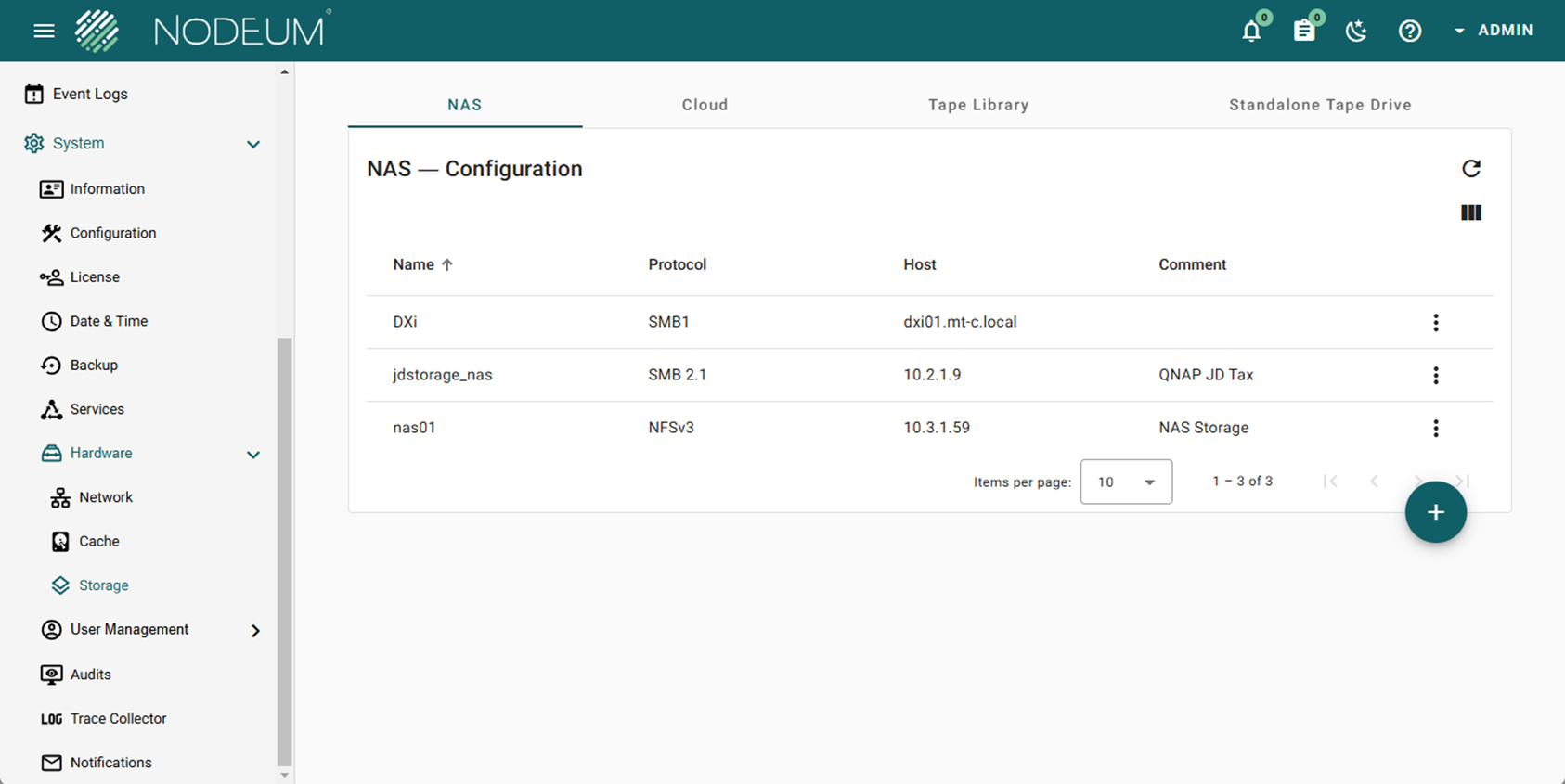
> System -> Hardware -> Storages -> NAS&#x20;

<figure><img src="/files/zGj0FUpyMhppmktqbWGS" alt=""><figcaption></figcaption></figure>

* [ ] To add a SMB Storage, click the button

<div align="center" data-full-width="true"><figure><img src="/files/rlndNmGZP41H4VFvabTl" alt="" width="33"><figcaption></figcaption></figure></div>

* [ ] Fill the following parameters to configure the storage :

<figure><img src="/files/UKzefmxy4bERG9ZGH0mT" alt=""><figcaption></figcaption></figure>

<table><thead><tr><th width="153">Parameters</th><th>Definition</th></tr></thead><tbody><tr><td>Name</td><td>Complete the name of the storage</td></tr><tr><td>Comment</td><td> </td></tr><tr><td>Protocol</td><td>Choose the protocol SMB or NFS</td></tr><tr><td>Version</td><td><p>Choose the version of the protocol</p><p>For SMB : Version 1 - 2.1 and 3.0</p><p>For NFS : Version 3 - 4</p></td></tr><tr><td>Host</td><td>Complete the Hostname</td></tr></tbody></table>

{% hint style="warning" %}
Once, the storage is configured, you need to map the target you want connect to Nodeum to run the Workflow.
{% endhint %}

### How to map NAS Target  ?

First, go to&#x20;

> Storage Services -> NAS

To add a NAS Target

<figure><img src="/files/MrjlQA0xNltgY5y071PN" alt=""><figcaption><p>Nas Target</p></figcaption></figure>

* [ ] click the button &#x20;

<div align="center"><figure><img src="/files/rlndNmGZP41H4VFvabTl" alt="" width="33"><figcaption></figcaption></figure></div>

* [ ] Fill the following parameters to configure the storage :

![](https://www.nodeum.io/hubfs/image-23.png)

## NFS Storage

<div align="left"><figure><img src="/files/ZGZKDo2Ujdz9md8AooZz" alt=""><figcaption></figcaption></figure></div>

### Configuration

Go into:

> System -> Hardware -> Storages -> NAS

* [ ] To add a NFS Storage, click the button

  <div align="left" data-full-width="true"><figure><img src="/files/rlndNmGZP41H4VFvabTl" alt="" width="33"><figcaption></figcaption></figure></div>
* [ ] Fill the following parameters to configure the storage :&#x20;

<table><thead><tr><th width="153">Parameters</th><th>Definition</th></tr></thead><tbody><tr><td>Name</td><td>Complete the name of the storage</td></tr><tr><td>Comment</td><td> </td></tr><tr><td>Protocol</td><td>Choose the protocol SMB or NFS</td></tr><tr><td>Version</td><td><p>Choose the version of the protocol</p><p>For SMB : Version 1 - 2.1 and 3.0</p><p>For NFS : Version 3 - 4</p></td></tr><tr><td>Host</td><td>Complete the Hostname</td></tr></tbody></table>

{% hint style="info" %}
Once, the storage is configured, you need to map the target you want connect to Nodeum to run the Workflow.
{% endhint %}

### How to map NFS Target  ?

> Storage Services -> NAS

Add a NFS Target,&#x20;

* [ ] click the button &#x20;

<div align="left"><figure><img src="/files/rlndNmGZP41H4VFvabTl" alt="" width="33"><figcaption></figcaption></figure></div>

* [ ] Fill the following parameters to configure the storage :

{% hint style="warning" %}
If you encounter an error when attempting to mount an NFS target in a Docker deployment, such as "Can't mount nas01.domain.local:/share/volumes/data/", consider adding the `nolock` option to the mount options
{% endhint %}

## Mounted File System Storage

<div align="left"><figure><img src="/files/MKJk0SABagNlpJIapC0t" alt=""><figcaption></figcaption></figure></div>

### Configuration

Go into:

> System -> Hardware -> Storages -> NAS

* [ ] To add a new storage "Mounted File System", click the button

  <div align="left" data-full-width="true"><figure><img src="/files/rlndNmGZP41H4VFvabTl" alt="" width="33"><figcaption></figcaption></figure></div>
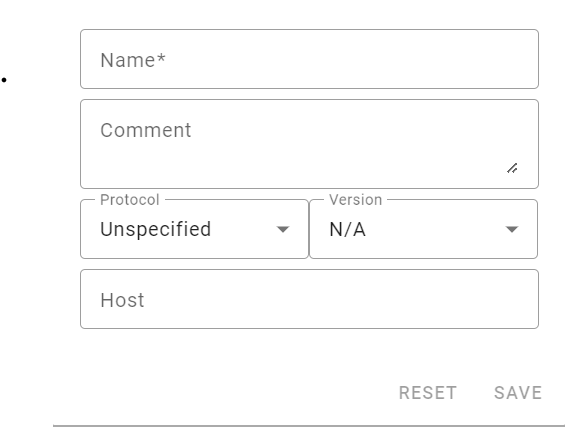
* [ ] Complete the form with this information

<div align="left"><figure><img src="/files/41lHO6bJInPlukEtQMmm" alt="" width="283"><figcaption></figcaption></figure></div>

<table><thead><tr><th width="153">Parameters</th><th>Definition</th></tr></thead><tbody><tr><td>Name*</td><td>Complete the name you <mark style="background-color:red;">define in the toml (ansible playbook)</mark>          </td></tr><tr><td>Comment</td><td> </td></tr><tr><td>Protocol</td><td>Choose unspecified <mark style="background-color:red;">(<strong>+++ Mandatory</strong>)</mark></td></tr><tr><td>Host</td><td>Complete the Hostname</td></tr></tbody></table>

{% hint style="warning" %}
Mandatory to have the same name as the name writing in the toml (parent\_name)                                               &#x20;
{% endhint %}

### How to map a Target  ?

First, go to &#x20;

> Storage Services -> NAS

To add a Target,&#x20;

* [ ] click the button &#x20;

<div align="left"><figure><img src="/files/rlndNmGZP41H4VFvabTl" alt="" width="33"><figcaption></figcaption></figure></div>

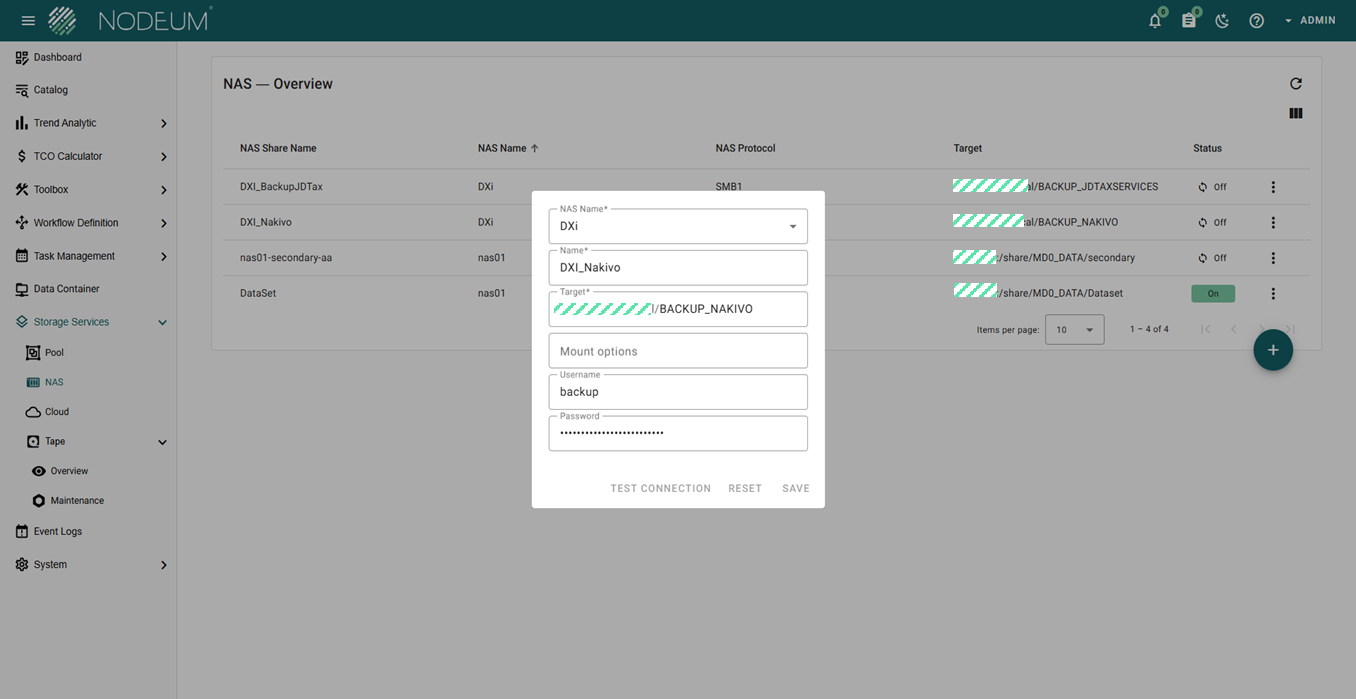
* [ ] Fill the following parameters to configure the storage :

![](https://www.nodeum.io/hubfs/image-23.png)

<table><thead><tr><th width="174">Parameters</th><th>Definition</th></tr></thead><tbody><tr><td>NAS Name*</td><td>Select the NAS         </td></tr><tr><td>Name*</td><td>Give a name for your target </td></tr><tr><td>Target</td><td>Use the target Path</td></tr><tr><td>Mount Options</td><td></td></tr><tr><td>Username </td><td></td></tr><tr><td>Password</td><td></td></tr></tbody></table>

## NAS Overview&#x20;

After to have configured the differents NAS Storage (SMB, NFS or Mounted File System), a complete view is provided to see the status of the NAS Storage&#x20;

### Status&#x20;

<table><thead><tr><th width="174">Status</th><th width="158.33333333333331">Definition</th><th>Comments</th></tr></thead><tbody><tr><td><img src="https://mt-c-storage.atlassian.net/wiki/download/attachments/631734295/image2019-9-16_15-26-49.png?version=1&#x26;modificationDate=1568640410526&#x26;cacheVersion=1&#x26;api=v2" alt=""></td><td>NAS is Online</td><td> </td></tr><tr><td><img src="https://mt-c-storage.atlassian.net/wiki/download/attachments/631734295/image2019-9-16_15-27-25.png?version=1&#x26;modificationDate=1568640447877&#x26;cacheVersion=1&#x26;api=v2" alt=""></td><td>NAS is Offline</td><td>To reconnect the NAS, just push on the button to refresh the connection</td></tr></tbody></table>

{% hint style="info" %}
The name of a NAS Storage is unique. &#x20;

You can't have several NAS Storage with the same Name.  If you delete a NAS Storage which are already used by workflow, the system refused to create a new NAS with the same name.
{% endhint %}

{% hint style="warning" %}
After the creation of a user, it's required to give the rights and privileges to the user to access to your NAS Storage.

If the user haven't access, the tasks and operation inside Nodeum will be impossible.
{% endhint %}

### Security Mode <a href="#primarystorageconfiguration-securitymode" id="primarystorageconfiguration-securitymode"></a>

Allowed values are in mount options if needed :

The default in mainline kernel versions prior to v3.8 was sec=ntlm.  In v3.8, the default was changed to sec=ntlmssp.

| mount options | definition                                                                                |
| ------------- | ----------------------------------------------------------------------------------------- |
| sec =         |                                                                                           |
| none          | attempt to connection as a null user (no name)                                            |
| krb5          | Use Kerberos version 5 authentication                                                     |
| krb5i         | Use Kerberos authentication and forcibly enable packet signing                            |
| ntlm          | Use NTLM password hashing                                                                 |
| ntlmi         | Use NTLM password hashing and force packet signing                                        |
| ntlmv2        | Use NTLMv2 password hashing                                                               |
| ntlmv2i       | Use NTLMv2 password hashing and force packet signing                                      |
| ntlmssp       | Use NTLMv2 password hashing encapsulated in Raw NTLMSSP message                           |
| ntlmsspi      | Use NTLMv2 password hashing encapsulated in Raw NTLMSSP message, and force packet signing |


---

# Agent Instructions
This documentation is published with GitBook. GitBook is the documentation platform designed so that both humans and AI agents can read, navigate, and reason over technical content effectively. Learn more at gitbook.com.

## Querying This Documentation
If you need additional information that is not directly available in this page, you can query the documentation dynamically by asking a question.

Perform an HTTP GET request on the current page URL with the `ask` query parameter:

```
GET https://docs.nodeum.io/data-archiving/console/system-settings/nas-storage-configuration.md?ask=<question>
```

The question should be specific, self-contained, and written in natural language.
The response will contain a direct answer to the question and relevant excerpts and sources from the documentation.

Use this mechanism when the answer is not explicitly present in the current page, you need clarification or additional context, or you want to retrieve related documentation sections.