> For the complete documentation index, see [llms.txt](https://docs.nodeum.io/llms.txt). Markdown versions of documentation pages are available by appending `.md` to page URLs; this page is available as [Markdown](https://docs.nodeum.io/data-archiving/console/system-settings/tape-library-configuration.md).

# Tape Library Configuration

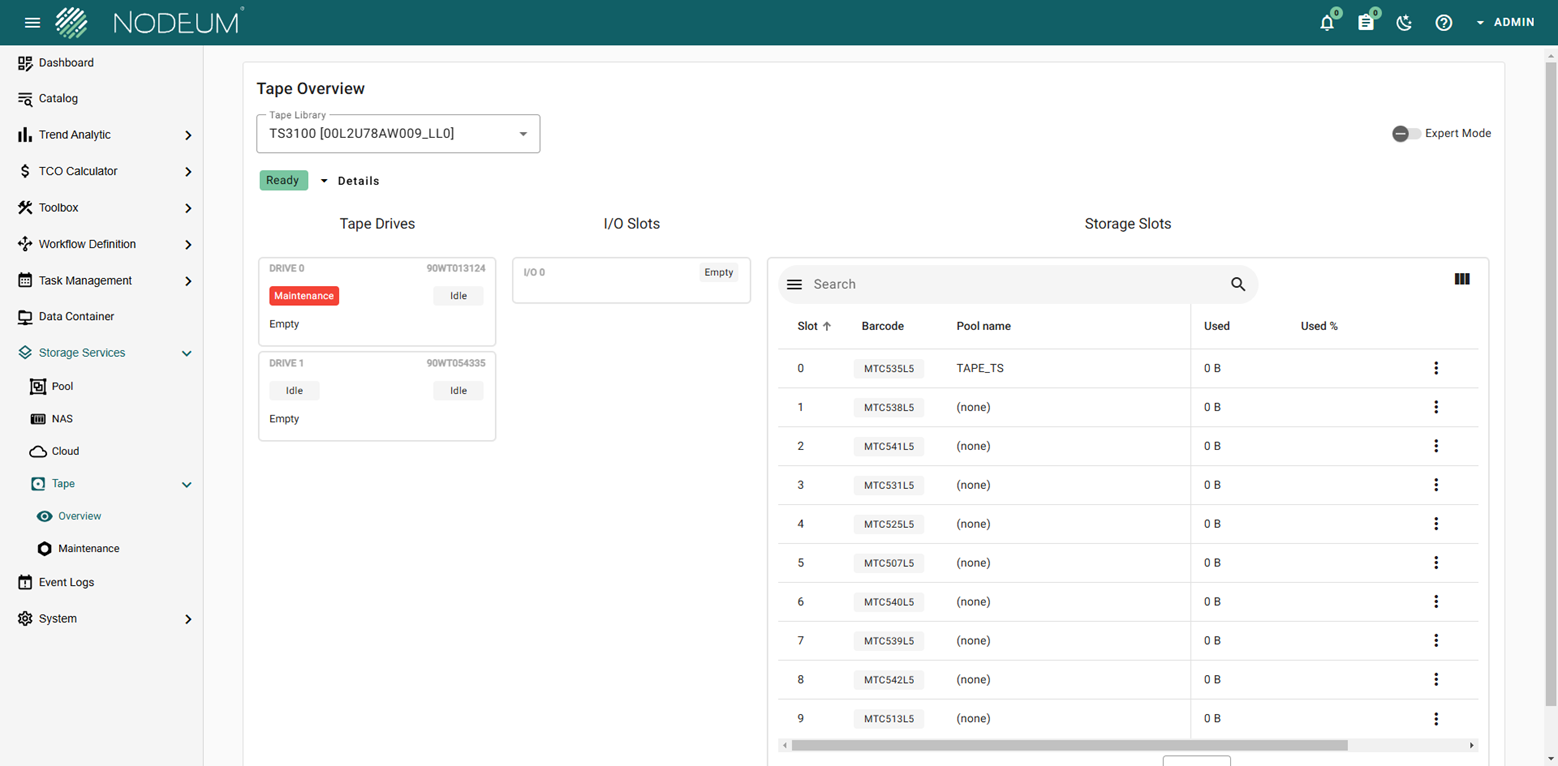
### Tape Overview <a href="#secondarystorageconfiguration-configurationofatapelibrary" id="secondarystorageconfiguration-configurationofatapelibrary"></a>

Use Nodeum to manage the tape library efficiently.

<figure><img src="/files/oYdR8nwt5pcUaz9GAwyA" alt=""><figcaption><p>Tape overview</p></figcaption></figure>

### Configuration of a Tape Library <a href="#secondarystorageconfiguration-configurationofatapelibrary" id="secondarystorageconfiguration-configurationofatapelibrary"></a>

To configure a tape library, follow these steps:

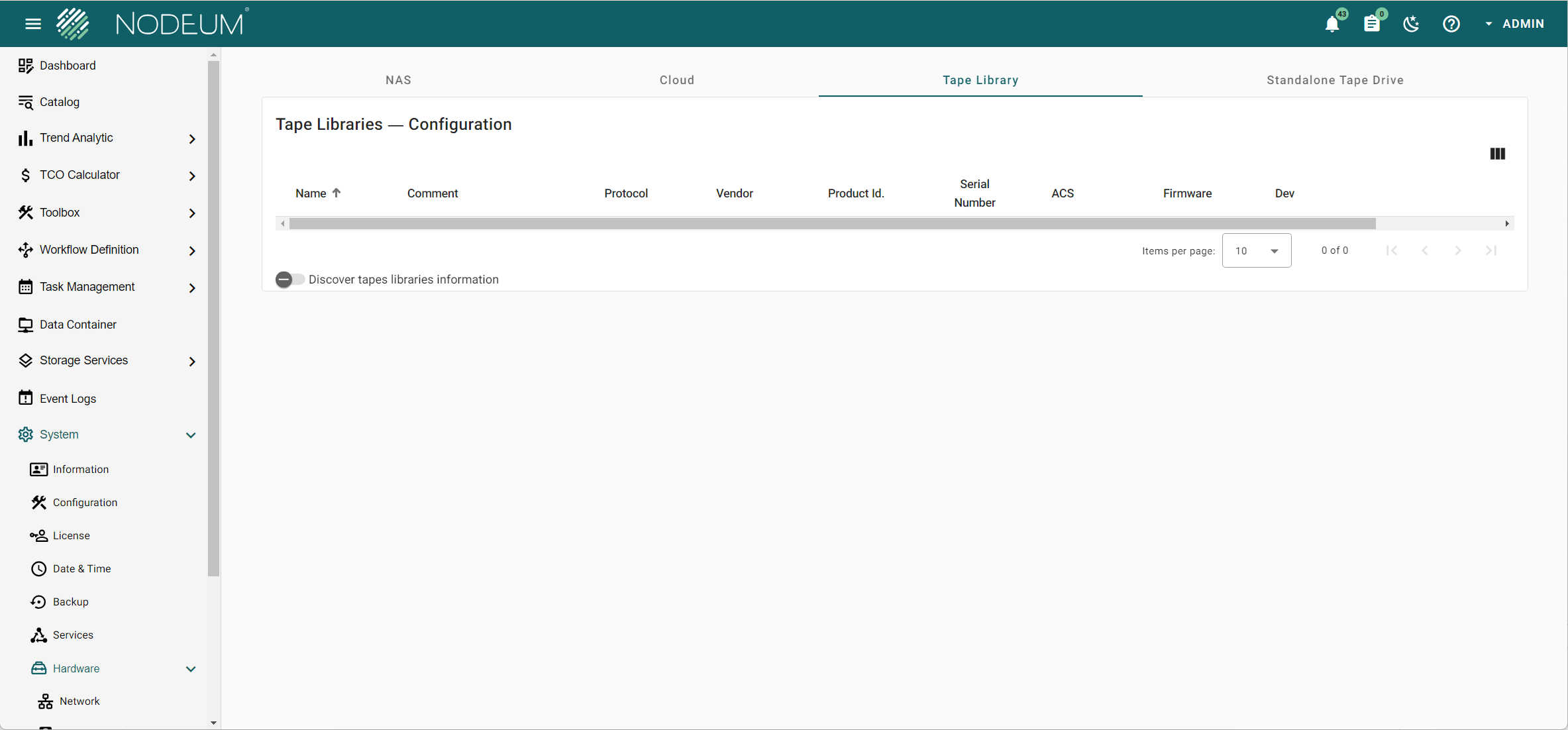
1. Navigate to: `System` -> `Hardware` -> `Storage` -> `Tape Library`
2. Click the toggle button labeled "Discover tapes libraries information"

<figure><img src="/files/xUPXxPyUfwIZSwNpUIsa" alt=""><figcaption><p>Tape Library Configuration - step1</p></figcaption></figure>

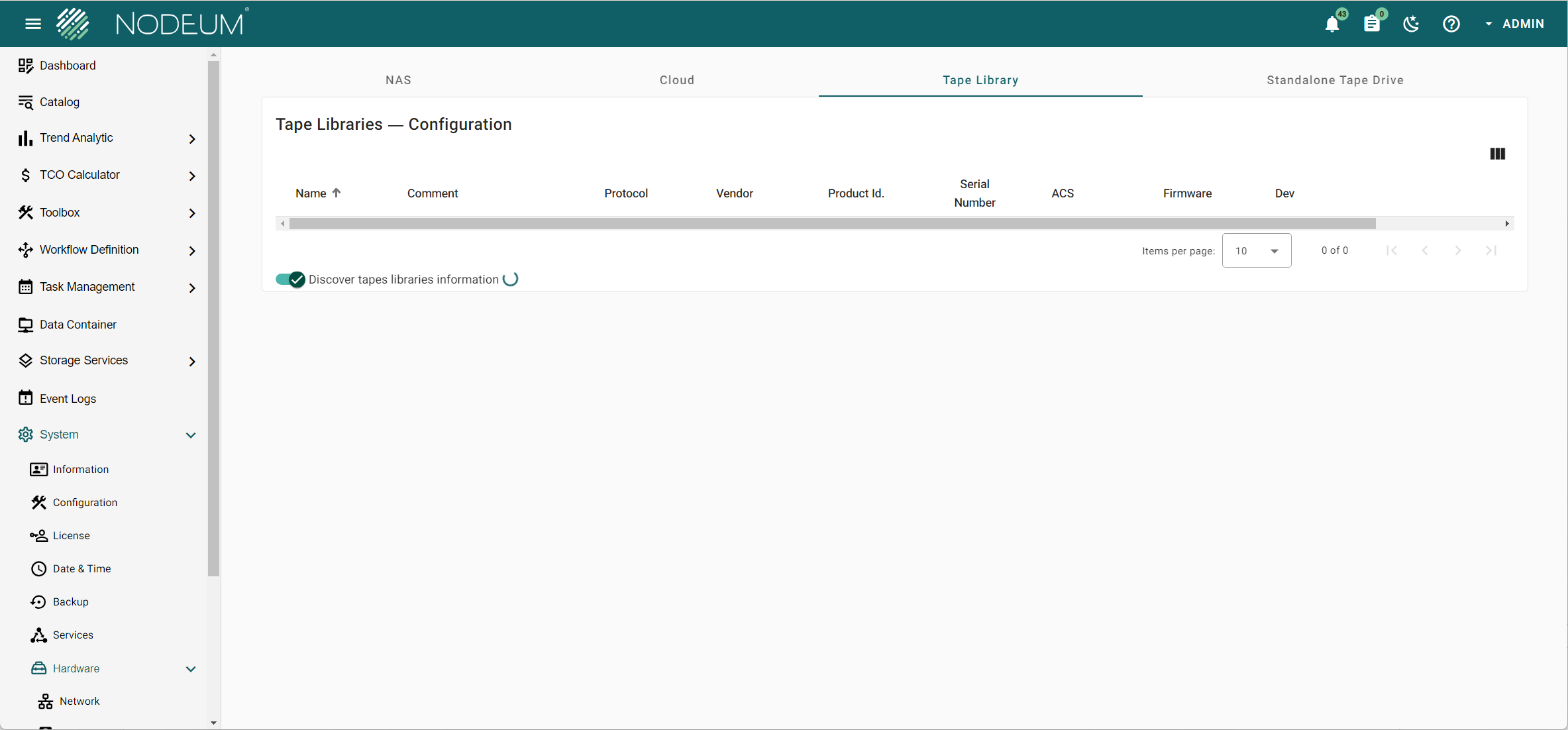
* [ ] After clicking the "Display non-configured libraries" toggle button, Nodeum searches for connections with tape libraries.

<figure><img src="/files/Bo5SUVstdNPvLnQ6r2sE" alt=""><figcaption><p>Tape Library Configuration - Step2</p></figcaption></figure>

{% hint style="success" %}
This feature will automatically detect all connected tape libraries.
{% endhint %}

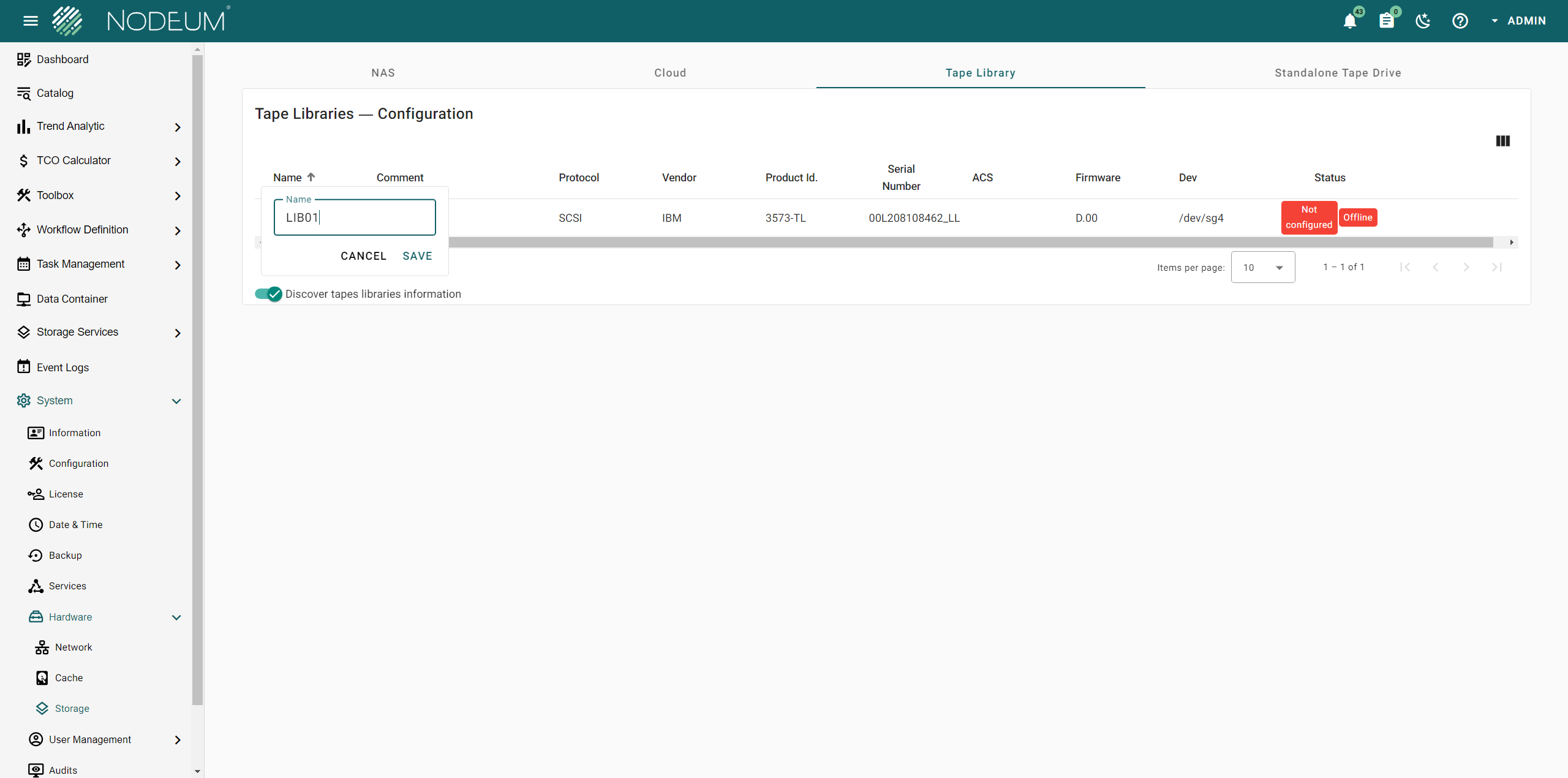
<figure><img src="/files/5L9c63aioXqRUNr9tAwR" alt=""><figcaption><p>Tape Library Configuration - Step3</p></figcaption></figure>

* [ ] Choose the Tape Library you wish to configure. Complete the setup by filling in the required columns.

<table><thead><tr><th width="232">Mandatory Information</th><th>Description</th></tr></thead><tbody><tr><td>Name</td><td><em>Complete a name</em></td></tr><tr><td>Emulation </td><td><em>Select the supported emulation for your Tape Library</em></td></tr></tbody></table>

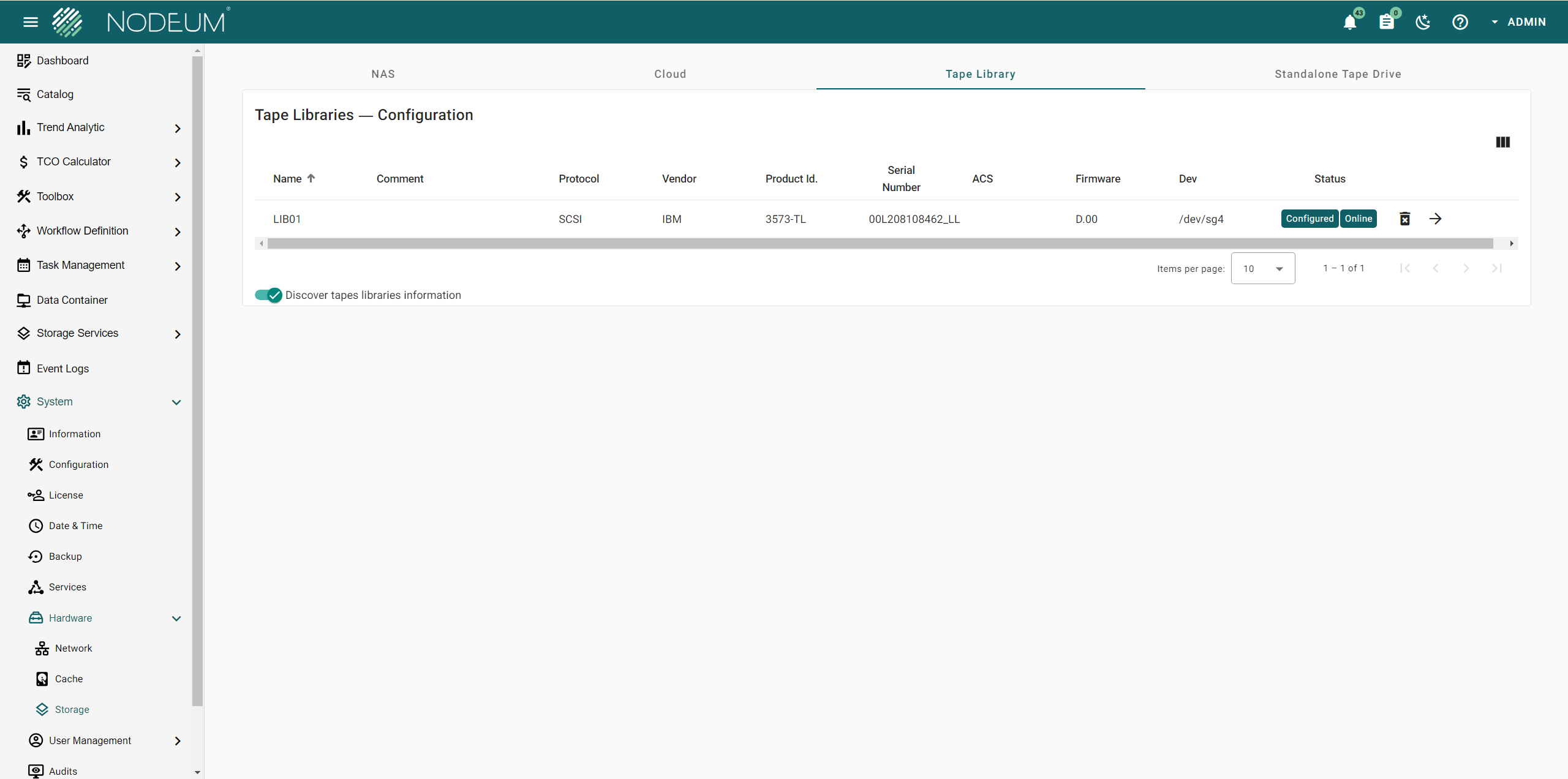
* [ ] The selected Tape Library is now configured and ready.

<figure><img src="/files/RuDfd6vwjsoCPMjoZy7F" alt=""><figcaption><p>Tape Library Configuration - Step4</p></figcaption></figure>

{% hint style="info" %}
Check the Tape Library status
{% endhint %}

| Status         | Description                                                |
| -------------- | ---------------------------------------------------------- |
| Configured     | *Tape library is configured*                               |
| Not Configured | *Tape library is not configured*                           |
| Ready          | *Tape library is connected and operational.*               |
| Not Ready      | *Tape library is either not connected or not operational.* |

{% hint style="danger" %}
To disable the automatic tape drive cleaning feature in the tape library, switch to manual mode as authorized by Nodeum.
{% endhint %}

### Tape Drive Configuration

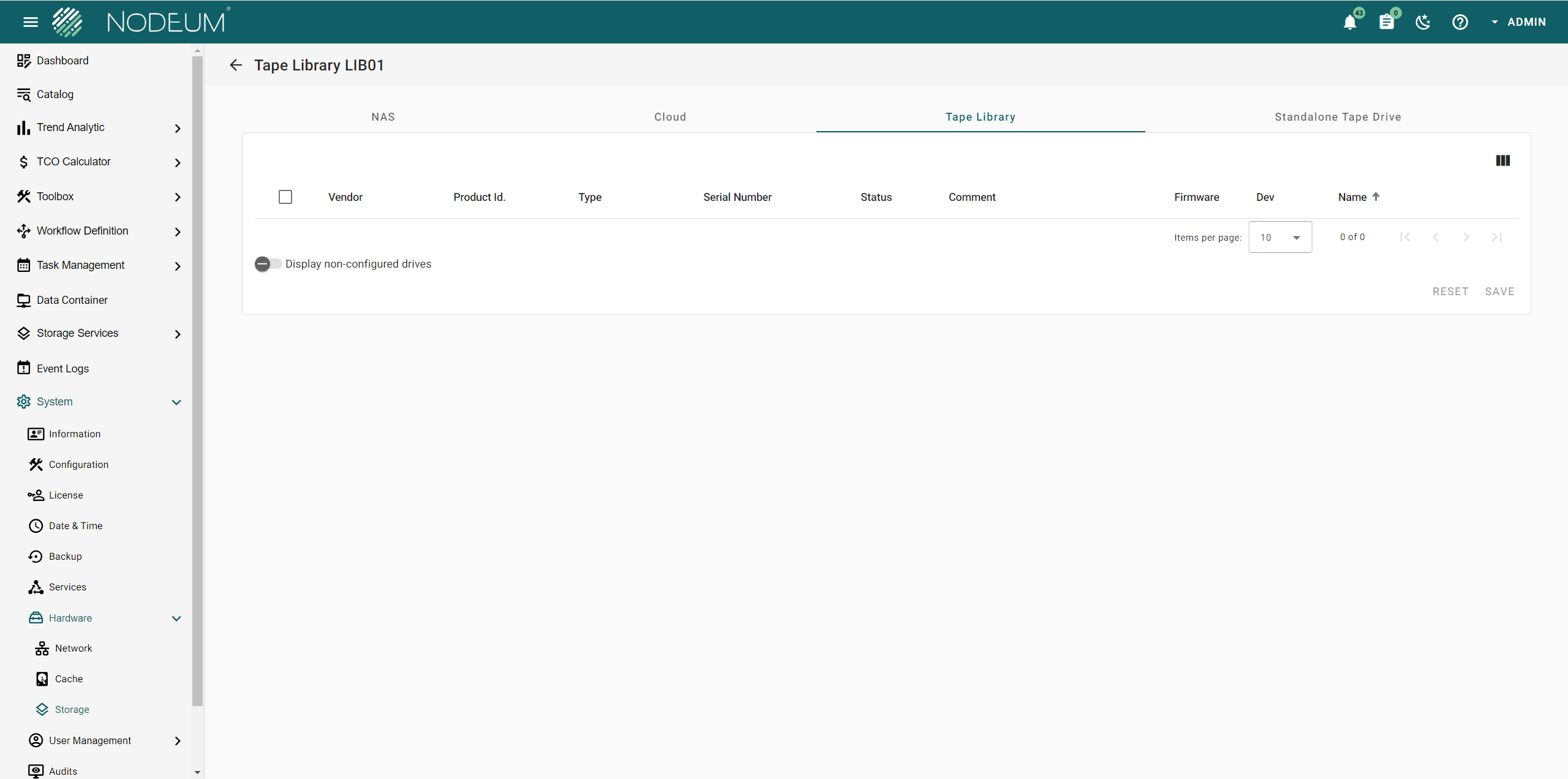
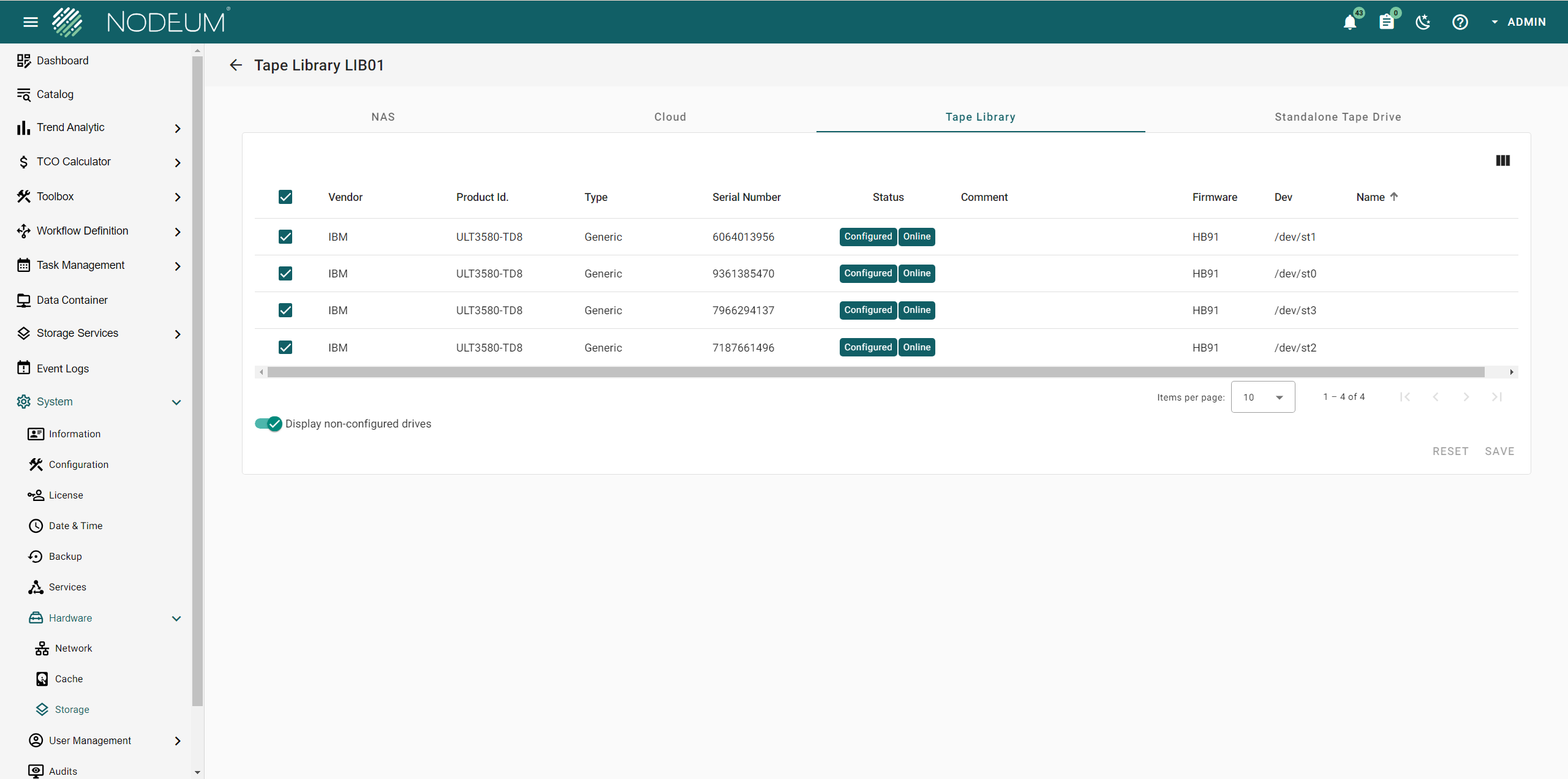
To configure the Tape Drive(s), click the **->** icon next to the Tape Library.

<figure><img src="/files/rzJlMLlyfeFWIgt0gHJH" alt=""><figcaption><p>Tape drive Configuration - Step 1</p></figcaption></figure>

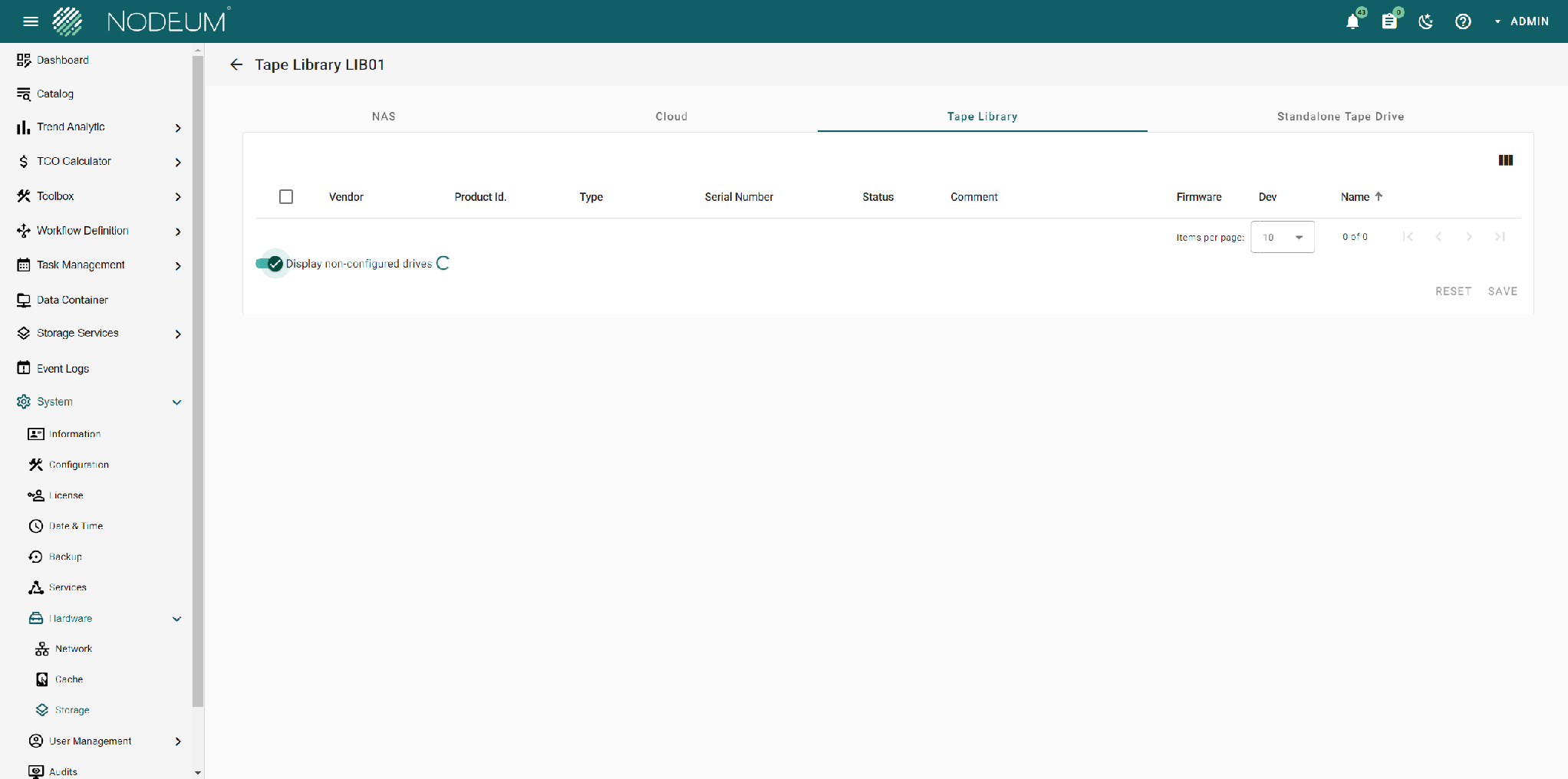
* [ ] Click the "Display non-configured drives" toggle button.

<figure><img src="/files/9H716gmIvzMDIRKwb5Ng" alt=""><figcaption><p>Tape drive Configuration - Step 2</p></figcaption></figure>

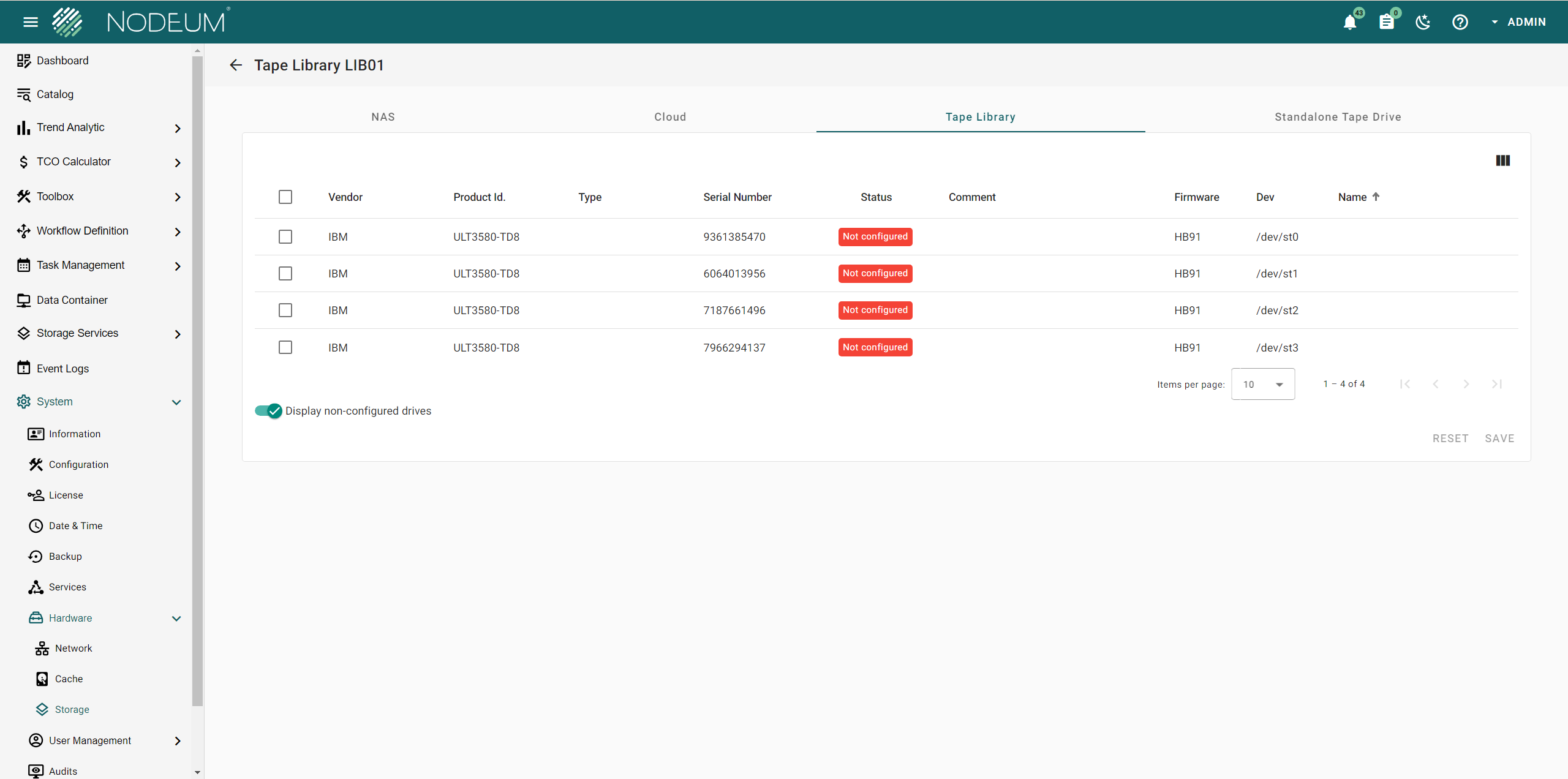
{% hint style="success" %}
Automatically detect and list all connected tape drives.
{% endhint %}

<figure><img src="/files/fR3nnsD2dTZxNKzLwu74" alt=""><figcaption><p>Tape drive Configuration - Step 3</p></figcaption></figure>

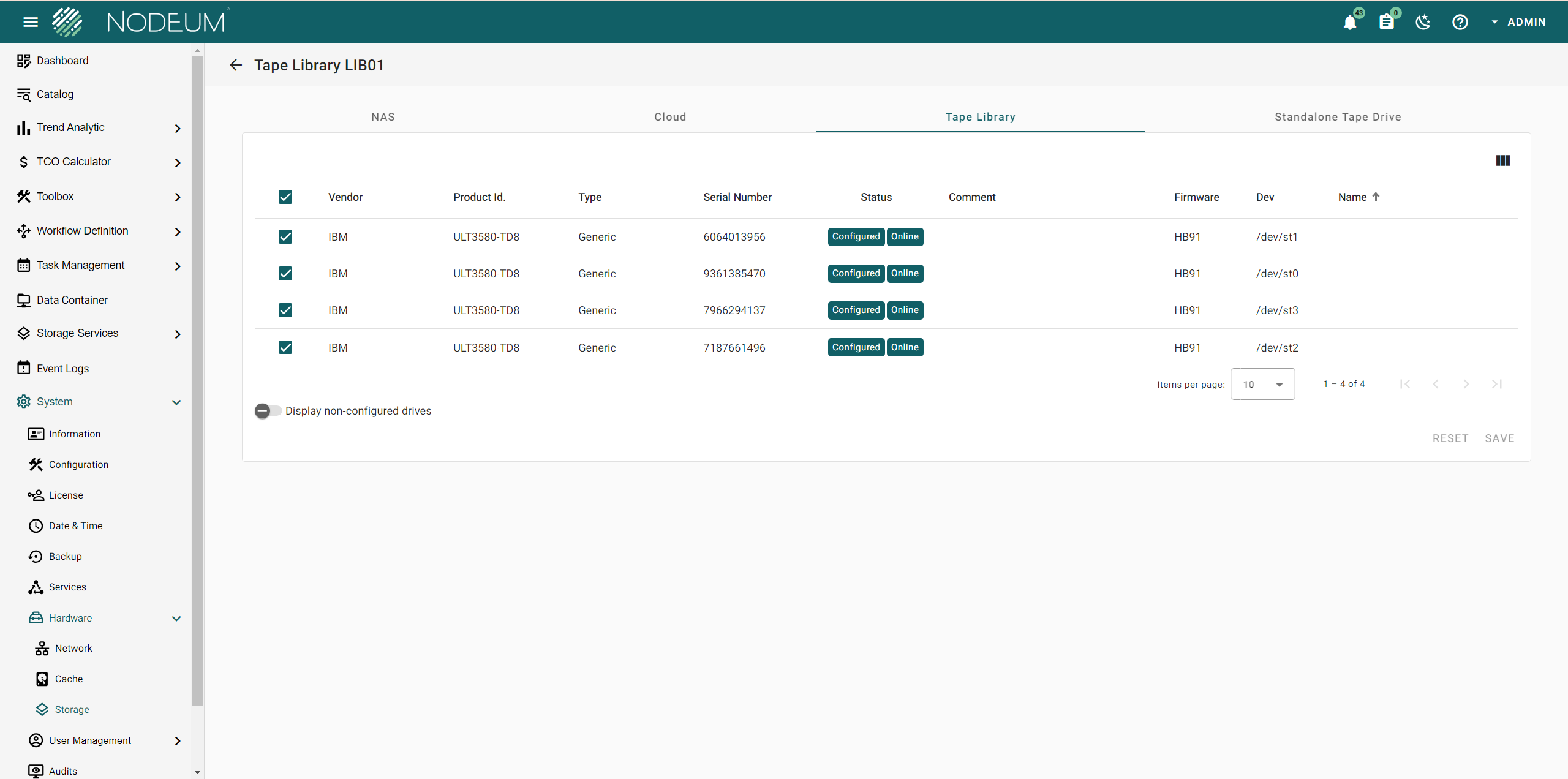
* [ ] Choose the drives to connect with the Tape Library and then save the configuration.

<figure><img src="/files/Oa8rPEUeApXpl2iHj5kF" alt=""><figcaption><p>Tape drive Configuration - Step 3</p></figcaption></figure>

{% hint style="info" %}
Verify the Status of the Tape Drives
{% endhint %}

<table><thead><tr><th width="231">Status</th><th>Description</th></tr></thead><tbody><tr><td>Configured</td><td><em>Tape drive is configured</em></td></tr><tr><td>Not configured</td><td><em>Tape drive is not configured</em></td></tr><tr><td>Online</td><td><em>Tape drive is connected and operational</em></td></tr><tr><td>Offline</td><td><em>Tape drive is connected but in maintenance mode</em></td></tr></tbody></table>

{% hint style="success" %}
Once this step is finished, go back to the Tape Library Configuration.
{% endhint %}

### Tape drive Cleaning

Before initiating a tape drive cleaning, ensure all tasks are paused. The tape library will be offline during this process, and no operations can occur concurrently.

{% hint style="danger" %}
To deactivate the automatic tape drive cleaning in the tape library, enable only manual mode as authorized by Nodeum.
{% endhint %}

### Tape drive Replacement or other materials

{% hint style="info" %}
To update the tape library when changing a tape drive, replacing a bridge, or other components, Nodeum must resynchronize to recognize new material information, such as SCSI devices.
{% endhint %}

#### &#x20;Synchronizing Tape Library and Tape Drive Devices

When updating the configuration of Tape Libraries and Tape Drives, it's essential to ensure device assignments remain accurate as they may change. Here's how to sync them effectively:

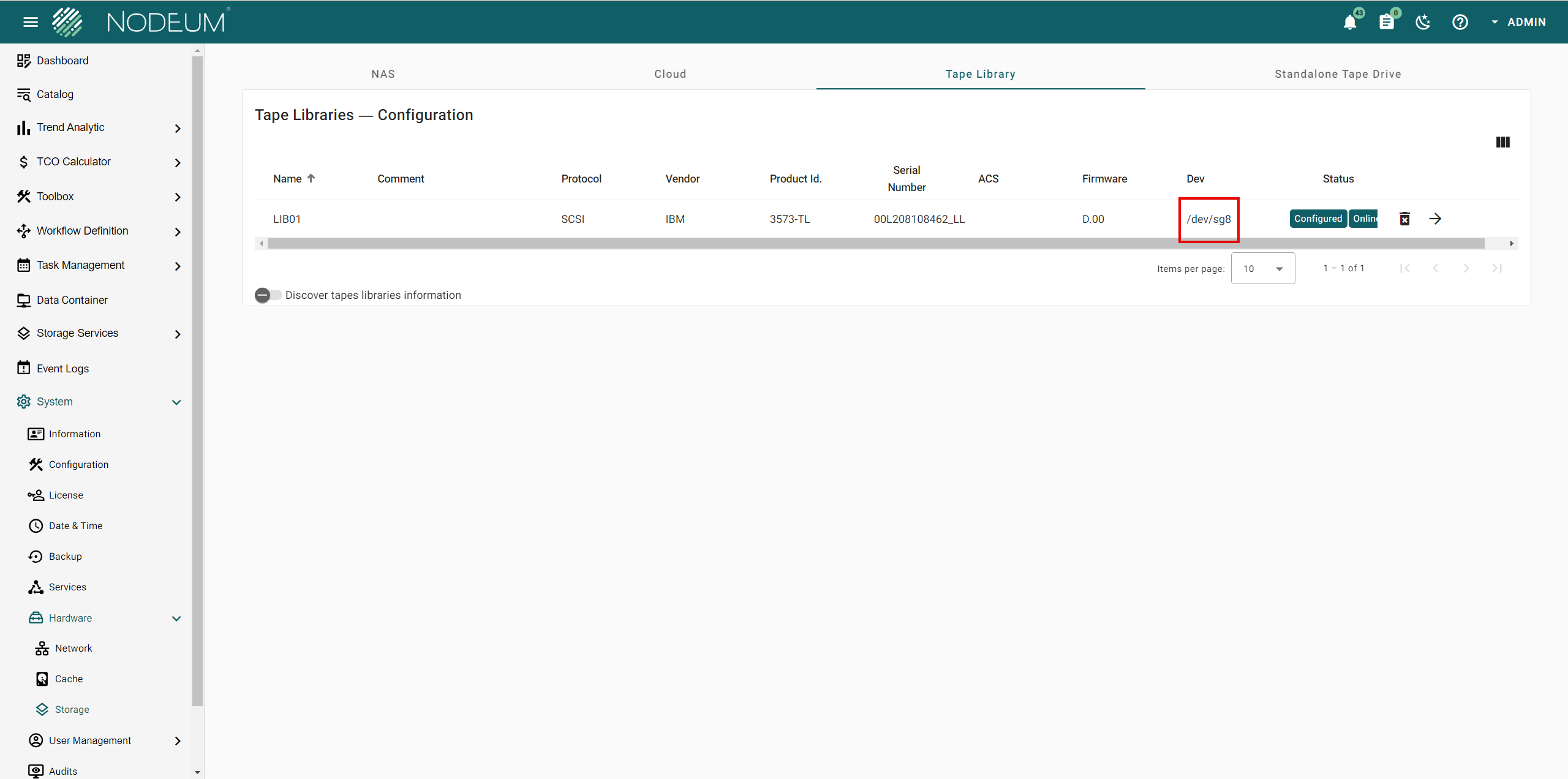
1. **Identify Current Device in Use**\
   The device currently in use appears as `/dev/sg8`.
2. **Scan for Tape Libraries**\
   Click on *Discover tapes libraries information* to initiate a scan and update the device mappings.

<figure><img src="/files/KnBQk4cwbqRz5JhVnlSm" alt=""><figcaption><p>Tape Library Synchronisation - Step 1</p></figcaption></figure>

{% hint style="info" %}
This process might take a few seconds to several minutes, based on the number of tape drives in the library.
{% endhint %}

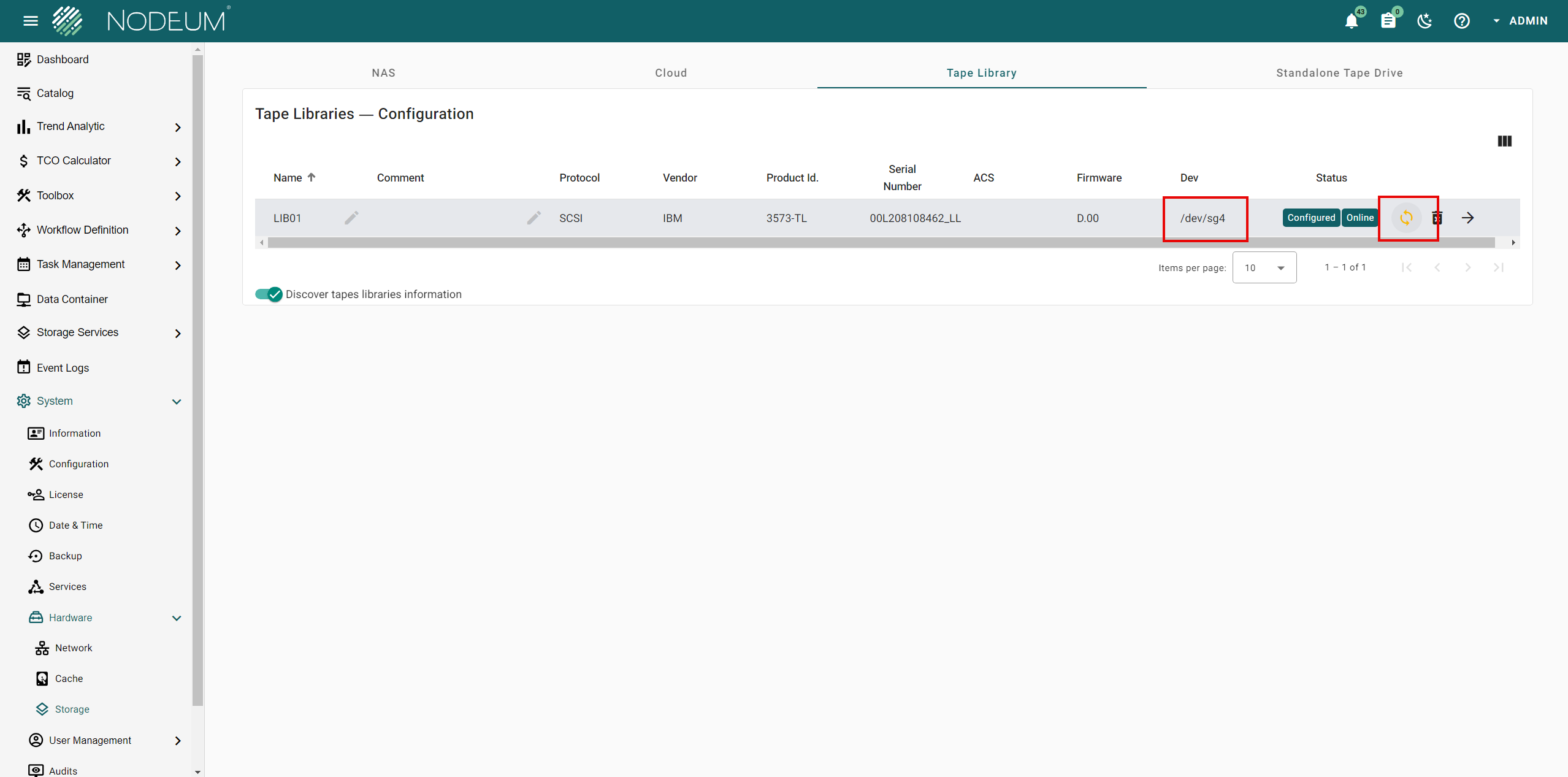
{% hint style="success" %}
Notice the update by clicking the icon ![](/files/H5NQTY5AX2uNoaPxctLQ)  to confirm the changes.
{% endhint %}

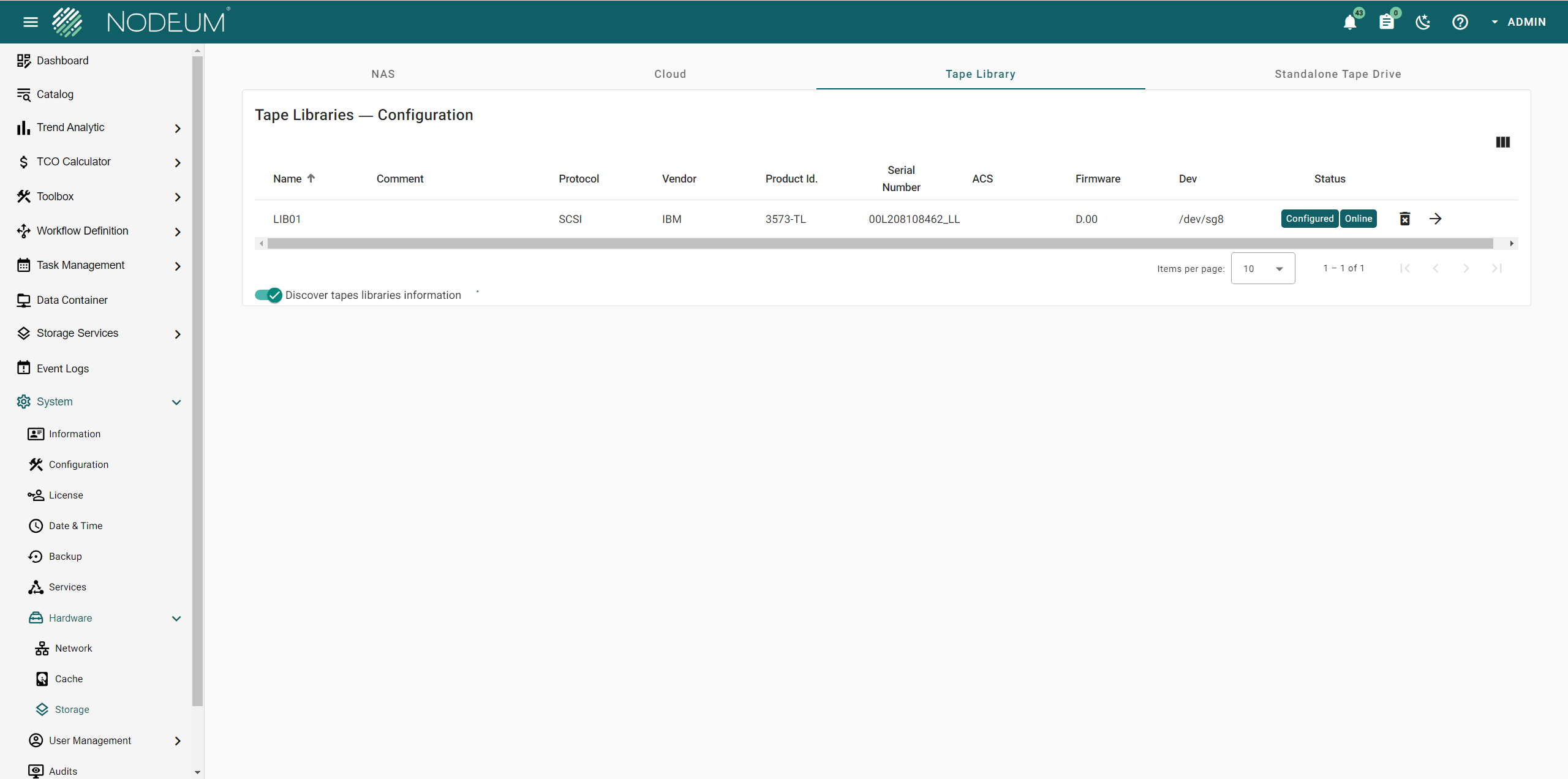
<figure><img src="/files/Jx19QOVV6yIOzoUJFfCq" alt=""><figcaption><p>Tape Library Synchronisation - Step 2</p></figcaption></figure>

#### Tape Drives sync

The same operation can be performend into the Tape Drives configuration.

<figure><img src="/files/X183DLh5w64REhlVdlyV" alt=""><figcaption><p>Tape Drive synchronisation - Step 1</p></figcaption></figure>

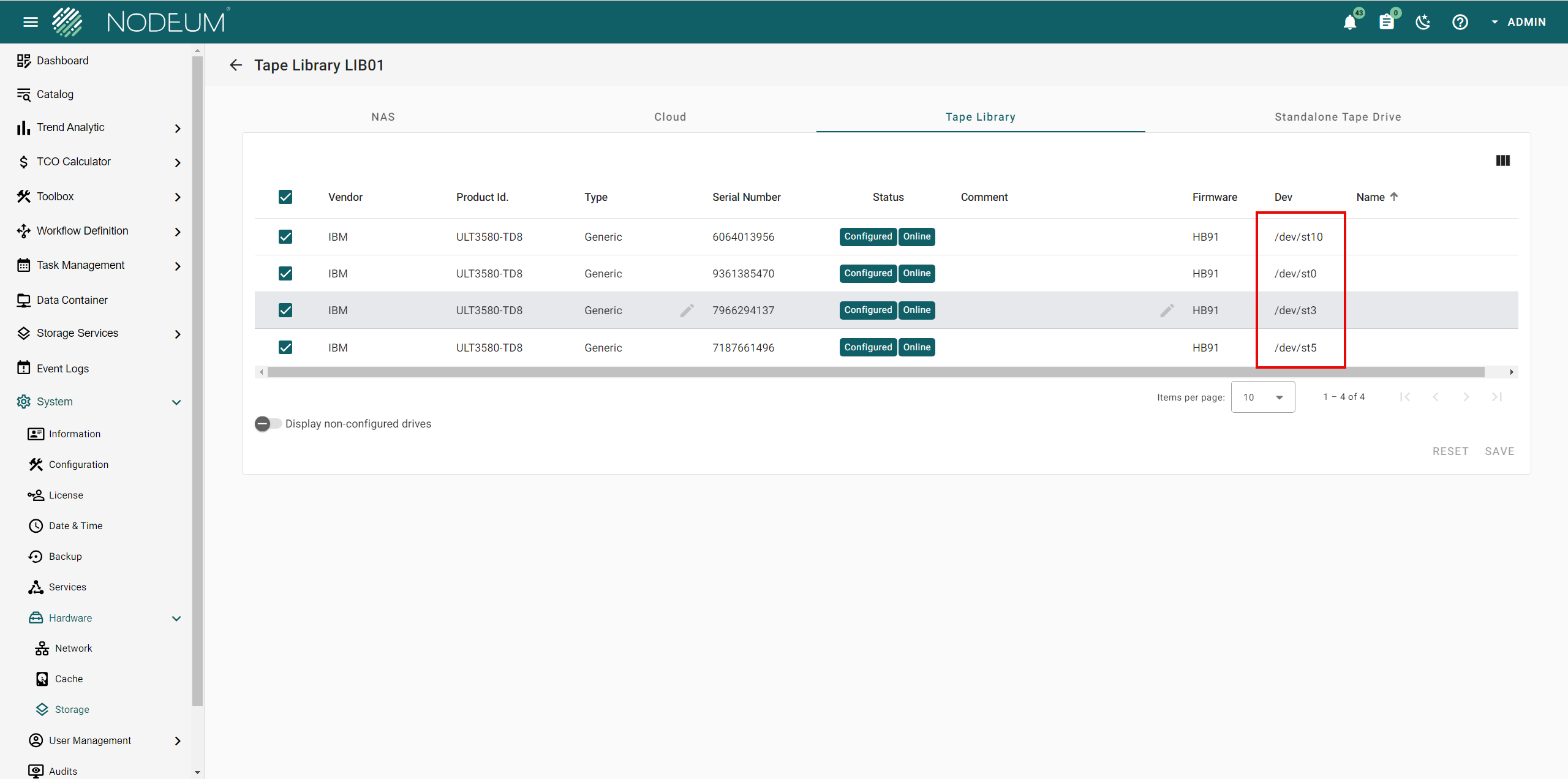
The red square highlights the devices used by each tape drive:

<figure><img src="/files/pto5SgvLdyFsx1A68JgP" alt=""><figcaption><p>Tape Drive synchronisation - Step 2</p></figcaption></figure>

* [ ] Toggle *Display non-configured drives* to scan and map new devices automatically.

<figure><img src="/files/9HKE0duiCPJqxOtBWvst" alt=""><figcaption><p>Tape Drive synchronisation - Step 3</p></figcaption></figure>

### Tape Barcode Requirement <a href="#secondarystorageconfiguration-checkthestatusoftapelibrary" id="secondarystorageconfiguration-checkthestatusoftapelibrary"></a>

{% hint style="danger" %}

* Configure the Tape Library to display the entire 8-character Tape Barcode, such as ABC123Lx, where 'x' indicates the LTO version.
* Ensure each Tape Barcode is unique.
* If multiple Tape Libraries are set up, do not use identical barcodes across different Tape Libraries.
  {% endhint %}


---

# Agent Instructions
This documentation is published with GitBook. GitBook is the documentation platform designed so that both humans and AI agents can read, navigate, and reason over technical content effectively. Learn more at gitbook.com.

## Querying This Documentation
If you need additional information that is not directly available in this page, you can query the documentation dynamically by asking a question.

Perform an HTTP GET request on the current page URL with the `ask` query parameter:

```
GET https://docs.nodeum.io/data-archiving/console/system-settings/tape-library-configuration.md?ask=<question>
```

The question should be specific, self-contained, and written in natural language.
The response will contain a direct answer to the question and relevant excerpts and sources from the documentation.

Use this mechanism when the answer is not explicitly present in the current page, you need clarification or additional context, or you want to retrieve related documentation sections.