> For the complete documentation index, see [llms.txt](https://docs.nodeum.io/llms.txt). Markdown versions of documentation pages are available by appending `.md` to page URLs; this page is available as [Markdown](https://docs.nodeum.io/data-archiving/container/access-your-container.md).
# Access your Container
### How can “User” access Containers?
Access the containers to reach the Archived Data, a virtual file system that includes a comprehensive file and folder structure. This system utilizes an internal cache and is supplemented by secondary storage volumes.
The solution is compatible with
* Windows 7, 8, 10, 11
* MacOS
* Linux
### Windows-Based Operating System
#### SMB
To access the Network File Explorer via the command line, enter: `\\nodeumhostname\`
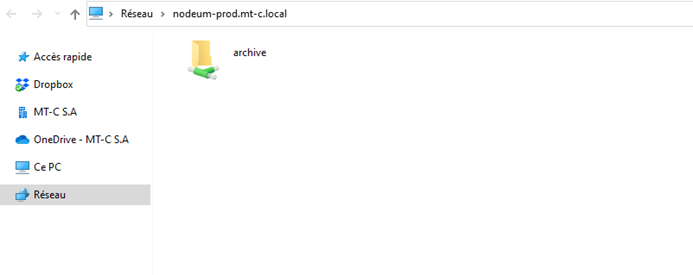
The hostname in this screenshot is "nodeum
You will then view the available containers
In this example, "archive" is a defined container. Click the icon
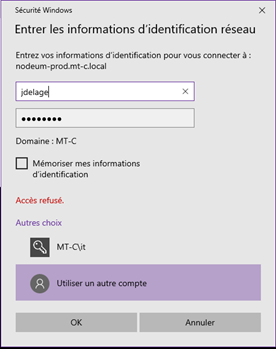
If Nodeum is configured with Active Directory, this window won't appear. However, if it's set up with a local account, use your Nodeum local username
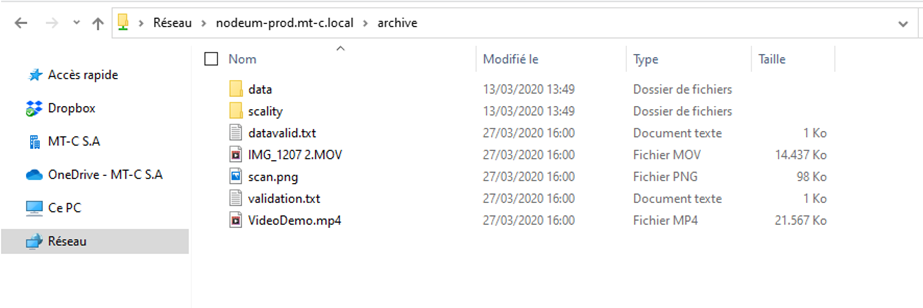
After authorization, the container's contents will appear as a normal Network Shared Folder.
### MacOS-Based Operating System
#### NFS
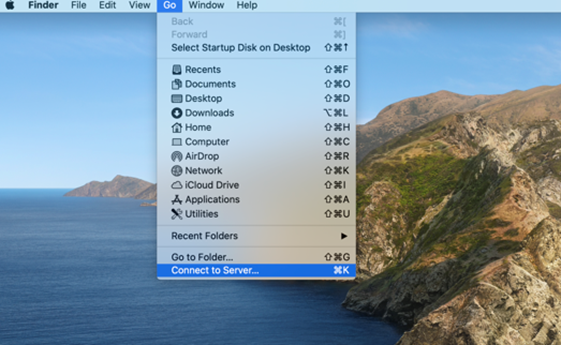
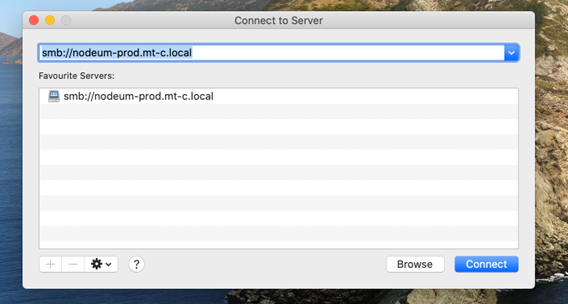
Navigate to the "Go" menu on your MacOS top bar and select "Connect to Server
To connect, enter the Nodeum hostname in the address field as `smb://nodeumhostname`, then click
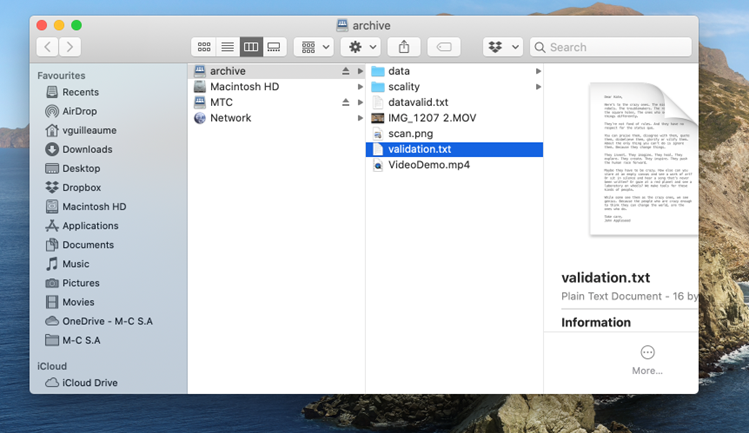
Once your credentials are correctly configured, you can access the Network Shared Folder's contents.
### Linux-Based Operating System
#### SMB
In your Linux terminal, mount the container (named archive in the example) in using SMB protocol. Verify that you have the right package installed:
```bash
$ sudo yum install cifs-utils
$ sudo mount.cifs //nodeum.local/archive /mnt/testmnt -o user=johndoe,
pass="secret"
```
**In this example:**
* **nodeum.local**: hostname of server
* **/archive**: Container name into Nodeum
* **/mnt/testmnt**: access point in your Linux system. In the best practice, the name "testmnt" must be chosen according to the container name.
* **-o user=johndoe,pass="secret"**: johndoe is a user who have access to the container and "secret" is the password of the user.
Adding a Mount Point in /etc/fstab
To ensure the mount point is persistent across reboots, you can add it to the `/etc/fstab` file.
```bash
...
//nodeum.local /archive /mnt/testmnt cifs credentials=johndoe 0 0
...
```
#### NFS
In your Linux terminal, mount the container (named archive in the example) in using NFS protocols.
Verify that you have the right package installed:
```bash
$ sudo yum install nfs-utils nfs-utils-lib
$ sudo mount -t nfs -o vers=4 nodeum.local:/archive /mnt/testmnt
```
Adding a Mount Point in /etc/fstab
To ensure the mount point is persistent across reboots, you can add it to the `/etc/fstab` file.
```bash
...
nodeum.local:/archive /mnt/testmnt/ nfs rw,sync,hard,intr 0 0
...
```
### Access your container in S3
Prior to accessing your container as a bucket, you must define a pair of access key and secret key.
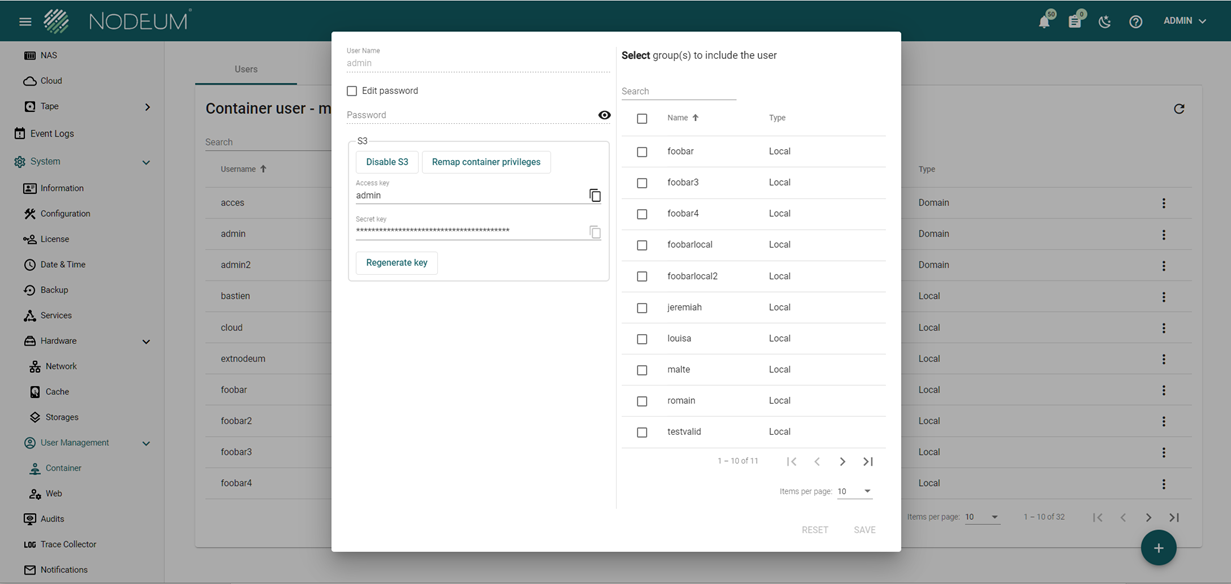
For this you need to go to Container User Management section, then select edit the user profile to whom you want to generate the pair of keys.
In this interface, you can see the keys with possibility to generate new ones.
Once you have your pair of keys generated, you need to remap the container authorization list with the new defined user.
For doing this, you must click on this button:
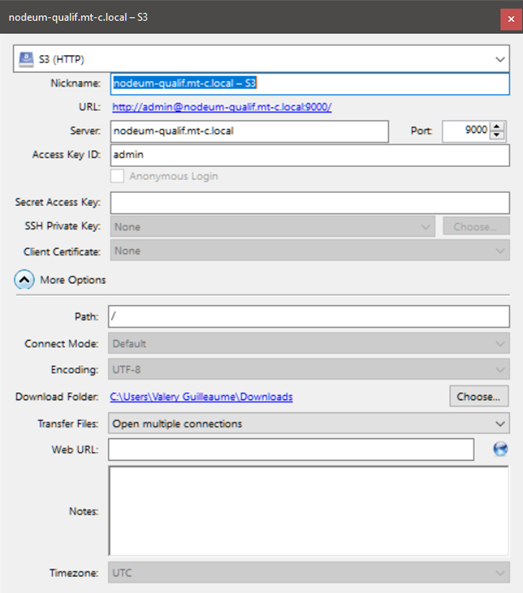
Go through an S3-supported application and define a new S3 connection profile.
Define a new profile with following configuration:
* Protocol: S3 (HTTP) or S3 (HTTPS) if you have configured the SSL option in the Nodeum configuration.
* Nickname: Your own profile definition.
* Server: Nodeum Server Name
* Port: 9000 is the default port for this service
* Access Key ID: This is the access key defined in the Nodeum Container User Management. It is typically the username.
* Secret Access Key: This is the secret key you have generated in the Nodeum Container User Management
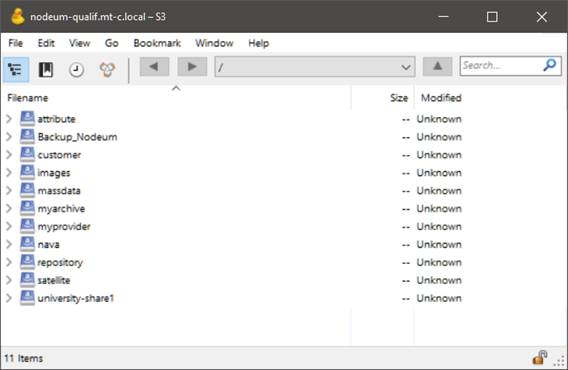
Once done, you can connect to this profile, and you will see the list of bucket your user can access.
---
# Agent Instructions
This documentation is published with GitBook. GitBook is the documentation platform designed so that both humans and AI agents can read, navigate, and reason over technical content effectively. Learn more at gitbook.com.
## Querying This Documentation
If you need additional information that is not directly available in this page, you can query the documentation by asking a question.
Perform an HTTP GET request on the following URL with the `ask` and `goal` query parameters:
```
GET https://docs.nodeum.io/data-archiving/container/access-your-container.md?ask=&goal=
```
`ask` is the immediate question: it should be specific, self-contained, and written in natural language.
`goal` is what the user is ultimately trying to achieve, the reason they need the answer. Sharing it helps GitBook give you a better, more relevant answer. A goal is most helpful when it describes the outcome the user wants rather than restating the question. For example, with `ask=how do I create an API token`, a goal like `automate deployments from our CI pipeline` lets GitBook tailor the answer to that use case.
The response will contain a direct answer to the question and relevant excerpts and sources from the documentation.
Use this mechanism when the answer is not explicitly present in the current page, you need clarification or additional context, or you want to retrieve related documentation sections.