# Authorization and Authentication

## Authorization through SMB

### Settings

> System -> User Management -> Container

Enhancing your network's SMB authorization involves adopting best practices and understanding its components to boost security and efficiency.

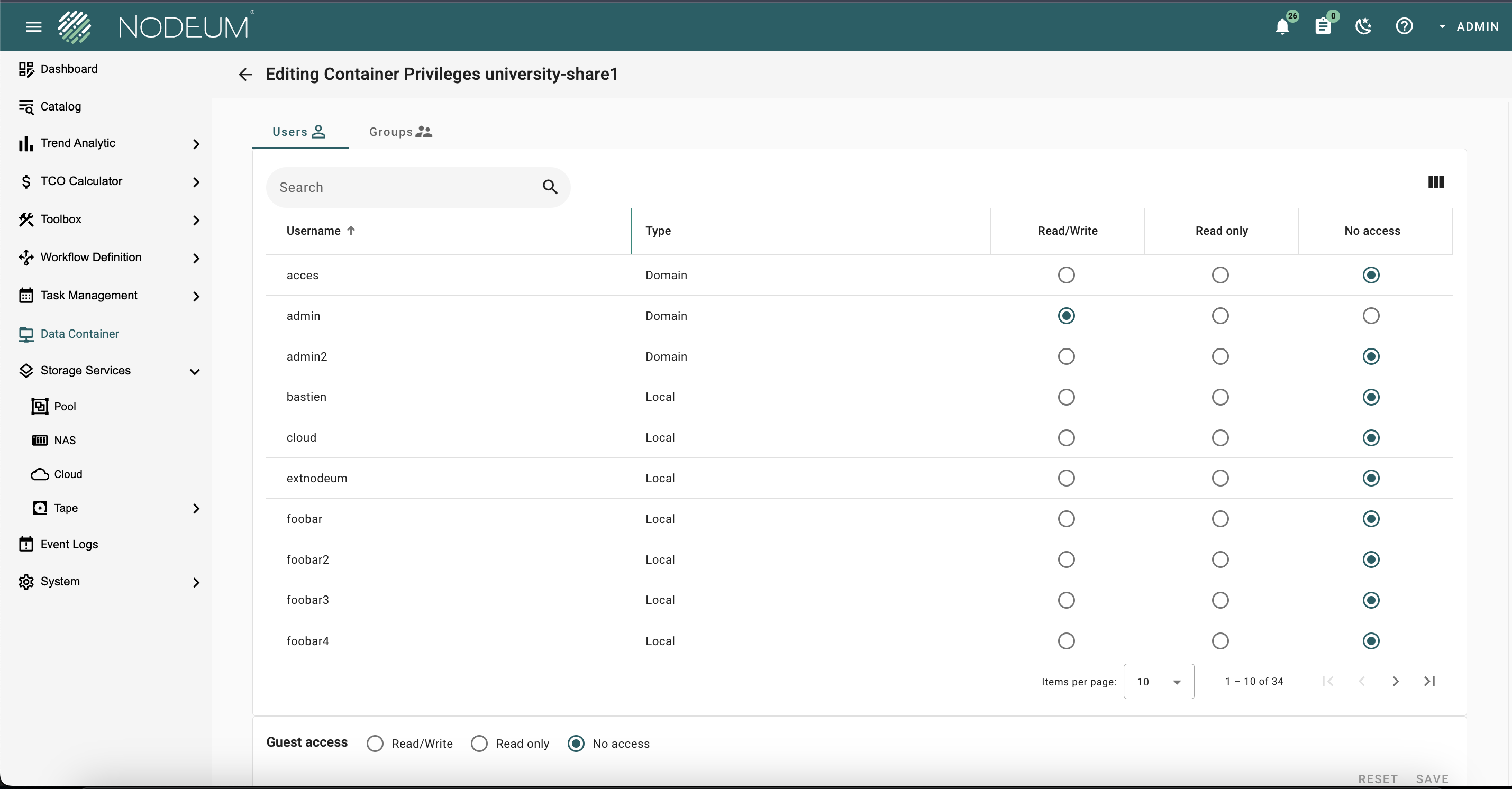
Privileged access to containers is controlled individually for each container. On this page, you can view the list of users and groups with access.&#x20;

<figure><img src="https://1946775891-files.gitbook.io/~/files/v0/b/gitbook-x-prod.appspot.com/o/spaces%2FgzbGsZqZH8Ro8zxRYgwn%2Fuploads%2FyIUhB9habxOMhUk4n1ID%2Fimage.png?alt=media&#x26;token=0ac06601-f8f9-4c02-b898-10798c5bc252" alt=""><figcaption><p>List Container's user</p></figcaption></figure>

Rights and privileges of data stored in the container adhere to these guidelines

* When a workflow copies data into a container, the rights and privileges of the original data are maintained.  It is essential to properly configure the container's user permissions to ensure to authorize users access.

* When end users copy files through the container using SMB protocols, the rights are determined by the access rights defined within the container and its associated permission schema.

  &#x20;

### Configure the Authentication Services

Three types of authorization and authentication are available to access Container:

1. Local users and groups
2. Active Directory
3. LDAP

### Local users&#x20;

By default, local user and group settings are applied.&#x20;

<figure><img src="https://1946775891-files.gitbook.io/~/files/v0/b/gitbook-x-prod.appspot.com/o/spaces%2FgzbGsZqZH8Ro8zxRYgwn%2Fuploads%2FTxI1YfzJoUCQ1o1Ahnaj%2Fimage.png?alt=media&#x26;token=55355658-2557-47fb-a2e0-211e326f2816" alt="" width="563"><figcaption><p>List of Authentication Services</p></figcaption></figure>

#### Create local User & Group

Click on the button '+' to **add a new user:**

<figure><img src="https://1946775891-files.gitbook.io/~/files/v0/b/gitbook-x-prod.appspot.com/o/spaces%2FgzbGsZqZH8Ro8zxRYgwn%2Fuploads%2F7RPUIRd6s7UKBHHnciUA%2Fimage.png?alt=media&#x26;token=9815d289-e6a6-403e-a09d-c32c40662b21" alt=""><figcaption><p>User Creation</p></figcaption></figure>

Fill out the form in the modal and click "Save."

* **User Name:** Name of the User you would like to create,
* **Password:** Password for this User,
* **Confirm Password:** Retype the password to confirm it,
* **Optional:** Select the group you want this user associated with.

<figure><img src="https://1946775891-files.gitbook.io/~/files/v0/b/gitbook-x-prod.appspot.com/o/spaces%2FgzbGsZqZH8Ro8zxRYgwn%2Fuploads%2Fd3b2NSFD4PMxQ3lFqrKd%2Fimage.png?alt=media&#x26;token=1cb3f987-38a2-44d0-a720-0c18048ae9f1" alt="" width="563"><figcaption><p>User Creation Page</p></figcaption></figure>

To create a new group, navigate to the "Group" tab

<figure><img src="https://1946775891-files.gitbook.io/~/files/v0/b/gitbook-x-prod.appspot.com/o/spaces%2FgzbGsZqZH8Ro8zxRYgwn%2Fuploads%2FO0Vmz1ydXFFHdRVXzgtQ%2Fimage.png?alt=media&#x26;token=bca46171-e823-41da-b6eb-e58247f302f7" alt=""><figcaption><p>Group Creation</p></figcaption></figure>

&#x20;Complete the form in the modal and save it:

* **Group Name:** Name of the Group you would like to create.
* Select the **user**(s) you want to include in this **group**.

<figure><img src="https://1946775891-files.gitbook.io/~/files/v0/b/gitbook-x-prod.appspot.com/o/spaces%2FgzbGsZqZH8Ro8zxRYgwn%2Fuploads%2FmWs19izQLxBhNOZsOacz%2Fimage.png?alt=media&#x26;token=3dda04db-c2ab-4807-9b95-4863df816c17" alt="" width="563"><figcaption><p>Group Creation Page</p></figcaption></figure>

### **Active Directory**

The configuration enables setting up an Active Directory connection. &#x20;

Validate all settings before saving them using the "Test connection" button.&#x20;

The "Save" button confirms the connection to the selected Active Directory server and integrates the Nodeum server into the Active Directory domain.

<figure><img src="https://1946775891-files.gitbook.io/~/files/v0/b/gitbook-x-prod.appspot.com/o/spaces%2FgzbGsZqZH8Ro8zxRYgwn%2Fuploads%2FCMtW1niZv64BgEJrUs3f%2Fimage.png?alt=media&#x26;token=7feda9da-81b0-472b-9edd-8c62213371b5" alt="" width="506"><figcaption></figcaption></figure>

### **LDAP**

Configure a connection to an LDAP service using this setup.&#x20;

Before saving, click "Test Connection" to validate all settings. Use the "Save" button to finalize the connection to the chosen LDAP server

<figure><img src="https://1946775891-files.gitbook.io/~/files/v0/b/gitbook-x-prod.appspot.com/o/spaces%2FgzbGsZqZH8Ro8zxRYgwn%2Fuploads%2FslboEHBS6tjDfL0q2VIm%2Fimage.png?alt=media&#x26;token=f7592094-e93b-4c9b-b8f6-9779b51fcec9" alt="" width="563"><figcaption></figcaption></figure>

## Authorization through S3

### Define the rights and privileges

Define the rights and privileges for each user to control and authorize access.  This will allow and  authorize the access of the container.

&#x20;To set this authorization:

* Navigate to the Container section and select it.
* To change user permissions, select "User" and click the "Edit" button. Set the permissions to Read/Write, Read Only, or no access

<figure><img src="https://1946775891-files.gitbook.io/~/files/v0/b/gitbook-x-prod.appspot.com/o/spaces%2FgzbGsZqZH8Ro8zxRYgwn%2Fuploads%2Fsh3VogHr9KNeDMbu3DRE%2Fimage.png?alt=media&#x26;token=ca5ec7c3-b84d-4037-9e32-645c21149595" alt=""><figcaption><p>Container User Management</p></figcaption></figure>

<figure><img src="https://1946775891-files.gitbook.io/~/files/v0/b/gitbook-x-prod.appspot.com/o/spaces%2FgzbGsZqZH8Ro8zxRYgwn%2Fuploads%2FGzDWqmuJJkHjCtoDOt1C%2FNodeum%20Container%20-%20Edit.png?alt=media&#x26;token=35676c4c-015c-4074-9525-9dc8c9d84dd9" alt=""><figcaption><p>Edit Container</p></figcaption></figure>

<figure><img src="https://1946775891-files.gitbook.io/~/files/v0/b/gitbook-x-prod.appspot.com/o/spaces%2FgzbGsZqZH8Ro8zxRYgwn%2Fuploads%2FaZnJSyUXhegHFmk50Btk%2FNodeum%20-%20Container%20Priviledge.png?alt=media&#x26;token=bf5886ac-4c27-46d9-8945-b849d0dae84b" alt=""><figcaption><p>Define the Container's Priviledges</p></figcaption></figure>

### Generate S3 policy for a local User

You can create an S3 policy to grant a local user access to an S3 bucket within a container.

To create the user, adhere to the instructions provided in the prior section. Afterward, edit the user by following these steps:

<figure><img src="https://1946775891-files.gitbook.io/~/files/v0/b/gitbook-x-prod.appspot.com/o/spaces%2FgzbGsZqZH8Ro8zxRYgwn%2Fuploads%2FlJmXldgGcE2uYq9tEEdf%2Fimage.png?alt=media&#x26;token=4189ede2-ad3d-4bb1-b0fb-aaf8564b48b0" alt="" width="527"><figcaption><p>User detail</p></figcaption></figure>

Instructions:

Find the URL and credentials for the S3 object storage console in the panel.&#x20;

Copy the generated S3 policy to your clipboard

Access the Minio Console using the Root User and Root Password.&#x20;

Navigate to the Access menu, create a new policy, and paste the policy from the clipboard.

<figure><img src="https://1946775891-files.gitbook.io/~/files/v0/b/gitbook-x-prod.appspot.com/o/spaces%2FgzbGsZqZH8Ro8zxRYgwn%2Fuploads%2FshEOzKmuaLbpS1wirZHd%2Fimage.png?alt=media&#x26;token=ff230df4-bfdd-418e-84c8-367ea55980fe" alt="" width="563"><figcaption></figcaption></figure>

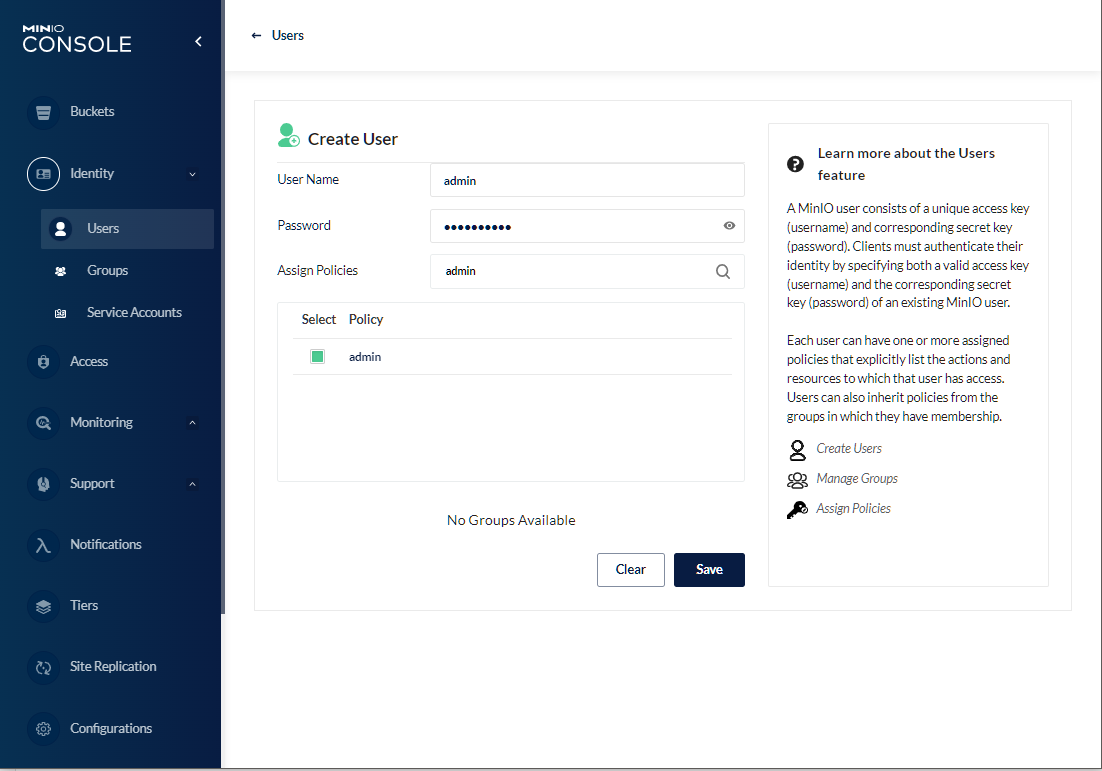
Create a user, define your own password, and attach the defined policy to this user.

<figure><img src="https://1946775891-files.gitbook.io/~/files/v0/b/gitbook-x-prod.appspot.com/o/spaces%2FgzbGsZqZH8Ro8zxRYgwn%2Fuploads%2Fon5cyOkPsP6J6Baz9jTP%2Fimage.png?alt=media&#x26;token=e8abfedc-4150-4493-9a56-161ce45f1b83" alt="" width="563"><figcaption></figcaption></figure>

After completing the setup, you can access the container via S3 using the user credentials you created. By default, this access occurs through port 9000.<br>

## Authorization through NFS

### Ensuring UID and GID Preservation in NFS

To maintain UID and GID consistency between an NFS client and a container accessed via NFS:

1. **UID/GID Matching**: Ensure that the User ID (UID) and Group ID (GID) used in the NFS client match those in the container.
2. **ID Mapping**: Configure ID mapping on both the client and the container to handle any discrepancies. This can be done by editing the `/etc/idmapd.conf` file or using other mechanisms supported by your system.
3. **Consistent User/Group Database**: Use a unified system like LDAP to keep the user and group names synchronized across both environments.
4. **NFS Export Options**: Set the NFS server's export options to maintain UID/GID, such as options `no_root_squash` or `anonuid` and `anongid` settings, to ensure correct access permissions.

### idmap Configuration

To setup idmap on both the client and the Nodeum server.

#### &#x20;Nodeum Server

Edit the idmap.conf file

```bash
...
Domain = localdomain
...
[Mapping]
 
Nobody-User = admin
Nobody-Group = customergroup
...
```

Activate 'idmapping':

```
echo N > /sys/module/nfsd/parameters/nfs4_disable_idmapping
```

Configure the export:

<pre><code><strong>/mnt/FUSE *(rw,all_squash,anonuid=1000,anongid=2000,subtree_check,fsid=0)
</strong></code></pre>

Where uid=1000 is already existing

Where gid=2000 is a new group which has to be created

And restart the service

```
# systemctl restart nfs-idmapd.service
```

#### Client

* uid=1000 is customeruser user
* gid=2000 is customergroup group

&#x20;Edit the idmap.conf file

```bash
[General]
 
Verbosity = 0
Pipefs-Directory = /var/lib/nfs/rpc_pipefs
Domain = localdomain
 
[Mapping]
 
# Nobody-User = nobody
Nobody-User = customeruser
# Nobody-Group = nobody
Nobody-Group = customergroup
```

Activate 'idmapping':

```
echo N > /sys/module/nfsd/parameters/nfs4_disable_idmapping
```

And restart the service

```
# systemctl restart nfs-idmapd.service
```

### Posix Permission Management

#### Group rights Management

Manage properly the group rights in a folder and all members of the groups to create file in or read files.

user1:

```
[user@nodeum localrepo]$ mkdir dataset
drwxrwxr-x  2 user    user                    	4096 May 21 07:50 dataset
[user@nodeum localrepo]$ chgrp nodeum_test dataset/
[user@nodeum localrepo]$ ls -l |grep dataset
drwxrwxr-x  2 user         nodeum_test          4096 May 21 07:50 dataset
[user@nodeum localrepo]$ chmod 770 dataset/ -R
[user@nodeum localrepo]$ ls -l |grep dataset
drwxrwx---  2 user         nodeum_test          4096 May 21 07:50 dataset
[user@nodeum localrepo]$ cd dataset/
[user@nodeum dataset]$ touch afilecontent
[user@nodeum dataset]$ ls -l
total 4
-rw-rw-r-- 1 user user 0 May 21 07:51 afilecontent
[user@nodeum dataset]$ chgrp nodeum_test afilecontent
[user@nodeum dataset]$ ls -l
total 4
-rw-rw-r-- 1 user nodeum_test 0 May 21 07:51 afilecontent
```

user2:

```
[root@nodeum localrepo]$ su user2
[user2@nodeum localrepo]$ cd dataset/
[user2@nodeum dataset]$ ls -l
total 4
-rw-rw-r-- 1 user1 nodeum_test 0 May 21 07:51 afilecontent
[user2@nodeum dataset]$ cat afilecontent
```

#### Inheritance in POSIX for File Creation

Implement group inheritance in POSIX by ensuring that files created within a directory automatically inherit the directory's group membership. This streamlines permissions management and maintains consistent access control across all files

```
[root@nodeum Dataset]# mkdir abc
[root@nodeum Dataset]# chmod 2770 abc
[root@nodeum Dataset]# chown 1002:nodeum-test abc
[root@nodeum Dataset]# ll | grep abc
drwxrws--- 2 1002       nodeum-test       4096 Apr 16 11:44 abc
 
[root@nodeum Dataset]# su 1002
 
bash-4.4$ ls -lah abc
total 12K
drwxrws--- 2 1002       nodeum-test  SETGID 4.0K Apr 16 11:44 .
drwxrwxrwx 4 root       root         4.0K Apr 16 11:44 ..
 
bash-4.4$ touch abc/test
 
bash-4.4$ ls -lah abc/
total 16K
drwxrws--- 2 1002       nodeum-test  4.0K Apr 16 11:46 .
drwxrwxrwx 4 root       root         4.0K Apr 16 11:44 ..
-rw-r--r-- 1 1002       nodeum-test    0 Apr 16 11:46 test
```

### NFS4 ACL

Network File System version 4 (NFSv4) Access Control Lists (ACLs) provide a mechanism to manage permissions for files and directories.&#x20;

Mainly composed by :&#x20;

* **ACL Entries**: Consist of a type (allow or deny), a set of permissions, and a principal (user or group).
* **Permissions**: Include operations such as read, write, and execute. They can be fine-tuned to control access granularly.
* **Principal**: Specifies whom the permissions apply to, such as a specific user, group, or everyone.

#### Usage Example

To set ACLs on a file:

```
[user1@nodeum localrepo]$ nfs4_setfacl -R -a "A:fdi:1007:R" dataset
```

To check ACLs on a file:

```
[user1@nodeum localrepo]$ nfs4_getfacl dataset
# file: dataset
A::OWNER@:rwaDxtTcCy
A::GROUP@:rwaDxtcy
A::EVERYONE@:xtcy
D:fdi:OWNER@:r
A:fdi:OWNER@:tTcCy
A:fdi:1007:rtcy
A:fdi:GROUP@:tcy
A:fdi:EVERYONE@:tcy
```

#### NFS 4 ACL inheritance

How It Works?

When you set an ACL with inheritance attributes on a directory, any new file or subdirectory will automatically inherit these attributes, streamlining permissions management.

<mark style="color:purple;">Example</mark>

To apply a default ACL that inherits to both files and directories, you can use the following command:

```
[root@nodeum dataset]# mkdir dataset
[root@nodeum dataset]# ls -l
total 88
drwxr-xr-x  2 root root 4096 May 20 07:42 dataset

[root@nodeum localrepo]# nfs4_setfacl -a "A:fdi:1002:RWX" dataset/
[root@nodeum localrepo]# nfs4_getfacl dataset/
# file: dataset/
A::OWNER@:rwaDxtTcCy
A::GROUP@:rxtcy
A::EVERYONE@:rxtcy
A:fdi:OWNER@:rwaDxtTcCy
A:fdi:1002:rwaDxtcy
A:fdi:GROUP@:rxtcy
A:fdi:EVERYONE@:rxtcy

[root@nodeum localrepo]# vi dataset/file-1
[root@nodeum localrepo]# mkdir dataset/data-1
[root@nodeum localrepo]# nfs4_getfacl dataset/data-1/
# file: dataset/data-1/
A::OWNER@:rwaDxtTcCy
A::1002:rwaDxtcy
A::GROUP@:rxtcy
A::EVERYONE@:rxtcy
A:fdi:OWNER@:rwaDxtTcCy
A:fdi:1002:rwaDxtcy
A:fdi:GROUP@:rxtcy
A:fdi:EVERYONE@:rxtcy

[root@nodeum localrepo]# nfs4_getfacl dataset/file-1
# file: dataset/file-1
A::OWNER@:rwatTcCy
A::1002:rwatcy
A::GROUP@:rtcy
A::EVERYONE@:rtcy
```

&#x20;