
# Backup & Restore

### Backup Feature

This save all important information of the configured solution. In case of failure, it is possible with the generated backup to restore the system as it was.

#### Components

* Databases : This includes SQL and NoSQL information : file catalog, metadata, task execution history.
* S3 - Swift API Keys : Authentication Key Credentials of S3 and Swift storage provider.
* Tasks execution log reports : History of each files processed per task.

<figure><img src="https://1946775891-files.gitbook.io/~/files/v0/b/gitbook-x-prod.appspot.com/o/spaces%2FgzbGsZqZH8Ro8zxRYgwn%2Fuploads%2FLi97FfCI3VbpgfxhkZf3%2Fimage.png?alt=media&#x26;token=46d9cb9c-3847-4be9-b26b-fe80f716b7d9" alt=""><figcaption></figcaption></figure>

#### How to Schedule a Backup

1. Open the **Settings** menu.
2. Navigate to the **Backup** section.
3. Click on the **+** button.
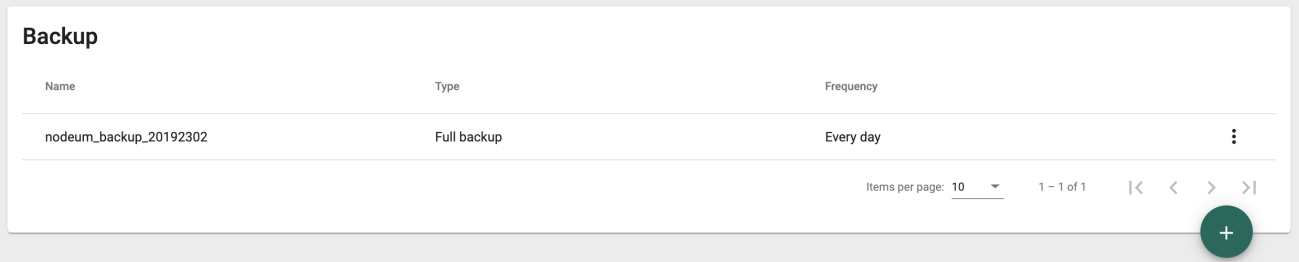
4. Then complete & save the form, here is an example:

<figure><img src="https://1946775891-files.gitbook.io/~/files/v0/b/gitbook-x-prod.appspot.com/o/spaces%2FgzbGsZqZH8Ro8zxRYgwn%2Fuploads%2FieXxJuqPcjtCdAIi7wmd%2Fimage.png?alt=media&#x26;token=0de0f0f5-3206-40b8-b6f5-5a003629c991" alt=""><figcaption></figcaption></figure>

<figure><img src="https://1946775891-files.gitbook.io/~/files/v0/b/gitbook-x-prod.appspot.com/o/spaces%2FgzbGsZqZH8Ro8zxRYgwn%2Fuploads%2FsEcA772qNjb5Xpsjui5C%2Fimage.png?alt=media&#x26;token=369c7ae4-ff07-455d-9e98-60addcae6cd0" alt=""><figcaption></figcaption></figure>

There are two different types of backup available :&#x20;

<table><thead><tr><th width="202">Type</th><th>Definition</th></tr></thead><tbody><tr><td>Full Backup</td><td>Backup everything every time</td></tr><tr><td>Incremental Backup</td><td>Backup only the difference since the last backup</td></tr></tbody></table>

{% hint style="danger" %}
Conduct a full backup weekly, while performing incremental backups at other times.
{% endhint %}

Different scheduling options are available :&#x20;

<table><thead><tr><th width="174.33333333333331">Option</th><th width="273">Definition</th><th>Comments</th></tr></thead><tbody><tr><td>Timezone</td><td>The schedule can be defined based on a different timezone</td><td>Defined by default, it will be current system timezone</td></tr><tr><td>Recurrence</td><td>Once  </td><td>Defined by default , there is no recurrence selected</td></tr><tr><td></td><td>Every</td><td>Minute - Day - Month - Year</td></tr><tr><td></td><td>Expands</td><td>Expand the scope of the recurrence</td></tr><tr><td></td><td>Count Option</td><td>Number of backup</td></tr></tbody></table>

{% hint style="info" %}
If your server fails, reinstall the Nodeum software and restore your backup to resume data management activities.
{% endhint %}

### Backup Feature - Manual Execution&#x20;

#### How to execute a backup manually?&#x20;

To initiate a manual backup or restore, execute the following shell script command:

`/opt/nodeum/tools/backup_restore.sh`

```bash
nodeum#/usr/mtc/bin/backup_restore.sh param1 param2
```

**Parameter 1**: `f` for full backup or `i` for incremental backup.\
**Parameter 2**: The path where the backup will be saved or where a restore operation will occur.

If an incremental backup is requested without an existing full backup, a full backup will be performed instead. Each incremental backup adds to the existing full backup, ensuring the backup remains restorable.

Example:

```bash
$ nohup /opt/nodeum/tools/backup_restore.sh full_backup /root/nodeum_bck_2302 &
```

The `nohup` command and the `&` operator can be used to run a backup script as a background process. The output of the executed command is saved in the file `nohup.out`.

{% hint style="info" %}
The full backup overwrites the previous full backup, while the incremental backup adds only new or changed data to the folder.
{% endhint %}

#### Components Software&#x20;

The Backup includes all of these components :

<table><thead><tr><th width="251">Components</th><th>Description</th><th data-hidden></th></tr></thead><tbody><tr><td>All databases</td><td>This includes SQL and NoSQL information: file catalog, metadata, task execution history.</td><td></td></tr><tr><td>S3 - Swift API Keys</td><td>Authentication Key Credentials of S3 and Swift storage provider.</td><td></td></tr><tr><td>Data enrichment API Keys</td><td>Authentication Key Credentials of Machine Learning provider.</td><td></td></tr><tr><td>Tasks execution log reports</td><td>History of each files processed per task.</td><td></td></tr><tr><td>Licence Key</td><td>Nodeum Encrypted License Key</td><td></td></tr></tbody></table>

### Restore

#### How to execute a restore manually ?&#x20;

To restore a backup, execute the following command line.

```bash
$ /opt/nodeum/tools /backup_restore.sh param1 param2
```

<mark style="color:green;">param1</mark> : r for restore&#x20;

<mark style="color:green;">param2</mark> : source path where the backup is located&#x20;

Example:

```bash
$ nohup /opt/nodeum/tools/backup_restore.sh restore /root/nodeum_bck_2302 &
```

The "nohup" command and "&" symbol allow running a backup script in the background. The output of the executed command is saved in a file named "nohup.out".

#### Important Note

**Temporary Folder Usage**: By default, the script utilizes a temporary folder located at `/tmp/bckp/` on the main file system for storing backups before they are moved to their final destination. You can specify a different folder as the third argument to customize this location.

Example: In this scenario, the backup will be stored in the `/nas/backupnodeum/` directory, and the system will use `/tmp/` as a temporary cache.

```bash
/bin/bash ./backup_restore.sh full_backup /mnt/MOUNT_POINTS/nas/backupnodeum
```

#### Backup Configuration

In this example, the backup will be stored in the directory `/nas/backupnodeum/`. The system will use `/mnt/CACHE/tempbck` as a temporary cache during the backup process.

```bash
/bin/bash ./backup_restore.sh full_backup /mnt/MOUNT_POINTS/nas/
backupnodeum /mnt/CACHE/tempbck
```

**Troubleshooting Backup Process Not Starting**

If your backup process does not start and the console shows a message indicating that a `backup_restore.sh` script is already running, follow these steps:

1. **Check for Running Processes:**
   * Use the command `ps -aef` to determine if another process is currently executing.
2. **Check for Lock File:**
   * It is possible that a lock file named `nodeum_bkp_lock` exists, stored in the `/tmp` directory, even if the temporary folder location has been modified.

Verify these two aspects to resolve the issue.
