# RESTful API Guide

Nodeum supports different capabilities to handle Authorization process. The objective is to grant authenticated users access to resources by verifying whether they have access permissions or not. It also allows you to restrict access privileges by granting or denying specific access to authenticated users.

## About RESTful API

The RESTful API is available in Nodeum and the usage instructions are available here below :

* How to use the API.
* A list of the available resources and their endpoints, see [REST API resources](https://www.nodeum.io/resource-api).&#x20;

## Compatibility guidelines

The HTTP API is versioned with a single number, which is currently `2`. This number symbolizes the major version number.  &#x20;

Nodeum API version changes including entire API version removal are done in tandem with major Nodeum features releases and bug fixes. All deprecations and changes between versions are listed in the documentation.

### Current status

API version v2 is the latest.

## How to use the API?

API requests must include both `api` and the API version.

For example, the root of the v4 API is at `/api/v2`.

### Valid API request

The following is a basic example of a request to the fictional `nodeum.local` endpoint:

```bash
$ curl "https://nodeum.local/api/v2/files"
```

The API uses JSON to serialize data.&#x20;

You don’t need to specify `.json` at the end of the API URL.&#x20;

### Request and response formats

For POST and PUT requests, the request body must be JSON, with the `Content-Type header` set to `application/json`.

For almost all requests, the response will be JSON.

Whether a request succeeded is indicated by the HTTP status code. A 2xx status code indicates success, whereas a 4xx or 5xx status code indicates failure.&#x20;

When a request fails, the response body is still JSON and contains additional information about the error.

The following table gives an overview of how the API functions and status code are defined:

<table><thead><tr><th width="152">Request type</th><th>Description</th></tr></thead><tbody><tr><td><code>GET</code></td><td>Access one or more resources and return the result as JSON.</td></tr><tr><td><code>POST</code></td><td>Return <code>201 Created</code> if the resource is successfully created and return the newly created resource as JSON.</td></tr><tr><td><code>GET</code> / <code>PUT</code></td><td>Return <code>200 OK</code> if the resource is accessed or modified successfully. The (modified) result is returned as JSON.</td></tr><tr><td><code>DELETE</code></td><td>Returns <code>204 No Content</code> if the resource was deleted successfully or <code>202 Accepted</code> if the resource is scheduled to be deleted.</td></tr></tbody></table>

&#x20;The following table shows the possible return codes for API requests.

<table><thead><tr><th width="281">Return values</th><th>Description</th></tr></thead><tbody><tr><td><code>200 OK</code></td><td>The <code>GET</code>, <code>PUT</code> or <code>DELETE</code> request was successful, and the resource itself is returned as JSON.</td></tr><tr><td><code>202 Accepted</code></td><td>The <code>GET</code>, <code>PUT</code> or <code>DELETE</code> request was successful, and the resource is scheduled for processing.</td></tr><tr><td><code>204 No Content</code></td><td>The server has successfully fulfilled the request, and there is no additional content to send in the response payload body.</td></tr><tr><td><code>201 Created</code></td><td>The <code>POST</code> request was successful, and the resource is returned as JSON.</td></tr><tr><td><code>304 Not Modified</code></td><td>The resource hasn’t been modified since the last request.</td></tr><tr><td><code>400 Bad Request</code></td><td>A required attribute of the API request is missing. For example, the title of an issue is not given.</td></tr><tr><td><code>401 Unauthorized</code></td><td>The user isn’t authenticated. A valid user token is necessary.</td></tr><tr><td><code>403 Forbidden</code></td><td>The request isn’t allowed. For example, the user isn’t allowed to delete a project.</td></tr><tr><td><code>404 Not Found</code></td><td>A resource couldn’t be accessed. For example, an ID for a resource couldn’t be found.</td></tr><tr><td><code>405 Method Not Allowed</code></td><td>The request isn’t supported.</td></tr><tr><td><code>409 Conflict</code></td><td>A conflicting resource already exists. For example, creating a project with a name that already exists.</td></tr><tr><td><code>422 Unprocessable</code></td><td>The entity couldn’t be processed.</td></tr><tr><td><code>429 Too Many Requests</code></td><td>The user exceeded the application rate limits.</td></tr><tr><td><code>500 Server Error</code></td><td>While handling the request, something went wrong on the server.</td></tr></tbody></table>

### Offset-based Pagination

Nodeum API supports the Offset-based pagination. This is the default method and is available on all endpoints. Sometimes, the returned result spans many pages. When listing resources, you can pass the following parameters:

<table><thead><tr><th width="135">Parameter</th><th>Description</th></tr></thead><tbody><tr><td><code>page</code></td><td>Page number (default: <code>1</code>).</td></tr><tr><td><code>per_page</code></td><td>Number of items to list per page (default: <code>20</code>, max: <code>100</code>).</td></tr></tbody></table>

### Namespaced path encoding

If using path or namespaced API requests, make sure that the `NAMESPACE/PATH` is URL-encoded : `/` is represented by `%2F.`

## Use the API from an application

<figure><img src="https://www.nodeum.io/hubfs/undefined-May-26-2023-01-13-39-6581-PM.png" alt="" width="563"><figcaption></figcaption></figure>

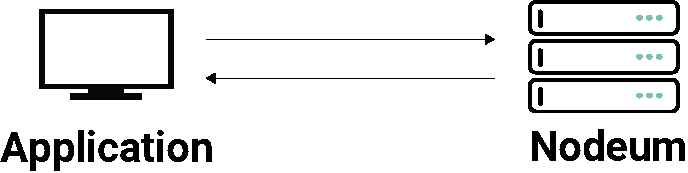
For executing an API requests from a client, it requires authentication, or only return public data when authentication isn’t provided.&#x20;

There are two ways you can authenticate with the Nodeum API included :

* Basic Authentication
* Advanced Authentication

### **Basic authentication**&#x20;

Basic authentication is a simple authentication scheme. The client sends HTTP requests with the `Authorization` header that contains the word `Basic` followed by a space and a base64-encoded string `username:password`.&#x20;

For example, to be authorized as `admin/p@55w0rd` the client would send this query:

{% code overflow="wrap" %}

```bash
$ curl -X GET -H "Accept: application/json" -H "Authorization: Basic YWRtaW46cEA1NXcwcmQ=" "https://nodeum.local/api/v2/tapes?limit=10"
```

{% endcode %}

{% hint style="info" %}
Because base64 is easily decoded, Basic authentication is recommended to be used together with other security mechanisms such as HTTPS/SSL.
{% endhint %}

### **Advanced Authentication**&#x20;

Two options are available in this authentication schema: API keys and JWT Token.&#x20;

{% hint style="info" %}
The authentication is recommended to be used over HTTPS (SSL).
{% endhint %}

#### **API keys**&#x20;

API keys authentication involves keys to handle the authentication. The client must send this key in the `Authorization` header that contains the word `Bearer`  followed by a space and a provided key. Access can be restricted with a scope.&#x20;

**Configuration**

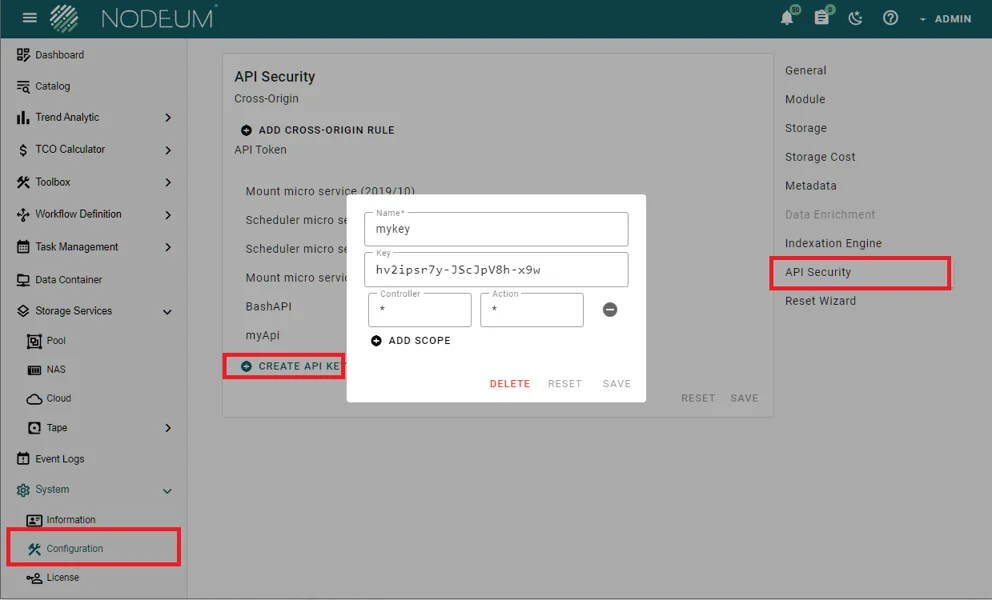
In Nodeum, you have a security section where you can generate such kind of key. This is located in the menu:

> System -> Configuration -> API Security

<figure><img src="https://1946775891-files.gitbook.io/~/files/v0/b/gitbook-x-prod.appspot.com/o/spaces%2FgzbGsZqZH8Ro8zxRYgwn%2Fuploads%2F4I5VGGJGacyUBJ5droV7%2Fimage.png?alt=media&#x26;token=e515f19e-4d58-4fb7-9523-88af54ec6bd5" alt=""><figcaption></figcaption></figure>

In the section, you can define the three following parameters:

* Name: This is the name of your choice.
* Controller: definition of controller, \* is a wildcard to allow access to all endpoint.
* Action: define the action related to the controller, \* is a wildcard to allow access to all endpoint.

Example, if we define as "Scope": Controller: files and Action: index, this means that the API key have only access to the controller *files* and the action as *index.*

{% hint style="info" %}
The list of Controller and Action definitions are available in the Nodeum API documentation behind each endpoints.
{% endhint %}

Different Controller and Action can be defined in order to define the key with limited access.

**Usage**

The key must be provided in your request headers, for example, to be authorized with the key `hv2ipsrv7y-JScJpV8h-x9w`  the client would send this query:

<pre class="language-bash" data-overflow="wrap"><code class="lang-bash"><strong>$ curl -X GET -H "Accept: application/json" -H "Authorization: Bearer hv2ipsrv7y-JScJpV8h-x9w" "https://nodeum.local/api/v2/tapes?limit=10" 

</strong></code></pre>

#### **Bearer authentication (also called token authentication)**

Provide your bearer token in the Authorization header when making requests to protected resources.

It is an HTTP authentication scheme that involves security tokens called bearer tokens. The name “Bearer authentication” can be understood as “give access to the bearer of this token.” The bearer token is a cryptic string, usually generated by the server in response to a login request.&#x20;

The client must send this token in the `Authorization` header when making requests to protected resources: `Authorization: Bearer <token>`

The Bearer authentication has the requirement to have the Nodeum Administration console configured in JWT mode.

For example, to be authorized with the following JWT token `eyJhbGciOiJIUzI1NiIsInR5cCI6IkpXVCJ9.eyJzdWIiOiIxMjM0NTY3ODkwIiwibmFtZSI6IkpvaG4gRG9lIiwiaWF0IjoxNTE2MjM5MDIyfQ.SflKxwRJSMeKKF2QT4fwpMeJf36POk6yJV_adQssw5c` the client would send this query:

{% code overflow="wrap" %}

```bash
$ curl --request GET \
 --url http://localhost/api/v2/files \
 --header 'Accept: application/json' \
 --header 'Authorization: Bearer eyJhbGciOiJIUzI1NiIsInR5cCI6IkpXVCJ9.eyJzdWIiOiIxMjM0NTY3ODkwIiwibmFtZSI6IkpvaG4gRG9lIiwiaWF0IjoxNTE2MjM5MDIyfQ.SflKxwRJSMeKKF2QT4fwpMeJf36POk6yJV_adQssw5c'
```

{% endcode %}

## Use the API from a Browser <a href="#configuration-cors-cross-originresourcesharing" id="configuration-cors-cross-originresourcesharing"></a>

This access involved the concept of "Cross-origin resource sharing (CORS)" which is a browser mechanism to meet browser security requirements and send requests directly to Nodeum API endpoints.

<figure><img src="https://www.nodeum.io/hs-fs/hubfs/undefined-May-26-2023-12-57-03-9738-PM.png?width=379&#x26;height=100&#x26;name=undefined-May-26-2023-12-57-03-9738-PM.png" alt="" width="563"><figcaption></figcaption></figure>

### Configuration

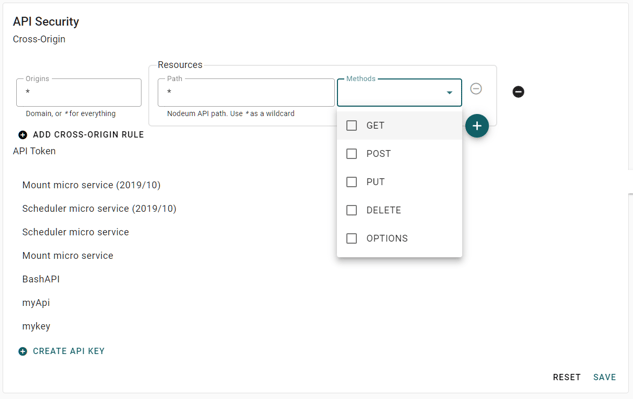
To configure CORS into Nodeum, you have to do login into your Nodeum Console and access the following menu:

> System -> Configuration -> API Security Section

<figure><img src="https://www.nodeum.io/hs-fs/hubfs/image-png-May-26-2023-12-41-40-4811-PM.png?width=633&#x26;height=400&#x26;name=image-png-May-26-2023-12-41-40-4811-PM.png" alt=""><figcaption></figcaption></figure>

In the Cross-Origin section, you can define the three following parameters:

* Origins : definition of the DNS domain, \* is the wildcard which will allow access from all domains.
* Path : definition of API endpoint path url , \* is a wildcard to allow access to all endpoint.
* Methods : define the HTTP request method allow. GET / POST / PUT / DELETE can be defined, multiple selections are allowed.

Multiple rules can be configured to design the authentication you need.

## Verify the API endpoint results <a href="#configuration-cors-cross-originresourcesharing" id="configuration-cors-cross-originresourcesharing"></a>

You can use Nodeum Console to validate any API call you want to use.

For doing this, you need to:

* Use a browser which include a development tool (e.g. Chrome, Firefox)
* Open the browser development tool&#x20;
* Go into Nodeum console and execute the action you want to validate
* In the Network tab of the development tool (e.g. Inspector for Chrome), you see click in the API endpoint name. Show example below
* And then you can have access to the Header, Preview and Response

<figure><img src="https://mt-c-storage.atlassian.net/wiki/download/thumbnails/1330118657/image2019-10-14_14-51-53.png?version=1&#x26;modificationDate=1571057519141&#x26;cacheVersion=1&#x26;api=v2&#x26;width=1024&#x26;height=586" alt=""><figcaption><p>Verify an API endpoint</p></figcaption></figure>

If this answer your demand, you can directly use the API endpoint call directly in your application.