# NAS Storage Configuration

## SMB Storage

<div align="left"><figure><img src="https://1946775891-files.gitbook.io/~/files/v0/b/gitbook-x-prod.appspot.com/o/spaces%2FgzbGsZqZH8Ro8zxRYgwn%2Fuploads%2FUnnAkH7ii4lypumz8mF9%2Flabel%20Available%20in%20V1%20V2%400.5x.png?alt=media&#x26;token=744af268-10f8-437a-8684-2fb7584cdb68" alt=""><figcaption></figcaption></figure></div>

### Configuration

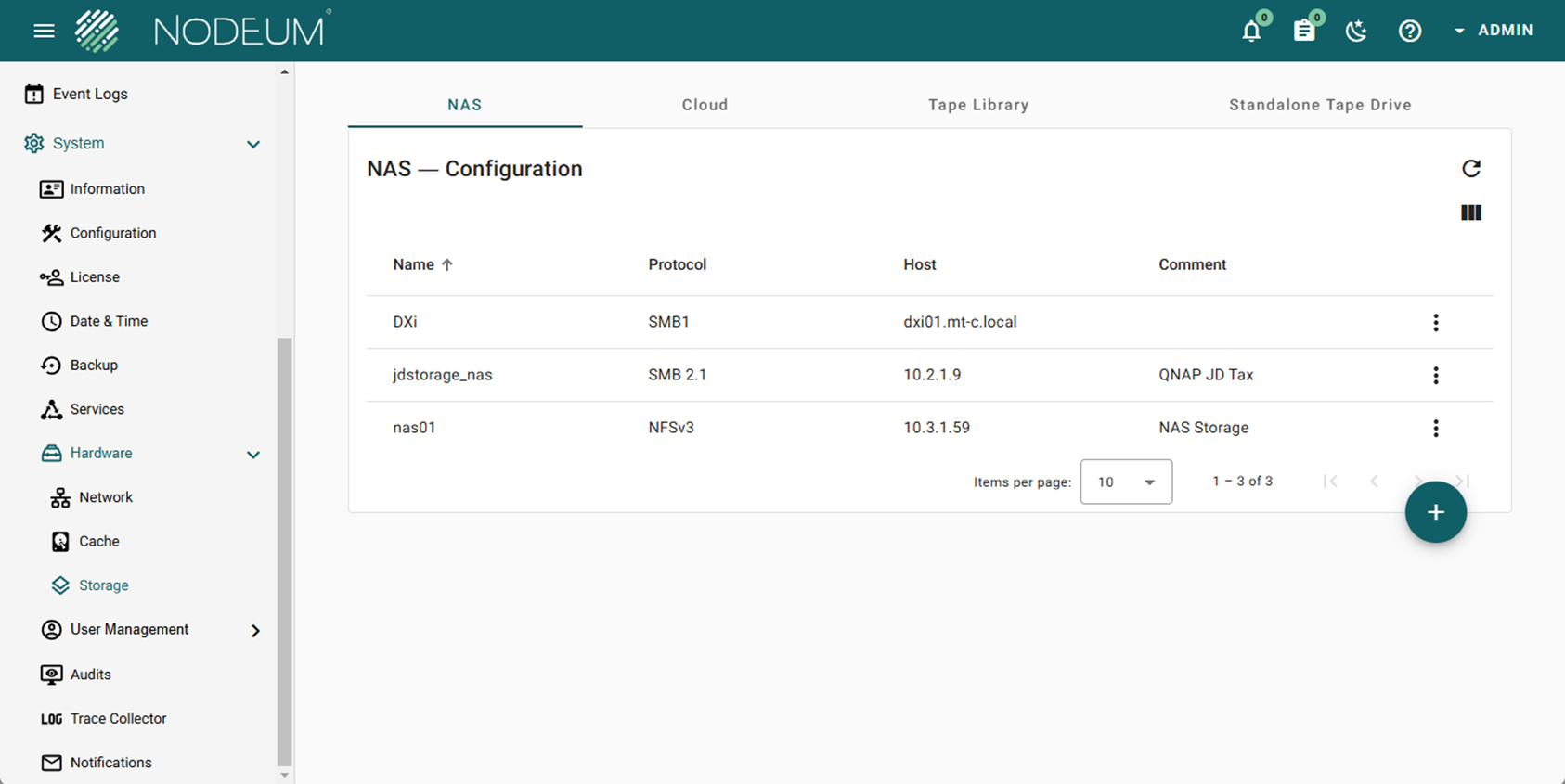
> System -> Hardware -> Storages -> NAS&#x20;

<figure><img src="https://1946775891-files.gitbook.io/~/files/v0/b/gitbook-x-prod.appspot.com/o/spaces%2FgzbGsZqZH8Ro8zxRYgwn%2Fuploads%2FUeRsc93WcEYoBHPt393B%2Fimage.png?alt=media&#x26;token=84a7a27a-13e7-494f-b43b-b7e49ecf9dc9" alt=""><figcaption></figcaption></figure>

* [ ] To add a SMB Storage, click the button

<div align="center" data-full-width="true"><figure><img src="https://1946775891-files.gitbook.io/~/files/v0/b/gitbook-x-prod.appspot.com/o/spaces%2FgzbGsZqZH8Ro8zxRYgwn%2Fuploads%2FN1Kt4aG47e0yu8kCNXur%2Fimage.png?alt=media&#x26;token=e646fa36-437c-41c9-a237-08a6760ac25f" alt="" width="33"><figcaption></figcaption></figure></div>

* [ ] Fill the following parameters to configure the storage :

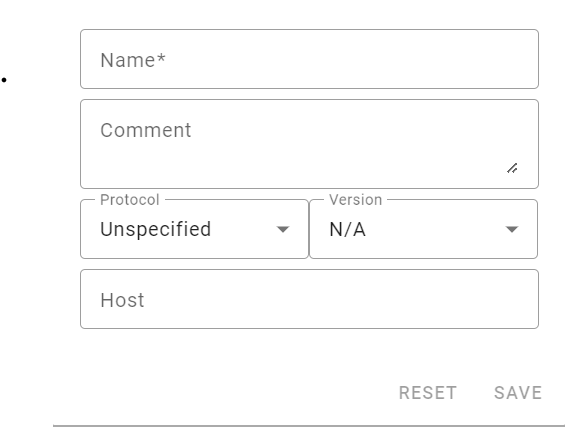
<figure><img src="https://1946775891-files.gitbook.io/~/files/v0/b/gitbook-x-prod.appspot.com/o/spaces%2FgzbGsZqZH8Ro8zxRYgwn%2Fuploads%2FWw1zcTIwFc3ExcuFr7jU%2Fimage.png?alt=media&#x26;token=66ef4262-b5a5-4713-bf87-10b2e6a454a4" alt=""><figcaption></figcaption></figure>

<table><thead><tr><th width="153">Parameters</th><th>Definition</th></tr></thead><tbody><tr><td>Name</td><td>Complete the name of the storage</td></tr><tr><td>Comment</td><td> </td></tr><tr><td>Protocol</td><td>Choose the protocol SMB or NFS</td></tr><tr><td>Version</td><td><p>Choose the version of the protocol</p><p>For SMB : Version 1 - 2.1 and 3.0</p><p>For NFS : Version 3 - 4</p></td></tr><tr><td>Host</td><td>Complete the Hostname</td></tr></tbody></table>

{% hint style="warning" %}
Once, the storage is configured, you need to map the target you want connect to Nodeum to run the Workflow.
{% endhint %}

### How to map NAS Target  ?

First, go to&#x20;

> Storage Services -> NAS

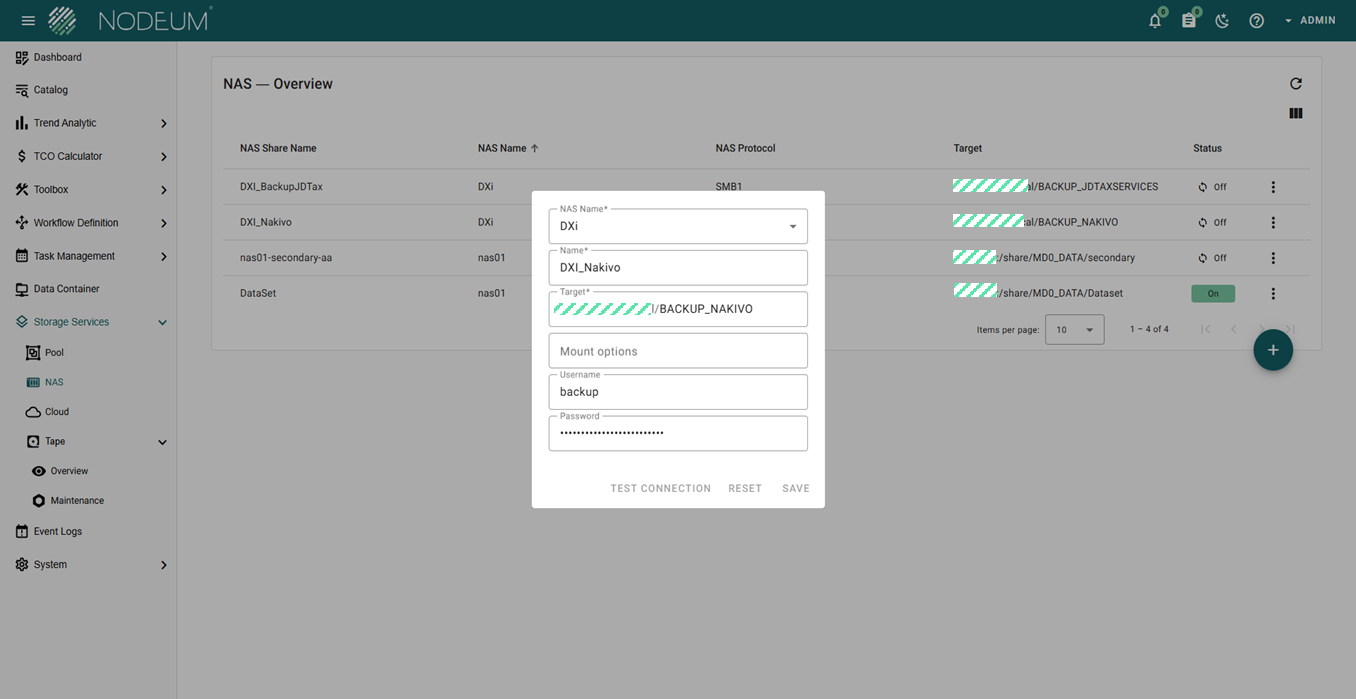
To add a NAS Target

<figure><img src="https://1946775891-files.gitbook.io/~/files/v0/b/gitbook-x-prod.appspot.com/o/spaces%2FgzbGsZqZH8Ro8zxRYgwn%2Fuploads%2FqcVKZWuImGarETHQVhlz%2Fimage.png?alt=media&#x26;token=a6b4b262-1d42-4acb-bfb5-6f1b3333a418" alt=""><figcaption><p>Nas Target</p></figcaption></figure>

* [ ] click the button &#x20;

<div align="center"><figure><img src="https://1946775891-files.gitbook.io/~/files/v0/b/gitbook-x-prod.appspot.com/o/spaces%2FgzbGsZqZH8Ro8zxRYgwn%2Fuploads%2FN1Kt4aG47e0yu8kCNXur%2Fimage.png?alt=media&#x26;token=e646fa36-437c-41c9-a237-08a6760ac25f" alt="" width="33"><figcaption></figcaption></figure></div>

* [ ] Fill the following parameters to configure the storage :

![](https://www.nodeum.io/hubfs/image-23.png)

## NFS Storage

<div align="left"><figure><img src="https://1946775891-files.gitbook.io/~/files/v0/b/gitbook-x-prod.appspot.com/o/spaces%2FgzbGsZqZH8Ro8zxRYgwn%2Fuploads%2FUnnAkH7ii4lypumz8mF9%2Flabel%20Available%20in%20V1%20V2%400.5x.png?alt=media&#x26;token=744af268-10f8-437a-8684-2fb7584cdb68" alt=""><figcaption></figcaption></figure></div>

### Configuration

Go into:

> System -> Hardware -> Storages -> NAS

* [ ] To add a NFS Storage, click the button

  <div align="left" data-full-width="true"><figure><img src="https://1946775891-files.gitbook.io/~/files/v0/b/gitbook-x-prod.appspot.com/o/spaces%2FgzbGsZqZH8Ro8zxRYgwn%2Fuploads%2FN1Kt4aG47e0yu8kCNXur%2Fimage.png?alt=media&#x26;token=e646fa36-437c-41c9-a237-08a6760ac25f" alt="" width="33"><figcaption></figcaption></figure></div>
* [ ] Fill the following parameters to configure the storage :&#x20;

<table><thead><tr><th width="153">Parameters</th><th>Definition</th></tr></thead><tbody><tr><td>Name</td><td>Complete the name of the storage</td></tr><tr><td>Comment</td><td> </td></tr><tr><td>Protocol</td><td>Choose the protocol SMB or NFS</td></tr><tr><td>Version</td><td><p>Choose the version of the protocol</p><p>For SMB : Version 1 - 2.1 and 3.0</p><p>For NFS : Version 3 - 4</p></td></tr><tr><td>Host</td><td>Complete the Hostname</td></tr></tbody></table>

{% hint style="info" %}
Once, the storage is configured, you need to map the target you want connect to Nodeum to run the Workflow.
{% endhint %}

### How to map NFS Target  ?

> Storage Services -> NAS

Add a NFS Target,&#x20;

* [ ] click the button &#x20;

<div align="left"><figure><img src="https://1946775891-files.gitbook.io/~/files/v0/b/gitbook-x-prod.appspot.com/o/spaces%2FgzbGsZqZH8Ro8zxRYgwn%2Fuploads%2FN1Kt4aG47e0yu8kCNXur%2Fimage.png?alt=media&#x26;token=e646fa36-437c-41c9-a237-08a6760ac25f" alt="" width="33"><figcaption></figcaption></figure></div>

* [ ] Fill the following parameters to configure the storage :

{% hint style="warning" %}
If you encounter an error when attempting to mount an NFS target in a Docker deployment, such as "Can't mount nas01.domain.local:/share/volumes/data/", consider adding the `nolock` option to the mount options
{% endhint %}

## Mounted File System Storage

<div align="left"><figure><img src="https://1946775891-files.gitbook.io/~/files/v0/b/gitbook-x-prod.appspot.com/o/spaces%2FgzbGsZqZH8Ro8zxRYgwn%2Fuploads%2FogNxP8QcuX4e9jt2bU67%2Flabel%20Available%20in%20V2%400.5x.png?alt=media&#x26;token=d4fb8aaf-93c9-4ca7-9be7-7617d5286252" alt=""><figcaption></figcaption></figure></div>

### Configuration

Go into:

> System -> Hardware -> Storages -> NAS

* [ ] To add a new storage "Mounted File System", click the button

  <div align="left" data-full-width="true"><figure><img src="https://1946775891-files.gitbook.io/~/files/v0/b/gitbook-x-prod.appspot.com/o/spaces%2FgzbGsZqZH8Ro8zxRYgwn%2Fuploads%2FN1Kt4aG47e0yu8kCNXur%2Fimage.png?alt=media&#x26;token=e646fa36-437c-41c9-a237-08a6760ac25f" alt="" width="33"><figcaption></figcaption></figure></div>
* [ ] Complete the form with this information

<div align="left"><figure><img src="https://1946775891-files.gitbook.io/~/files/v0/b/gitbook-x-prod.appspot.com/o/spaces%2FgzbGsZqZH8Ro8zxRYgwn%2Fuploads%2FrBr8qMWWFDGuA4g3erQf%2Fimage.png?alt=media&#x26;token=437dcdc3-97a9-404c-8d08-c581e511fce4" alt="" width="283"><figcaption></figcaption></figure></div>

<table><thead><tr><th width="153">Parameters</th><th>Definition</th></tr></thead><tbody><tr><td>Name*</td><td>Complete the name you <mark style="background-color:red;">define in the toml (ansible playbook)</mark>          </td></tr><tr><td>Comment</td><td> </td></tr><tr><td>Protocol</td><td>Choose unspecified <mark style="background-color:red;">(<strong>+++ Mandatory</strong>)</mark></td></tr><tr><td>Host</td><td>Complete the Hostname</td></tr></tbody></table>

{% hint style="warning" %}
Mandatory to have the same name as the name writing in the toml (parent\_name)                                               &#x20;
{% endhint %}

### How to map a Target  ?

First, go to &#x20;

> Storage Services -> NAS

To add a Target,&#x20;

* [ ] click the button &#x20;

<div align="left"><figure><img src="https://1946775891-files.gitbook.io/~/files/v0/b/gitbook-x-prod.appspot.com/o/spaces%2FgzbGsZqZH8Ro8zxRYgwn%2Fuploads%2FN1Kt4aG47e0yu8kCNXur%2Fimage.png?alt=media&#x26;token=e646fa36-437c-41c9-a237-08a6760ac25f" alt="" width="33"><figcaption></figcaption></figure></div>

* [ ] Fill the following parameters to configure the storage :

![](https://www.nodeum.io/hubfs/image-23.png)

<table><thead><tr><th width="174">Parameters</th><th>Definition</th></tr></thead><tbody><tr><td>NAS Name*</td><td>Select the NAS         </td></tr><tr><td>Name*</td><td>Give a name for your target </td></tr><tr><td>Target</td><td>Use the target Path</td></tr><tr><td>Mount Options</td><td></td></tr><tr><td>Username </td><td></td></tr><tr><td>Password</td><td></td></tr></tbody></table>

## NAS Overview&#x20;

After to have configured the differents NAS Storage (SMB, NFS or Mounted File System), a complete view is provided to see the status of the NAS Storage&#x20;

### Status&#x20;

<table><thead><tr><th width="174">Status</th><th width="158.33333333333331">Definition</th><th>Comments</th></tr></thead><tbody><tr><td><img src="https://mt-c-storage.atlassian.net/wiki/download/attachments/631734295/image2019-9-16_15-26-49.png?version=1&#x26;modificationDate=1568640410526&#x26;cacheVersion=1&#x26;api=v2" alt=""></td><td>NAS is Online</td><td> </td></tr><tr><td><img src="https://mt-c-storage.atlassian.net/wiki/download/attachments/631734295/image2019-9-16_15-27-25.png?version=1&#x26;modificationDate=1568640447877&#x26;cacheVersion=1&#x26;api=v2" alt=""></td><td>NAS is Offline</td><td>To reconnect the NAS, just push on the button to refresh the connection</td></tr></tbody></table>

{% hint style="info" %}
The name of a NAS Storage is unique. &#x20;

You can't have several NAS Storage with the same Name.  If you delete a NAS Storage which are already used by workflow, the system refused to create a new NAS with the same name.
{% endhint %}

{% hint style="warning" %}
After the creation of a user, it's required to give the rights and privileges to the user to access to your NAS Storage.

If the user haven't access, the tasks and operation inside Nodeum will be impossible.
{% endhint %}

### Security Mode <a href="#primarystorageconfiguration-securitymode" id="primarystorageconfiguration-securitymode"></a>

Allowed values are in mount options if needed :

The default in mainline kernel versions prior to v3.8 was sec=ntlm.  In v3.8, the default was changed to sec=ntlmssp.

| mount options | definition                                                                                |
| ------------- | ----------------------------------------------------------------------------------------- |
| sec =         |                                                                                           |
| none          | attempt to connection as a null user (no name)                                            |
| krb5          | Use Kerberos version 5 authentication                                                     |
| krb5i         | Use Kerberos authentication and forcibly enable packet signing                            |
| ntlm          | Use NTLM password hashing                                                                 |
| ntlmi         | Use NTLM password hashing and force packet signing                                        |
| ntlmv2        | Use NTLMv2 password hashing                                                               |
| ntlmv2i       | Use NTLMv2 password hashing and force packet signing                                      |
| ntlmssp       | Use NTLMv2 password hashing encapsulated in Raw NTLMSSP message                           |
| ntlmsspi      | Use NTLMv2 password hashing encapsulated in Raw NTLMSSP message, and force packet signing |