System Notifications
System Notifications
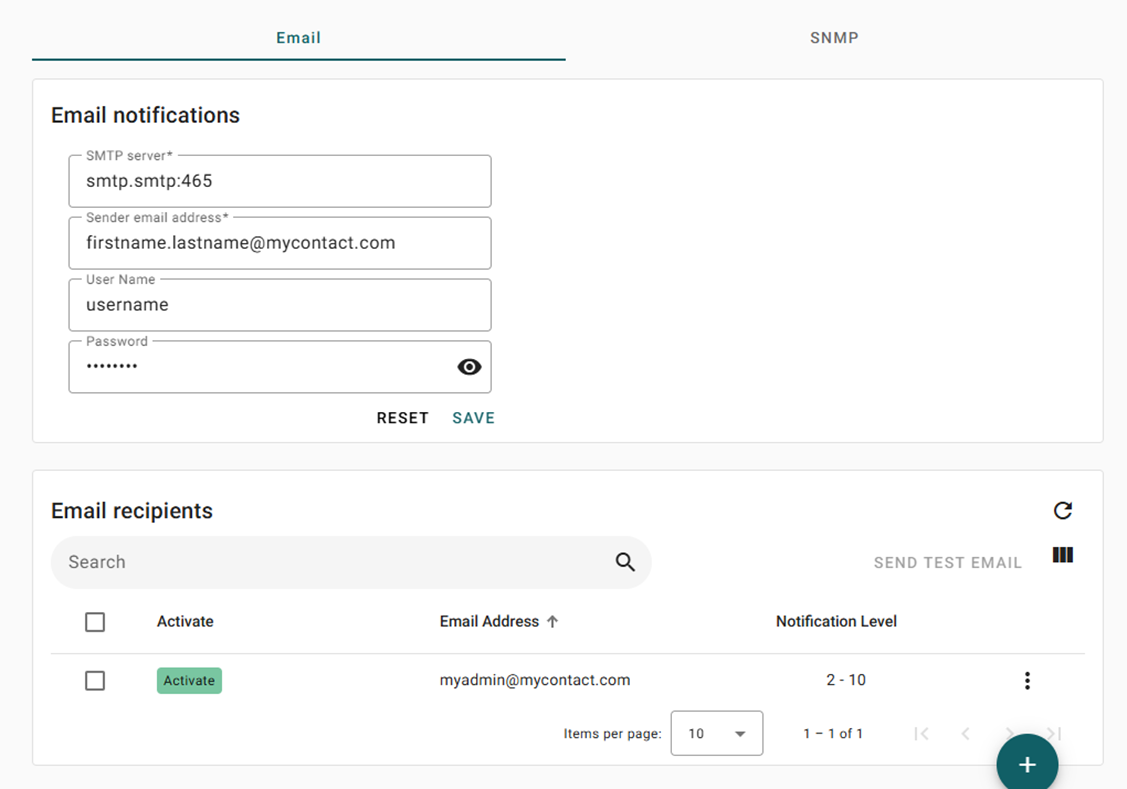
| Hostname | relay.edpnet.be |
| From Email address | any type of email address |
| User Name | empty if your SMTP server doesn’t required any authentication |
| Password | empty if your SMTP server doesn’t required any authentication |
| Hostname | smtp.office365.com |
| From Email address | this has to be an email address which is recognized into your Office 365 account. |
| User Name | This has to be an authorized email address from your Office 365 organization. |
| Password | This is the password linked to the Username specified below. |
| Hostname | smtp.gmail.com:587 |
| From Email address | this has to be an email address which is recognized into your Google Mail account. |
| User Name | This has to be an authorized email address in your Google Mail organization. |
| Password | For passwords, it is required to create an App password in Google portal. This will allows to by pass the 2FA mechanism. |
SNMP
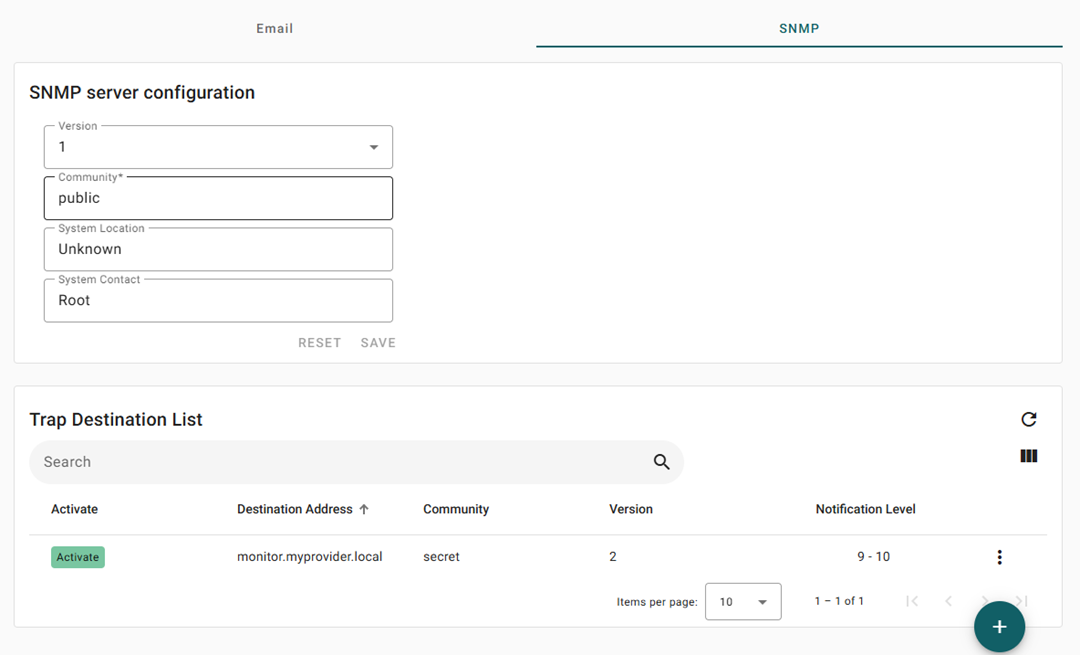
| Version | SNMP version you want to configure. |
| Community | The community string you want to use; by default public should be used. |
| System Location | not mandatory but can be useful to define the solution location. |
| System Contact | not mandatory but can be useful to define the solution point of contact. |
| Destination address | Hostname or IP address of the server where the trap has to be sent. |
| Community | The community string which is configured in your trap handler software. |
| Version | SNMP version which is supported by your trap handler software. |
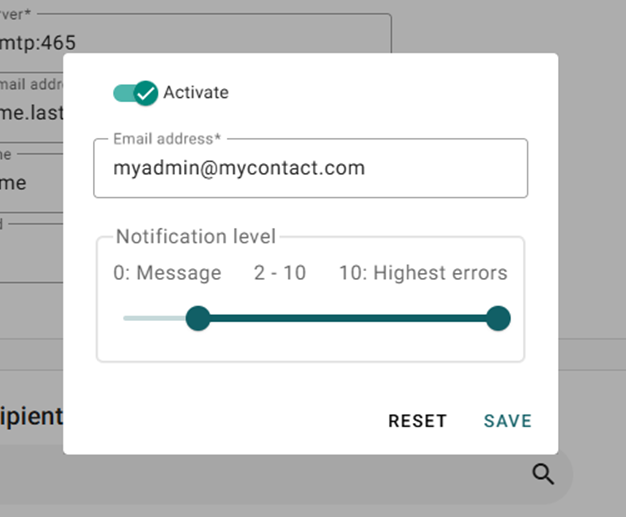
| Notification level | Define the level of severity that will trigger the SNMP trap messages. (see point 3) |
| 0 | Message | Action Notification: Level 0 Activation Required To receive notifications regarding task completion, please activate Level 0. |
| 1 | Information | Severity Level: Informational This message serves as an informational notice, indicating that no error has occurred. No response is necessary. It may signal ongoing operations or the successful completion of a task. |
| 2 | Warning | This message indicates a potential error where the software defaults to supplanted input due to missing data. The operation's outcome is assumed to align with the user's intent. |
| 3 | Error | Error Detection and Recovery Notice An error has been detected. While automatic recovery procedures were likely applied, and processing continued, a default input may have been substituted. Consequently, the operation's results might be invalid. The function may only be partially complete; for instance, while some items in a list may be processed correctly, others might fail. |
| 4 | Severe | Error Handling Notification Issue: A critical error occurred that cannot be automatically resolved. Default settings cannot be applied. Implications:
Outcome: The operation results are invalid. |
| 5 | Abnormal End of Program or Function | The operation concluded, either due to invalid data handling issues or a user termination. |
| 6 | Abnormal End of Task | The task was either not initiated or did not complete successfully. Potential issues include a routing step failing to start or ending unexpectedly, a job-level function not being executed as required, or the overall job being terminated. |
| 7 | System Status | This type of urgent message is sent exclusively to the system operator, providing either a status update or a warning concerning a device, subsystem, or the entire system. |
| 8 | Device Integrity | A message of this severity is sent solely to the system operator. It indicates a device malfunction or that a device is no longer operational. You might restore system operation yourself, or you may need the help of a service representative. |
| 9 | System Alert | A message of this severity is issued only to the system operator. It warns of a condition that, although not severe enough to stop the system now, could become more severe unless preventive measures are taken. |
| 10 | System Integrity | A severe message is issued solely to the system operator. It details a condition that makes a subsystem or the entire system non-functional. |