> For the complete documentation index, see [llms.txt](https://docs.nodeum.io/llms.txt). Markdown versions of documentation pages are available by appending `.md` to page URLs; this page is available as [Markdown](https://docs.nodeum.io/data-archiving/console/system-settings/general-configuration.md).
# General Configuration
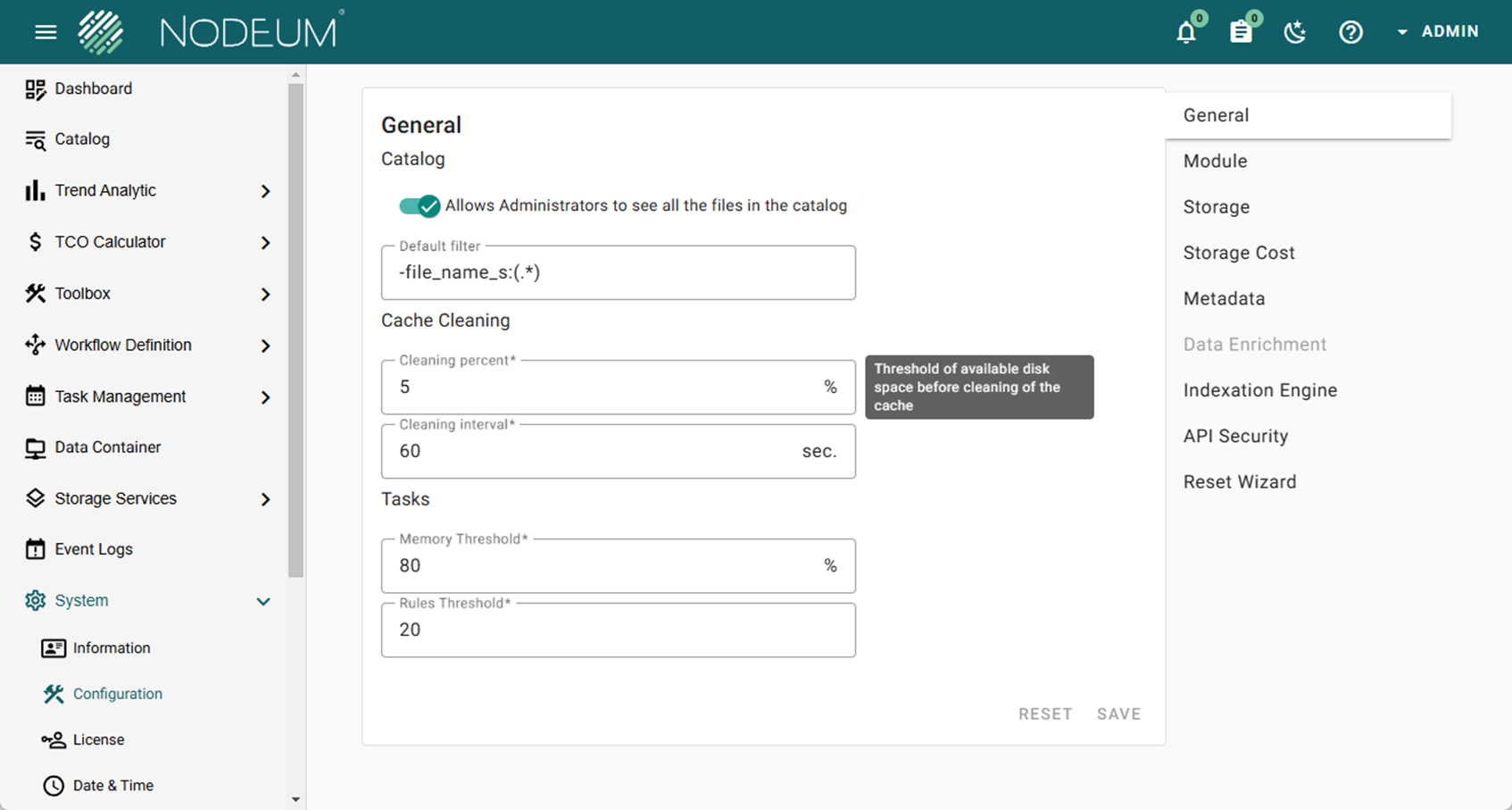
### Catalog
**Administrator View Access**
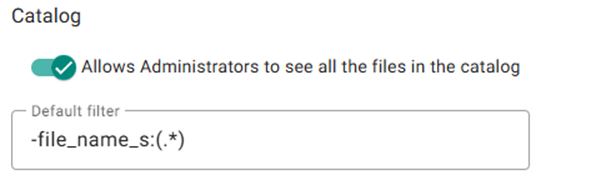
If enabled, all Administrator accounts can view all catalog contents. If disabled, Administrators can only view files they are authorized to access.
**Default Filter**
Configure filters to limit catalog visibility.
### **Cache Cleaning Parameters**
* **Cache Delay:** The default value is 900 seconds. This setting determines how many seconds must pass before a file qualifies for automatic cache cleaning.
* **Cleaning Percentage:** The default value is 5%. If the available space (free space) is less than this percentage of the total cache size, automatic cache cleaning is triggered to free up space. This is only available for Tape and Active Archive Workflow.
### Task Parameters
#### Task Management Thresholds
* **Memory Threshold**: Defaults to 80%. This is the maximum percentage of memory usage allowed before a new task cannot start.
* **Rules Threshold**: Defaults to 20 tasks. This is the maximum number of active tasks allowed before a new task cannot start.
### Auditing configuration
> System -> Configuration
**Data Access Audit:** Review user file access for each container. Default settings are not enabled.
**Data Management Audit:** Perform an audit of user activities within the console. Default settings are not enabled.
### Debug Mode for support
**Active Debug Traces :** Enable detailed debug trace generation. This has to be enabled for troubleshooting.
{% hint style="warning" %}
**Caution:** Enabling debug mode may lead to large file generation, potentially overloading system disk space.
{% endhint %}
## Storage Tape
### Cache and Tape Management Settings
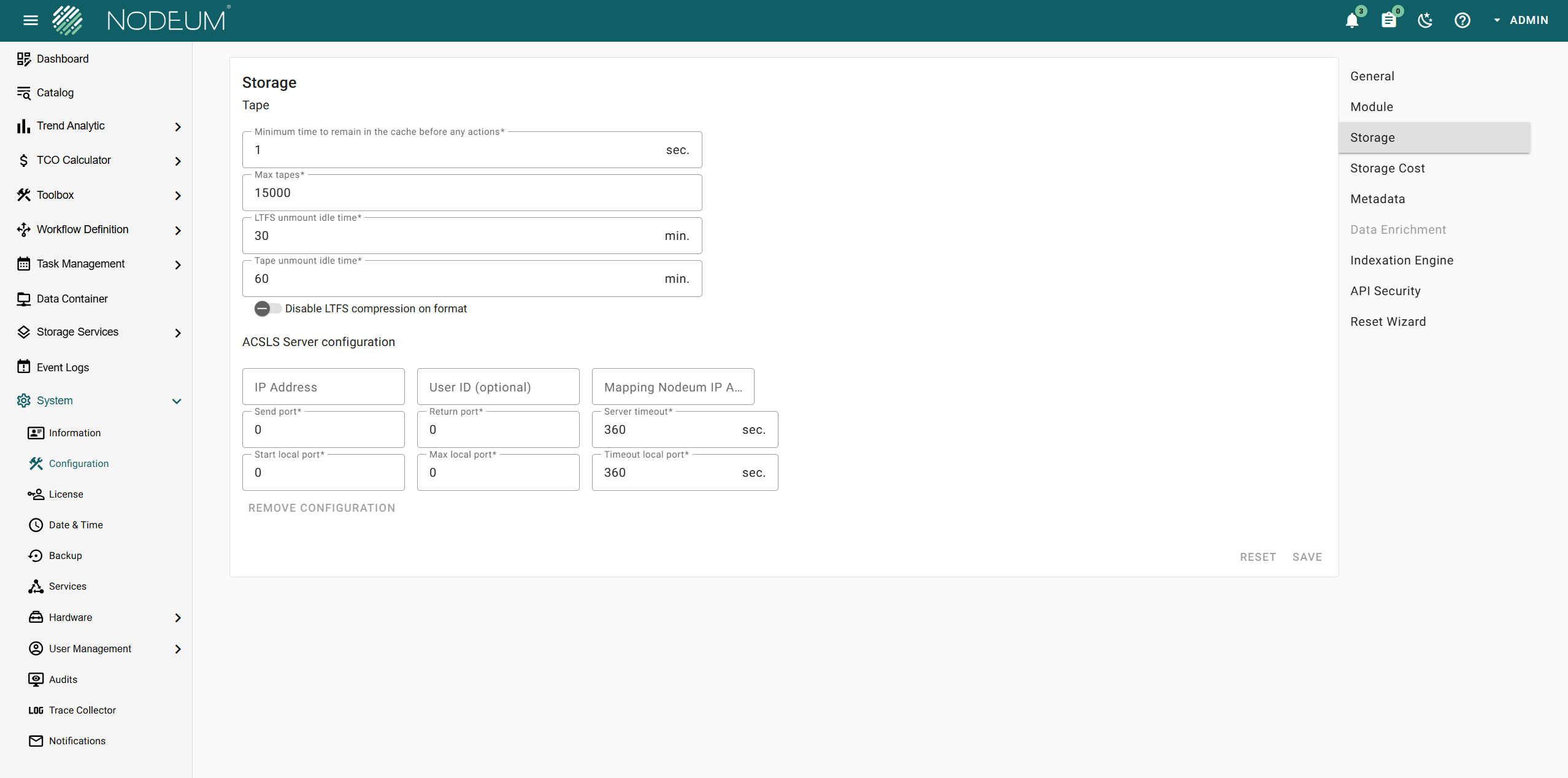
* **Cache Retention Time**: The minimum time temporary files remain in the cache before deletion. Default is 900 seconds (15 minutes).
* **Max Tapes Management**: Total tapes that can be managed by Nodeum. Adjustable with a default of 15,000.
* **LTFS Unmount Idle Time**: Duration of inactivity after which LTFS will unmount. Default is 30 minutes.
* **Tape Unmount Idle Time**: Duration of inactivity after which a tape will unmount. Default is 60 minutes.
* **Disable LTFS Compression**: LTFS compression can be disabled during formatting.
#### ACSLS Configuration Details
* **ACSLS Server IP Address**: Enter the complete IP address.
* **User ID**: Provide the user ID as defined in the ACSLS configuration.
* **Nodeum IP Address**: Specify the IP address of the Nodeum server for ACSLS connection.
* **Send Port**: Indicate the port used by ACSLS to accept requests.
* **Return Port**: Set the port for ACSLS to send back responses.
* **Server Timeout**: Define timeout duration for ACSLS to respond.
* **Start Local Port**: Specify the starting port range for environments with firewalls.
* **Max Local Port**: Determine the total number of ports, starting from the Start Local Port.
* **Timeout Local Port**: Indicate the timeout on the local port connection.
## Storage Cost
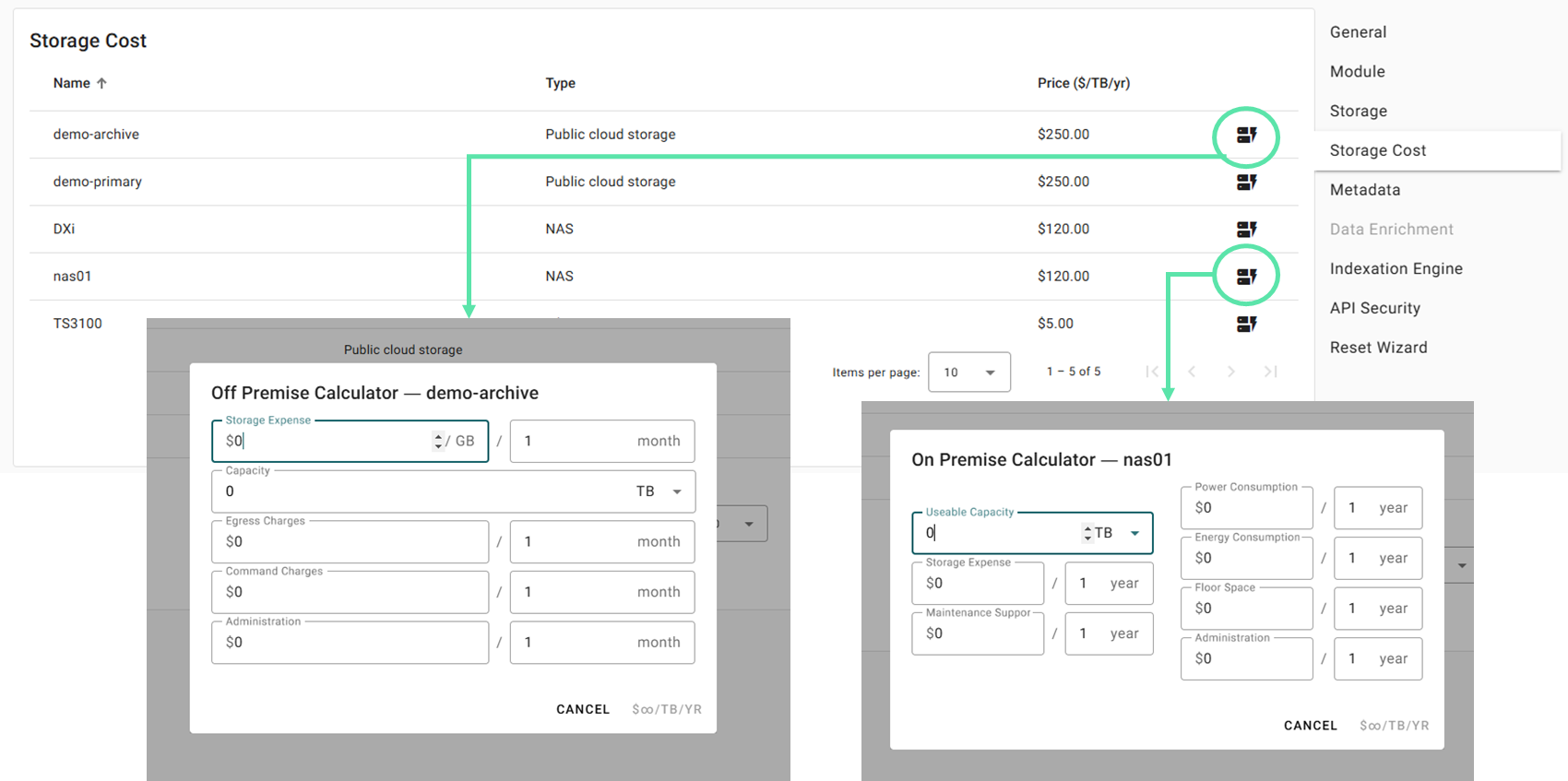
Specify the cost for any configured storage solution. Customize forms, whether the storage is on-premises or cloud-based. This is essential for using the TCO Calculator.
### Metadata System Configuration
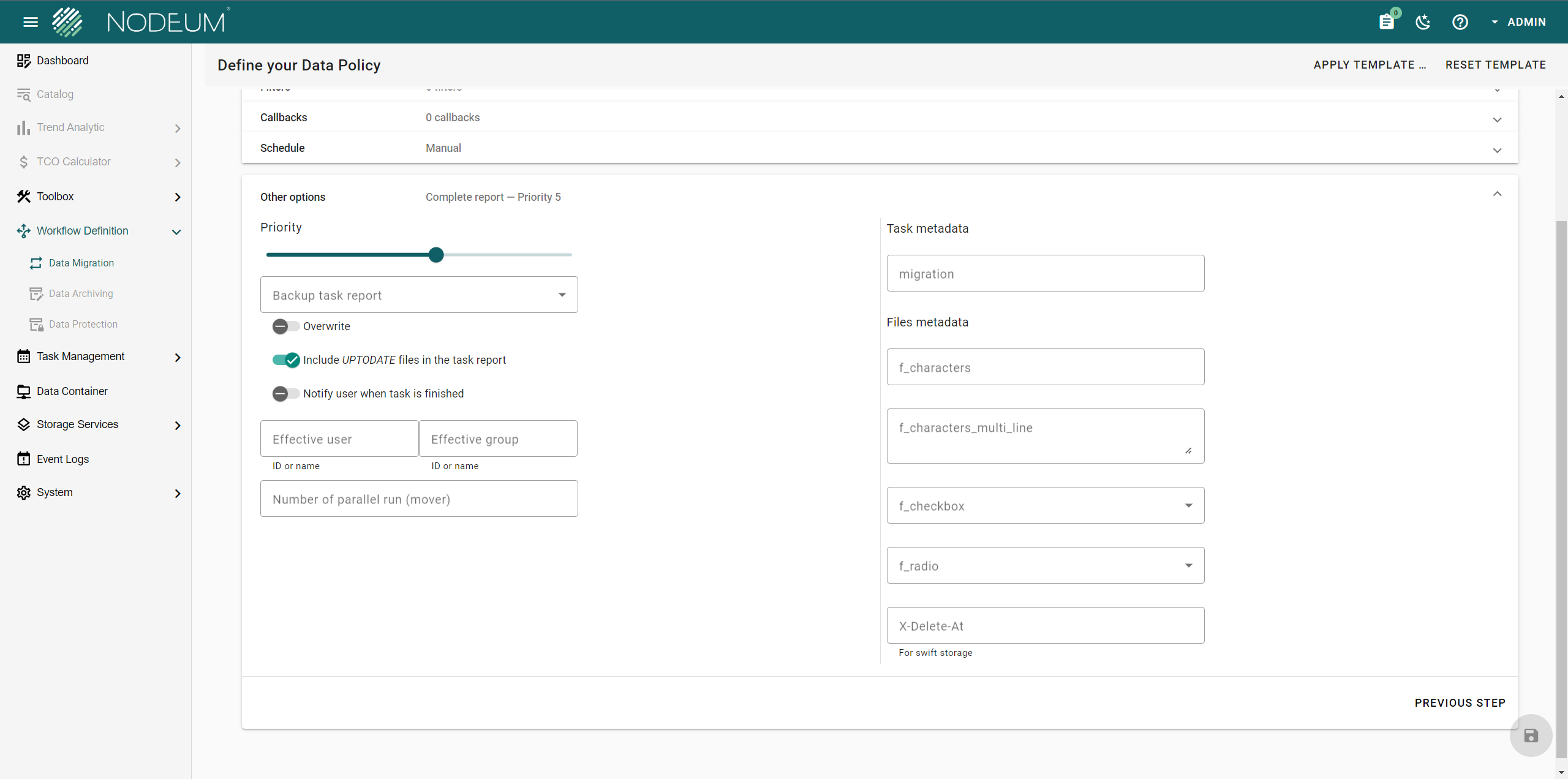
Define your file and task metadata to apply during workflow execution. You can configure different types of metadata, including:
* **Business Files Metadata**
* **Tasks Metadata**
System configuration metadata
### Business Files Metadata
Enhance your files with metadata to improve searchability and organize your data. Follow these steps to create and apply metadata during task execution:
1. **Add New Metadata**:
* Click the button to create metadata.
* Enter the metadata name and comments.
2. **Select Field Type**:
* Choose from:
* Characters
* Multi-line Characters
* Checkbox
* Radio Buttons
* For Checkbox or Radio Buttons, specify values. Press ENTER to add more values.
**Tasks Metadata**
Enhance your task metadata to improve searchability and organize your data effectively. Here's how to create and apply metadata during task execution:
1. **Create Metadata**
* Click to add a new Task Metadata.
* Enter the Metadata Name and provide comments about this Metadata.
* Select the applicable task types:
* Active Archive
* Offline Archive
* Data Exchange
* Maintenance
2. **Choose Field Type**
* Characters
* Multi-Line Characters
* Checkbox
* Radio Buttons
Once defined, you can utilize this metadata in the task creation interface to enrich your files.
## Indexation engine
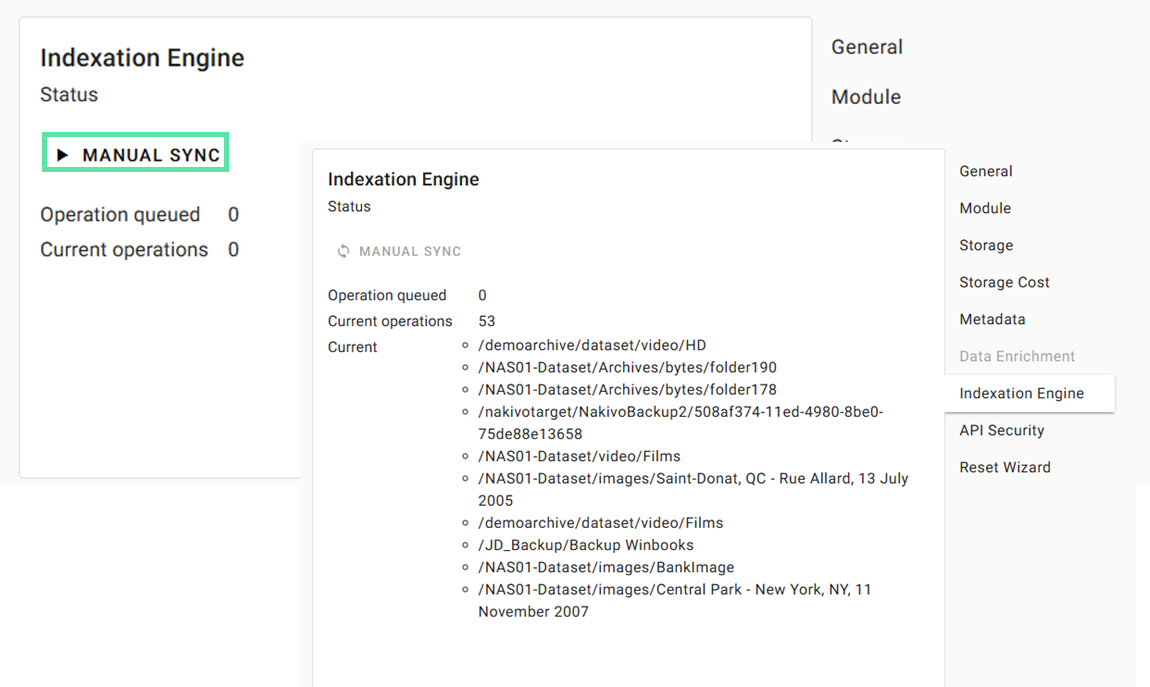
Monitor the content indexation status here. Indexation is automatic, so any newly discovered content is indexed immediately.
**Manual Synchronization**
Start a manual synchronization of all content to view the number of queued operations, those currently being processed, and a list of contents being indexed.
## API Security
> System -> Configuration -> API Security
#### Definition of CORS and API Token
**Cross-Origin Resource Sharing (CORS):**
CORS is a security feature implemented by web browsers to allow controlled access to resources hosted on different domains. It enables a server to specify who can access its assets and which HTTP methods are allowed from the cross-origin requests. CORS is vital for enabling safe and secure data exchange between different web applications.
**API Token:**
An API token is a unique identifier used to authenticate a user, developer, or calling program to an API. Tokens ensure that API requests are coming from legitimate sources, providing enhanced security. It acts as a key to access the API’s data and functionalities, often replacing the need for username and password authentication.
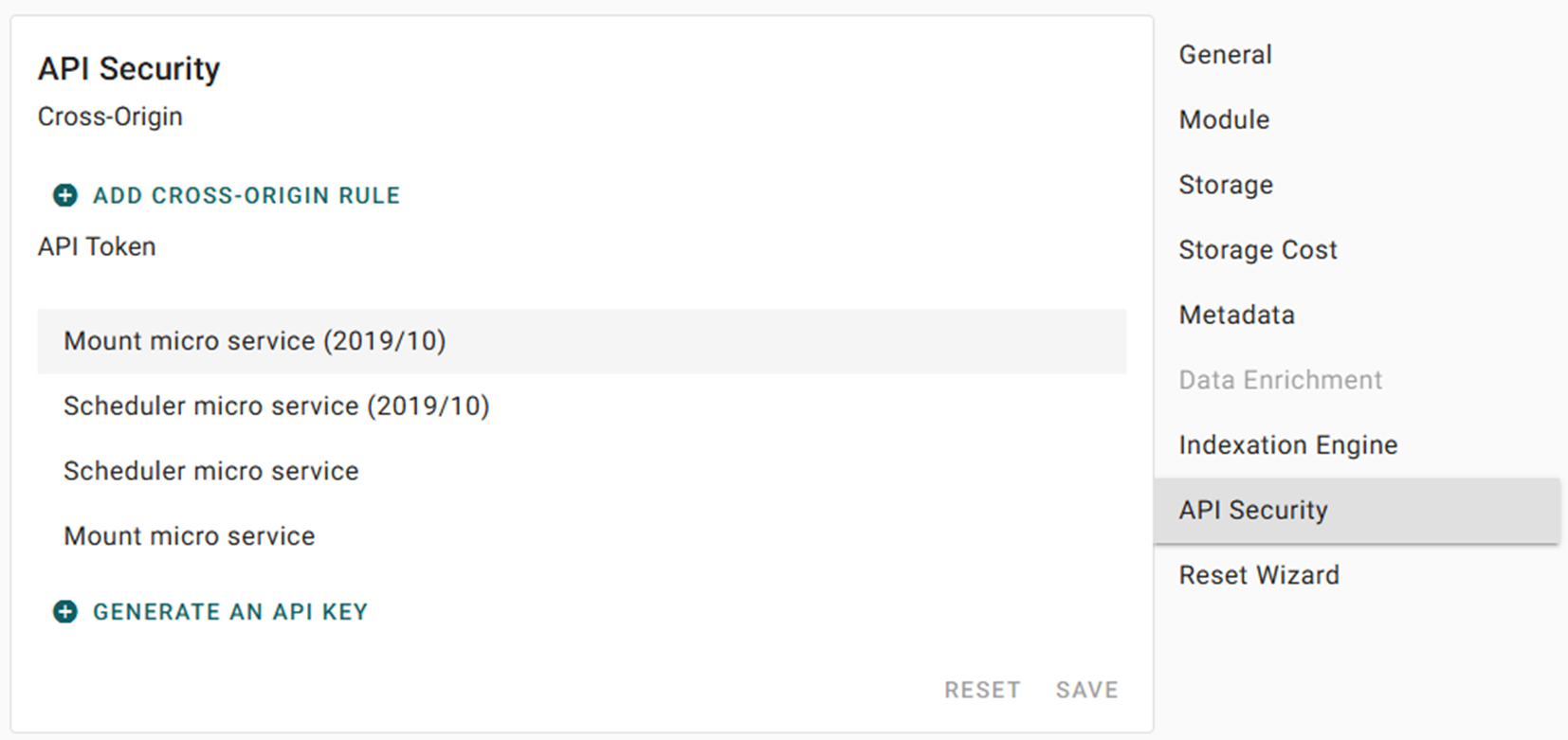
System Configuration API Security
#### API Cross-Origin (CORS) Configuration
In this section, you can define Cross-Origin Resource Sharing (CORS) settings for your API. You also have the option to create an API key.
**CORS Settings:**
* **Origins**: Define the authorized DNS domain, or use `*` to allow all domains.
* **Path**: Specify the API path URL, using `*` as a wildcard.
* **Methods**: Choose allowed HTTP methods, such as GET, POST, PUT, DELETE, or OPTIONS.
You can set multiple rules to tailor your CORS configuration to your needs.
System Configuration API Cors
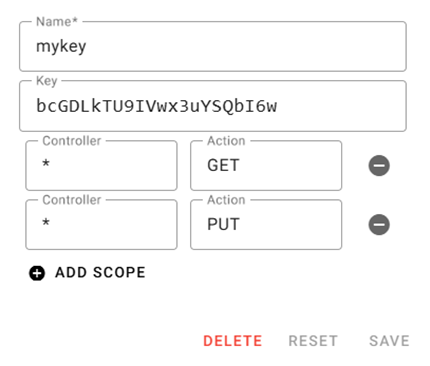
#### API Keys Authentication Guide
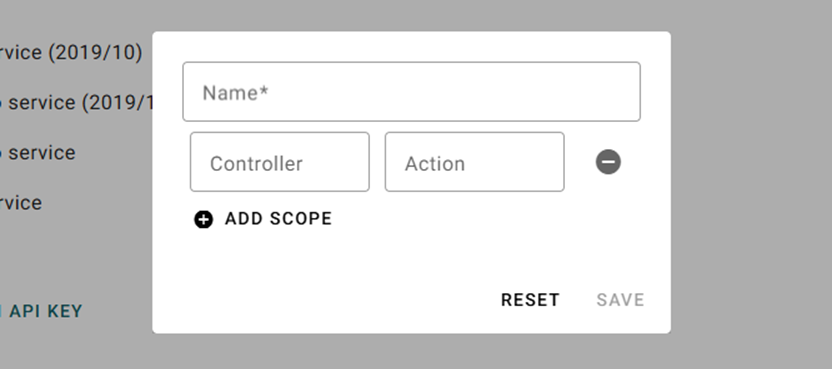
API keys authentication utilizes keys to manage access to RESTful API endpoints. This guide details how to generate and configure these keys.
**Parameters**
* **qName**: A customizable name you choose.
* **qController**: Designates the controller. Use `*` as a wildcard to permit access to all endpoints.
* **qAction**: Specifies the action associated with the controller. Use `*` as a wildcard to allow access to all actions.
Input:
For instance, if "Scope" is defined as: Controller: files and Action: index, this indicates that the API key grants access only to the controller's files and the action named index.
After clicking the "Save" button, the generated key will be displayed. Please ensure to make a copy, as it will only be shown once.
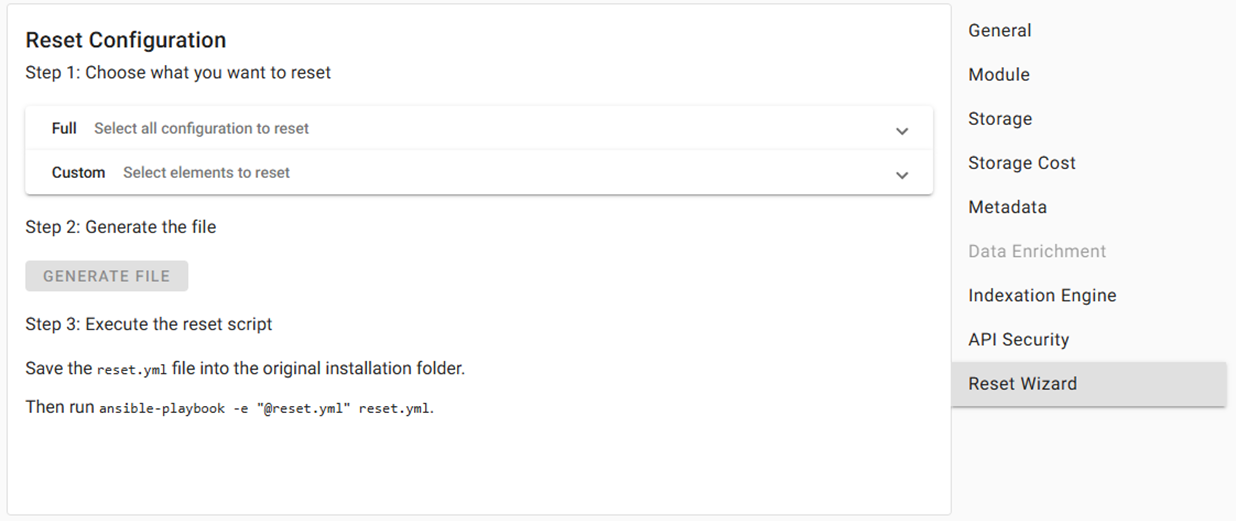
## Reset Wizard
#### Reset Wizard Guide
The Reset Wizard is an advanced feature designed to clean software configurations, including historical data such as executed tasks. This process involves two steps:
1. **Selection**: Choose the sections you wish to clean. After selection, an Ansible playbook will be generated.
2. **Execution**: Retrieve the playbook via an SSH session and execute it with root access.
---
# Agent Instructions
This documentation is published with GitBook. GitBook is the documentation platform designed so that both humans and AI agents can read, navigate, and reason over technical content effectively. Learn more at gitbook.com.
## Querying This Documentation
If you need additional information that is not directly available in this page, you can query the documentation by asking a question.
Perform an HTTP GET request on the following URL with the `ask` and `goal` query parameters:
```
GET https://docs.nodeum.io/data-archiving/console/system-settings/general-configuration.md?ask=&goal=
```
`ask` is the immediate question: it should be specific, self-contained, and written in natural language.
`goal` is what the user is ultimately trying to achieve, the reason they need the answer. Sharing it helps GitBook give you a better, more relevant answer. A goal is most helpful when it describes the outcome the user wants rather than restating the question. For example, with `ask=how do I create an API token`, a goal like `automate deployments from our CI pipeline` lets GitBook tailor the answer to that use case.
The response will contain a direct answer to the question and relevant excerpts and sources from the documentation.
Use this mechanism when the answer is not explicitly present in the current page, you need clarification or additional context, or you want to retrieve related documentation sections.